
Create a tri-fold brochure for a consulting studio. Use a Swiss editorial grid, bold orange accents, concise service sections, and a clear contact panel.
Tri-fold4:3Modern
Create and edit tri-fold, bi-fold, and one-page brochures by chatting with AI—no design editor required. Work from desktop or mobile, then export as PNG, JPG, or PDF.
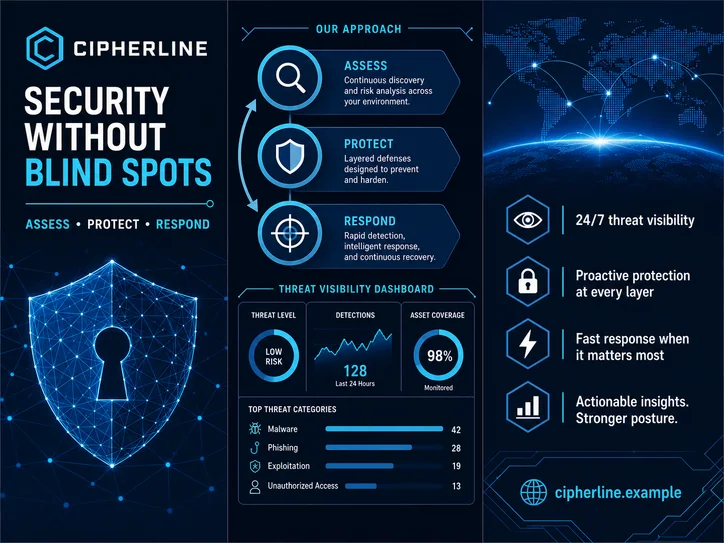
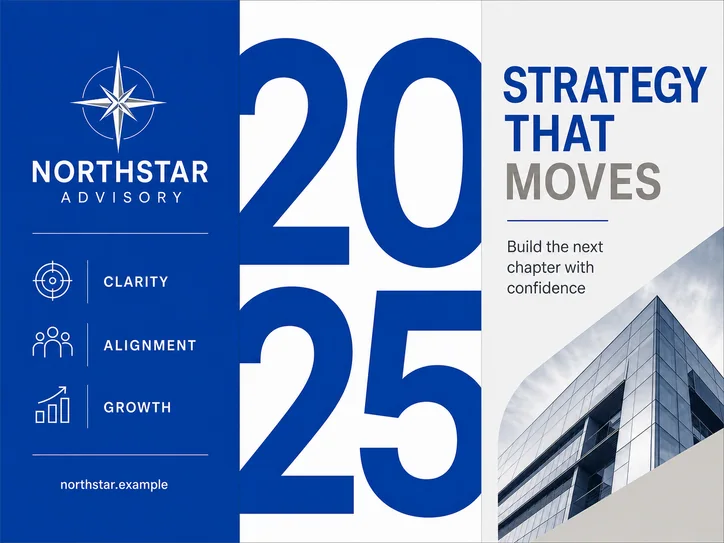
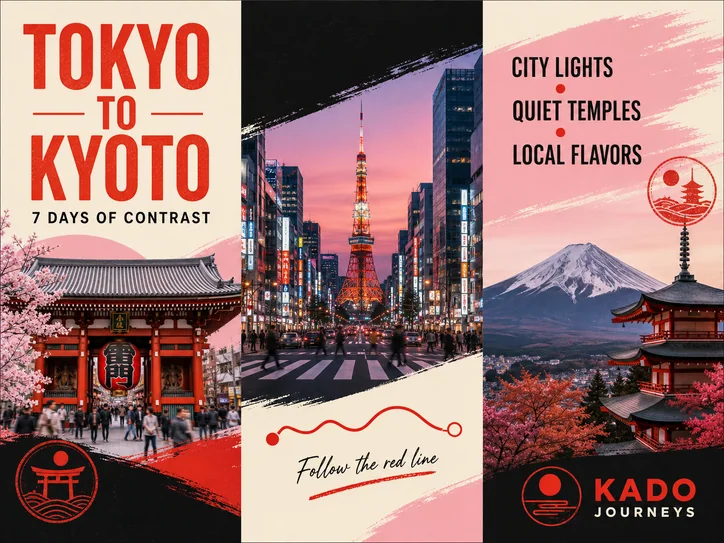
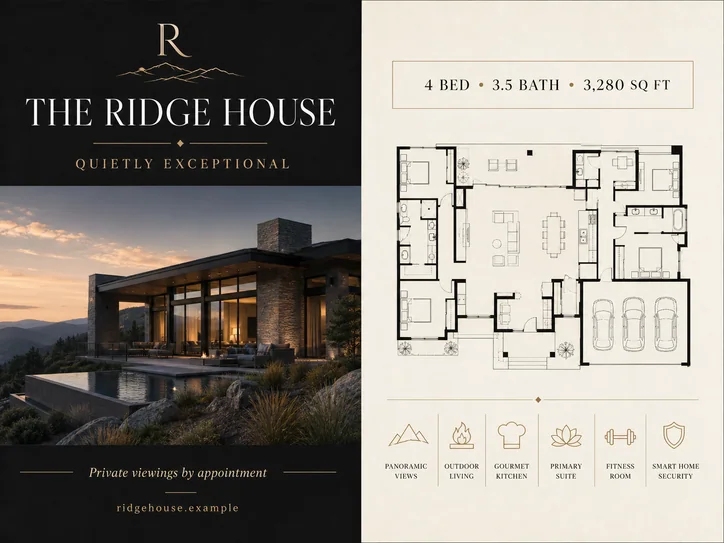
Conversational creation
Describe the brochure you need, then refine every panel through chat—without managing a canvas, layers, or design software.
Create a tri-fold brochure for a consulting studio. Use a Swiss editorial grid, bold orange accents, concise service sections, and a clear contact panel.
Tell Vismuse who the brochure is for, what it should achieve, which format you need, and what readers should do next.
Add the headlines, services, contact details, brand colors, images, and references you want included.
Create a complete tri-fold, bi-fold, Z-fold, or one-page layout on desktop or mobile—without managing a canvas, layers, or design tools.
Ask for changes to the text, panel layout, images, or colors, then export the finished brochure as PNG, JPG, or PDF.
Swiss ConsultingCybersecurity Services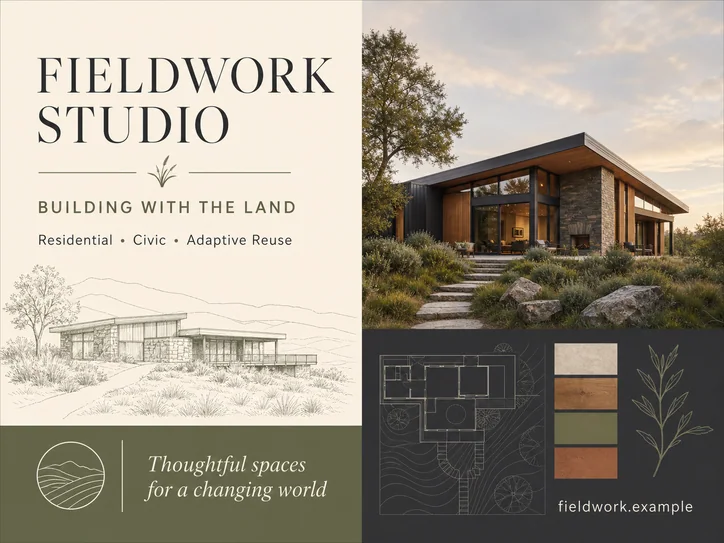 Sustainable ArchitectureLuxury PropertyJapan City Journey
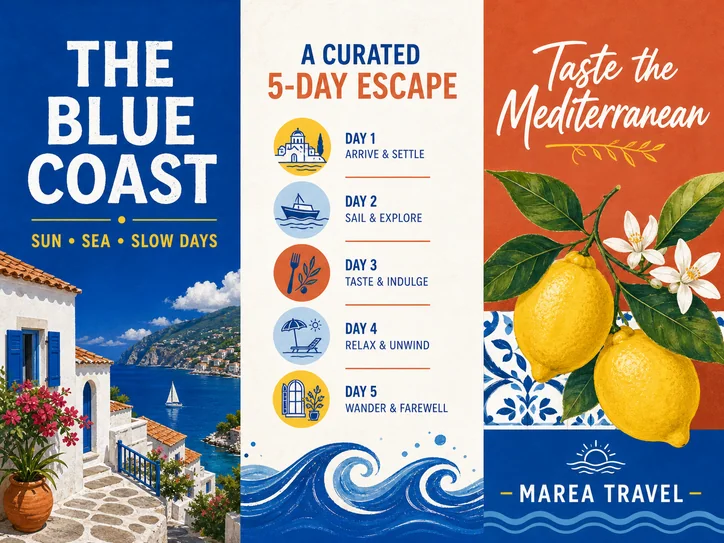 Mediterranean Escape
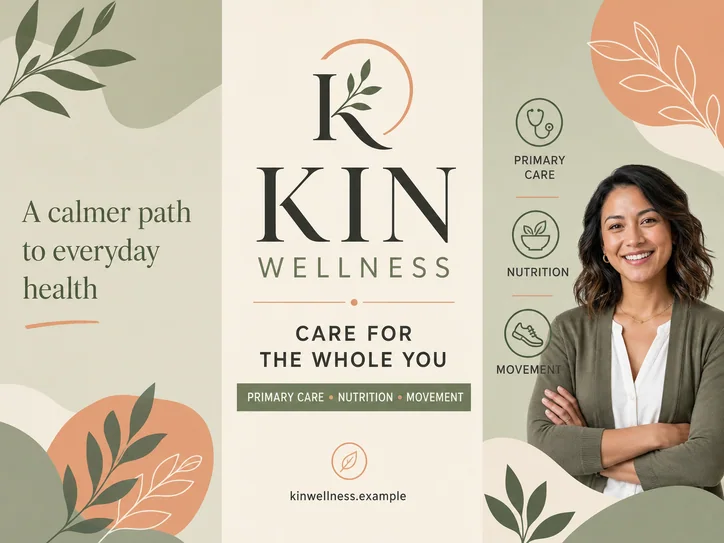 Wellness Clinic
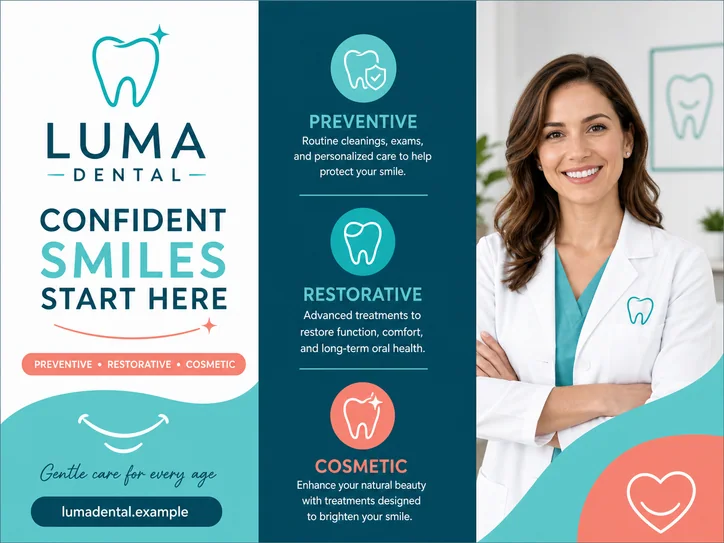 Modern Dental Care
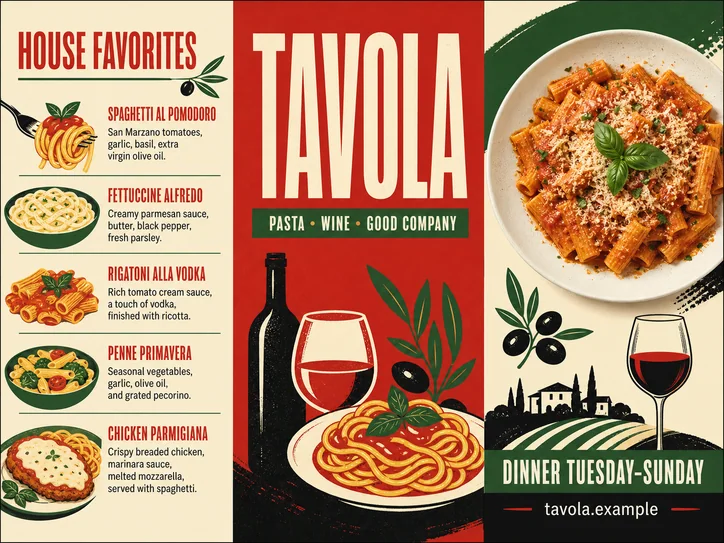 Modern Bistro Menu
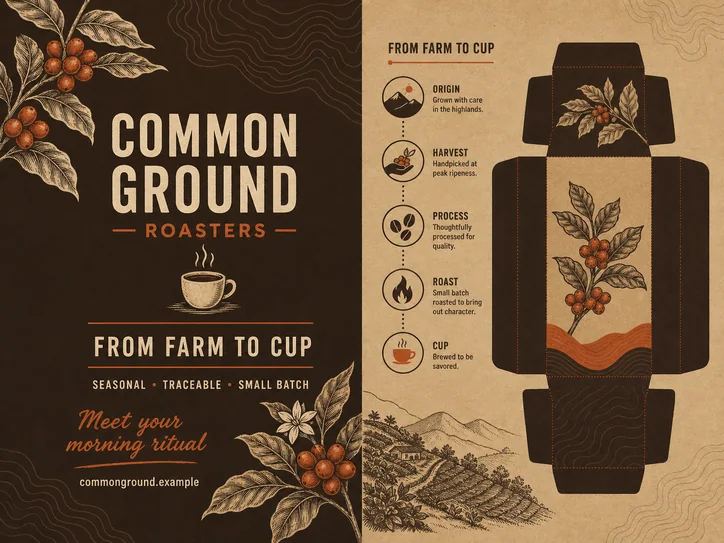 Coffee Roastery
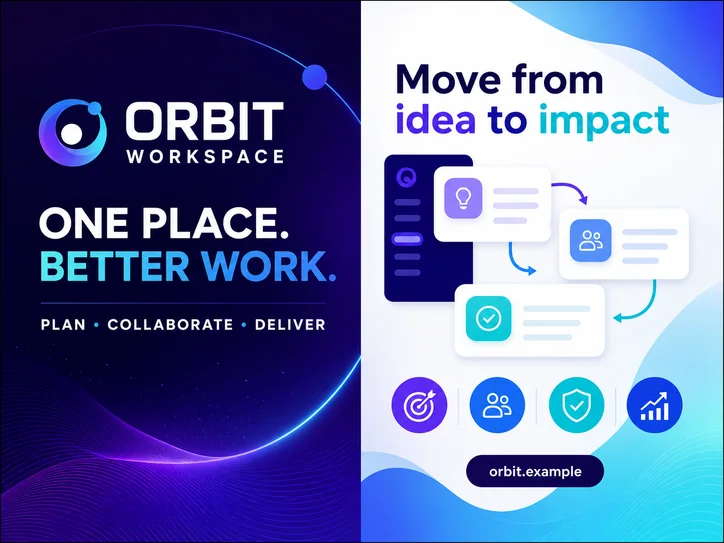 SaaS Product Overview
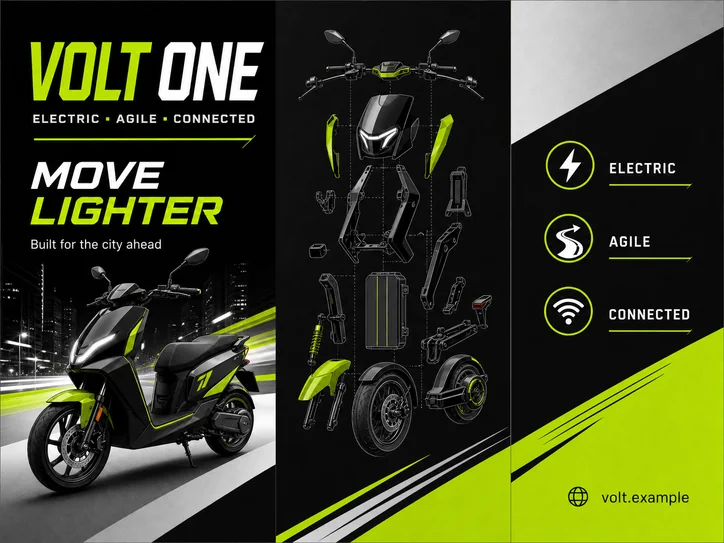 Electric Mobility
Describe the audience, message, format, and visual direction. Vismuse organizes the cover, sections, key benefits, and call to action into a clear multi-panel design—without a traditional editor.
Create through chatCreate company profiles, product brochures, property listings, travel guides, healthcare materials, restaurant brochures, and event collateral wherever you work.
Create through chatStay in the same conversation to revise headlines, shorten sections, replace images, change colors, or improve one panel. When it is ready, export the brochure as PNG, JPG, or PDF.
Create through chat
Start by describing the brochure’s purpose, audience, format, sections, text, and brand direction. Vismuse creates the first draft, and you edit it by describing the changes you want—no traditional design editor required.
You can create flat unfolded tri-fold, bi-fold, and Z-fold layouts, plus one-page company, product, service, property, travel, and event brochures.
Yes. Upload the source images or references you want Vismuse to preserve and explain how each asset should be used in the brochure.
Yes. Continue the conversation and ask Vismuse to change the copy, panel structure, images, colors, spacing, or call to action. You do not need to manage layers or use a traditional design editor.
Yes. The workflow is mobile-friendly, so you can describe the brochure, upload references, review the result, request edits through chat, and export the finished design from your phone.
Yes. You can create brochures during a limited free trial. Trial downloads include a Vismuse watermark. An eligible one-time purchase or plan unlocks HD downloads without a watermark.
You can export the finished brochure as PNG or JPG for sharing and digital use, or as PDF when you need a document format for review, distribution, or print preparation.