
Burning Bridges sound
Post your Burning Bridges AI video with sound
Already have your clip? Check the downloaded soundtrack, choose the audio for each platform and preview the final mix before sharing.
Make another Burning Bridges video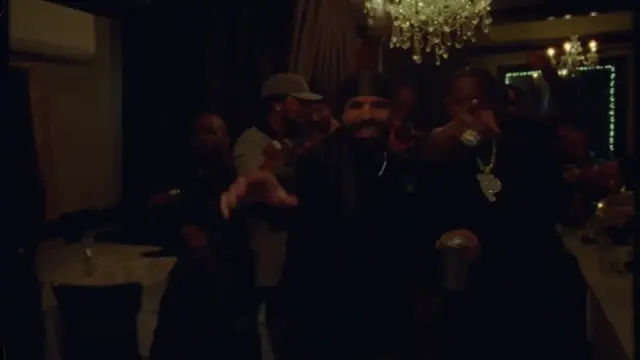
Quick answer: check the MP4, then choose one soundtrack
With reference audio enabled, Vismuse adds the matching source soundtrack to your exported Burning Bridges MP4. Play that file first. You can keep its audio if you have permission for the intended use, or mute it and add an available track inside the destination app.
Adding a platform sound does not guarantee that a post will stay unmuted. Track availability and permitted uses depend on the platform, account, region and current rights agreements. Check each destination separately.
- Silent downloaded file: check playback and the export before troubleshooting social apps.
- Sound locally, silence after posting: read the platform’s audio notice.
- Echo or doubled music: mute one of the two overlapping tracks.
Does a Vismuse Burning Bridges video include the song?
The current workflow exports the matching source recording when reference audio is enabled. The soundtrack is added to the generated picture; it does not clone your voice or guarantee precise lip-sync. Check the downloaded file rather than relying only on the browser preview.
If you have not made a clip yet, the generation tutorial covers the photo, reference, duration and download settings. This guide starts with a completed video.
Make and download your Burning Bridges clipPrepare the clip for a vertical feed
Vismuse’s Burning Bridges reference uses landscape 16:9 framing. For a vertical layout, put the downloaded video on a 9:16 canvas in a separate editor. Fit the full frame over a background to keep the hands and crowd, or crop it after checking the performer throughout the clip.
Finish trimming and framing before aligning replacement music. Keep important captions away from the feed’s buttons and description area. Export a clean copy for each platform rather than assuming a downloaded social post carries music permissions to another app.
Compare CapCut templates and editing optionsAdd the Burning Bridges sound on TikTok
Start a post and upload your finished clip. Open Add sound and search for Burning Bridges. Listen to the available results and choose the recording and excerpt that fit your video; a similar title or an original-sound upload does not establish that it is the official track.
If you replace the embedded song, turn the original video audio down to zero and preview the selected sound against the movement. If the desired recording is unavailable, choose an appropriate alternative instead of assuming another account’s sound will be available to yours.
For a post promoting a brand, product or service, TikTok recommends its Commercial Music Library. Music outside that library needs the necessary permissions for commercial use.
Add audio to an Instagram Reel
Create a Reel with your finished clip, open the audio or music picker and search for Burning Bridges. Preview the available recording, choose its excerpt and adjust the mix so the embedded soundtrack does not play beneath the replacement.
Instagram’s licensed music library is intended for personal, non-commercial use. Some business accounts and post types have restricted access, and tracks can be unavailable in particular countries or regions. Meta’s Sound Collection is an option for commercial content; check the selected track’s terms and the destination before using it.
Add sound to a YouTube Short
Import your vertical edit into the Shorts creation tools. Use Add sound or Sound to select an available track. Use Volume to balance the music and original video audio; set the original audio to zero when replacing the embedded song.
YouTube says the music in its Shorts library is for personal, non-commercial use unless you hold the appropriate licenses. Copyright-protected music included outside its creation tools can receive a Content ID claim or a removal request. The Shorts music picker and the separate YouTube Studio Audio Library are different resources.
Line up the sound without doubling the music
Listen to your downloaded soundtrack and find a recognizable sound near a visible gesture or cut. Use that as a guide when selecting the replacement excerpt, then check the beginning, middle and ending. There is no fixed timestamp that fits every 5-second, 10-second or trimmed version.
When replacing music, mute the embedded recording before judging the alignment. If the mouth still looks out of time after the soundtrack is aligned, the generated performance may have different mouth timing. Moving the song can align a gesture, but cannot repair every lip movement.
Troubleshoot the generated appearance and movementWhy is the downloaded video silent?
Unmute the player, raise media volume and check the active speaker or headphones. Play the original download in another local player. If it has sound there, check the app or editor’s volume controls and whether an edit muted the source track.
If the original MP4 is silent in both players, check whether reference audio was enabled for that result. Download it again to rule out an incomplete file. If it remains silent, keep the result and task details for support, or add music you can use in an editor. A silent export does not by itself mean that the visual generation failed.
Why was the sound muted after posting?
If the same file plays with sound locally, read the posted video’s notice before changing the download. TikTok can remove sounds for copyright or Community Guidelines reasons. On the muted post, View details shows the reason; Change sound lets you select, trim and adjust a replacement where that option is offered.
On Reels or Shorts, follow the audio or copyright notice and the actions available for that post. An unavailable track, a removed sound and a copyright claim are different issues. Choose audio permitted for the intended use; changing the track title or reuploading the same recording does not resolve its rights.
Label the AI performance and preview the final post
A realistic AI recreation should be disclosed through the destination’s AI or altered-content settings. TikTok provides AI-generated content under More options; Instagram supports AI disclosure and AI info labels; YouTube provides an AI-use or altered-content disclosure in the upload settings. Follow the wording shown in your current app.
Watch the whole draft with sound after the final trim. Confirm that one intended soundtrack is audible, the hands remain in frame and the caption describes an AI recreation. Check the posted playback and any platform notices after sharing.
Understand the Burning Bridges trend and reference clipBefore you continue
- Test the downloaded MP4 before diagnosing a muted social post.
- Finish the trim, align the excerpt and listen with only one music track active.
- Check sound availability and permitted use separately for each destination.
Sources and further reading
- TikTok: add a sound — Official sound-picker instructions for creating a post.
- TikTok: a sound was removed — Check the removal reason and use Change sound on a muted video.
- TikTok: commercial use of music — Commercial Music Library guidance for posts promoting a brand, product or service.
- Instagram: access to the licensed music library — Account, region and commercial-use limits, plus Meta Sound Collection.
- YouTube: enhance your Shorts — Sound, Volume and the distinction between library music and music added outside the creation tools.
- TikTok: about AI-generated content — Disclosure requirements and the creator’s AI-generated content setting.
- Meta: AI content labels — How AI info labels identify generated content and self-disclosed AI use.
- YouTube: disclose AI or altered content — Upload disclosure for realistic scenes and meaningfully changed people or events.