
Burning Bridges templates
Burning Bridges CapCut template guide
Start with the result you want: an edit of footage you already have, or a new party performance made from your photo. This guide helps you inspect a Burning Bridges template and choose the right route before preparing your media.
Explore the photo-to-video option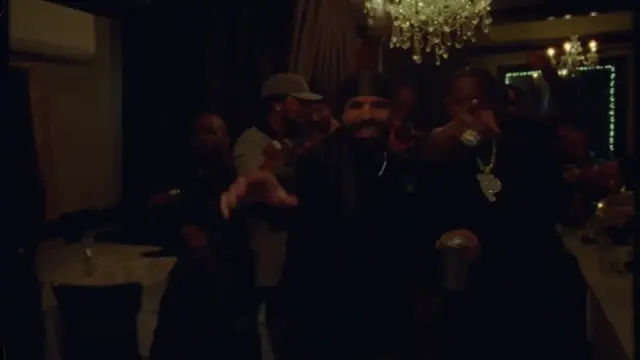
Quick answer: do you need a template or AI generation?
Choose a CapCut template when you want its cuts, text, effects and timing applied to your own clips or photos. Choose reference-guided AI generation when you want a photo of you to become the lead in the party performance.
A template title alone does not tell you which result it produces. Ordinary replaceable media slots apply an editing layout to your media; they do not by themselves make a person in a still photo perform the reference movements. If a template advertises an AI effect, inspect that specific effect and its preview separately.
- You already filmed the moves: look for a template that fits your footage and desired edit.
- You have one portrait and want the party performance: use a photo-and-video-reference workflow.
- You already generated a video: use an editor or suitable template for captions, framing and finishing.
- You only want to identify the clip: start with the trend explanation.
How to find a Burning Bridges CapCut Template
Search the template area available in your CapCut app or on the web. Try “burning bridges” first, then “drake party” or “where she at” to inspect other candidates. These are search suggestions, not verified links to a particular current template.
If the post you want to recreate includes a CapCut template link, follow that link and compare its preview with the post. CapCut’s official search guide notes that template availability varies by platform, and a missing Template button can mean the feature is unavailable for your version or device.
Check the preview, not just the template name
Watch the entire preview. Is it the recognizable party performance, a lyric montage, a photo slideshow or an unrelated edit using the same title? A popular template can still be the wrong format for the video you have in mind.
For example, a CapCut listing called “Burning Bridges” is dated January 13, 2025 and requires two clips. That listing does not establish that it is a template for the current Drake party trend. Treat same-name search results as candidates to inspect.
- Scene: does the preview show the party and movements you are trying to reproduce?
- Inputs: how many slots are required, and do they accept photos, videos or both?
- Framing: will your face, raised hands and important action remain visible?
- Editable elements: can you change the media, text and audio you need to change?
- Export: review any displayed access requirements before spending time on the edit.
Prepare media that fits the Template
For a footage-based edit, prepare your own performance clips with enough material around each gesture to fit the template’s cuts. A template cannot recover a raised hand that was outside your original camera frame. For photo slots, choose images that remain legible after the preview’s crop and effects.
For an already generated Burning Bridges video, check the complete MP4 first. Choose a template that accepts video and leaves enough uninterrupted screen time for the action you want to show. A rapid photo montage may hide the performance rather than help it.
- Match the requested media type and fill every required slot.
- Keep an original copy of each clip so you can try another layout.
- Preview close-ups, fast cuts and the final frame after adding your media.
- Check sample text and sound before exporting your version.
Apply the template and review your version
Open the chosen template through the supported CapCut route, select the option to use it and add the requested media. Customize the elements that the template exposes, then play the result before exporting. Exact controls differ across platforms and templates.
CapCut explains that creators designate which media clips can be replaced. If the party performer remains unchanged while your photo appears elsewhere, you may have replaced a different slot. Check what the template actually makes editable before assuming it supports a performer swap.
If you want to become the lead from one photo
Vismuse’s Burning Bridges workflow uses your photo for the lead’s appearance and an included party video for the scene, gestures and camera. This produces a new reference-guided video, so likeness, motion and small details can vary.
The separate generation tutorial covers photo preparation, duration, settings, paid credits and downloading. Follow it for the creation steps; return to an editor afterward if you want to change the presentation.
Follow the one-photo Burning Bridges generation tutorialWhat if the template is missing or does not match?
Check another supported CapCut platform or open the creator’s original template link if one is available. If the preview no longer matches the post, search for another candidate rather than choosing by title alone.
You can also edit a filmed or generated clip directly without a template. Choose a canvas, arrange the clip, add the text you need and review the sound. For a landscape performance on a vertical canvas, compare a full-frame layout with a crop so you can see which keeps the gestures readable.
Do I need a CapCut template to add the Burning Bridges sound?
No. Audio is a separate finishing decision. Listen to the exported file, decide whether to keep its existing soundtrack or add an available platform sound, and check for doubled music before posting.
The audio publishing guide covers that review and timing process. It also explains why an available sound is not a guarantee that every account or use is permitted.
Check sound, timing and the final posting previewBefore you continue
- Choose by the preview and required inputs, not the template title alone.
- Generate the performance first if you only have a portrait and need new motion.
- Watch the exported edit with sound before sharing.
Sources and further reading
- CapCut: how to search for templates — Official search instructions and platform availability notes.
- CapCut: replaceable media clips — How template creators define the media slots users can replace.
- An older CapCut listing named Burning Bridges — Dated January 13, 2025, with two required clips; not verified as the current party-trend template.