Vismuse
AI Video GeneratorCreate short AI videos from prompts, references, and briefs.AI Flyer GeneratorTurn events, offers, and listings into flyers.AI Brochure GeneratorStructure company, product, and service content into brochures.AI Album Cover GeneratorDesign album covers, mixtape art, and single artwork.AI Image MakerCreate any image from a prompt, link, or reference.Product Ad GeneratorGenerate product promo images and ad creatives.AI Room DesignUpload a room photo and redesign interiors with AI.Background RemoverRemove backgrounds for clean cutouts and product images.Business Card MakerCreate print-ready front and back business card designs.AI Logo GeneratorCreate logo concepts, brand marks, badges, and monograms.Tattoo GeneratorCreate tattoo concepts, stencil ideas, flash art, and sleeve layouts.AI Poster MakerCreate posters for events, product promotions, movies, lost-and-found notices, and more.Invitation MakerCreate birthday invitations, party invites, and event cards.AI Book Cover GeneratorCreate ebook, Kindle, and paperback cover concepts.AI Sticker GeneratorCreate stickers, reactions, and sticker sheets.AI Wallpaper GeneratorGenerate phone and desktop wallpapers.
AI VideoToolsTemplatesResourcesPricing
DocsHow to Use Reference Images in Vismuse

Reference image guide

How to use reference images in Vismuse

A reference image shows Vismuse what words cannot. Upload a clear source, then state exactly what to keep and what to change.

Create with a reference
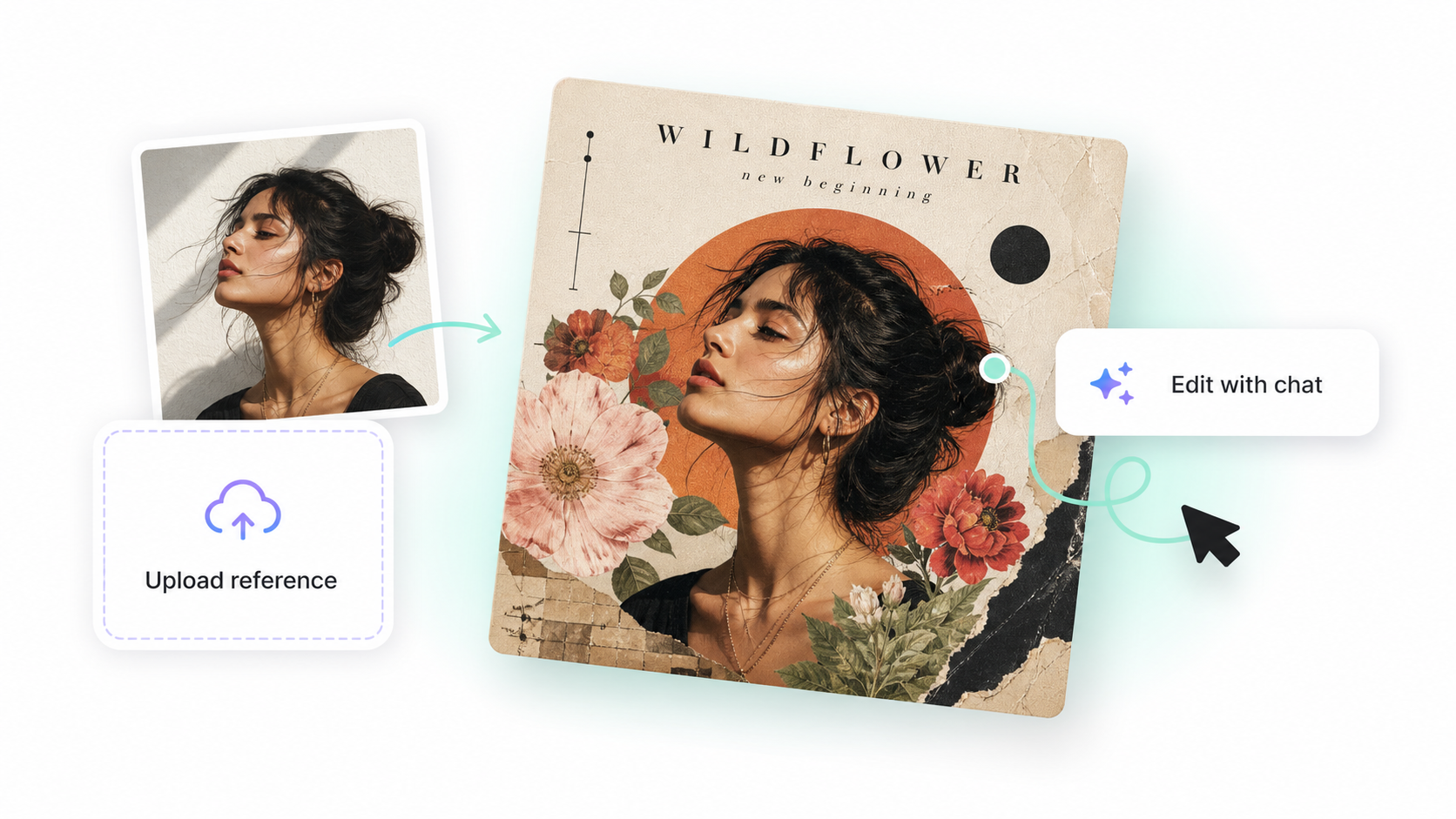
Reference portrait transformed into album artwork with Vismuse

Choose the right reference

Use a sharp, well-lit image with the important subject fully visible. A product photo should show the packaging and logo. A portrait should show the face clearly. A style reference should make its color, lighting, or composition easy to read.

Say what to keep

Tell Vismuse which details are the source of truth. Name the person, product shape, logo, pose, camera angle, room layout, or other elements that must stay consistent.

  • Subject or identity
  • Product and packaging details
  • Pose or camera angle
  • Layout or composition
  • Colors and visual style

Say what to change

Separate the preserved details from the new direction. For example: “Keep the bottle, label, and camera angle. Replace the background with a clean summer pool scene.”

Workflow

  1. Upload a clear source image
  2. Define what must stay the same
  3. Describe the new setting or style
  4. Generate and check the preserved details

Tips

  • Crop out details that are not part of the request.
  • Use a high-quality original when accuracy matters.
  • Give each reference one clear role.
  • Check faces, logos, packaging, and text before exporting.

Related resources

  • Write better AI prompts — Tell Vismuse how to use the visual source.
  • Background Remover docs — Turn a clean source image into a cutout or new scene.
  • Album Cover Generator docs — Build release artwork from an artist photo or visual reference.

Explore related tools

  • AI Image Maker
  • Background Remover
  • AI Album Cover Generator
Vismuse

Create and edit images and videos through conversation—no traditional editor required.

Product

AI Image GeneratorAI Video GeneratorAI Image to Video GeneratorAI Animation GeneratorAlbum Cover MakerProduct Ad MakerAI Flyer Maker

Templates

All TemplatesFlyer TemplatesAlbum Covers

Resources

Help CenterDocsToolsPricing

Company

Contact supportAbout VismuseAcceptable UsePrivacyTermsRefund PolicyCookies
© 2026 Vismuse. All rights reserved.
English
EnglishDeutschFrançaisEspañolPortuguês (Brasil)日本語한국어繁體中文