
iPhone photo editing
How to remove people from pictures on iPhone
To erase a person while keeping the rest of the scene, use Clean Up in Photos on a supported iPhone, crop someone near the edge, or upload the photo to an AI editor and describe exactly who should disappear.
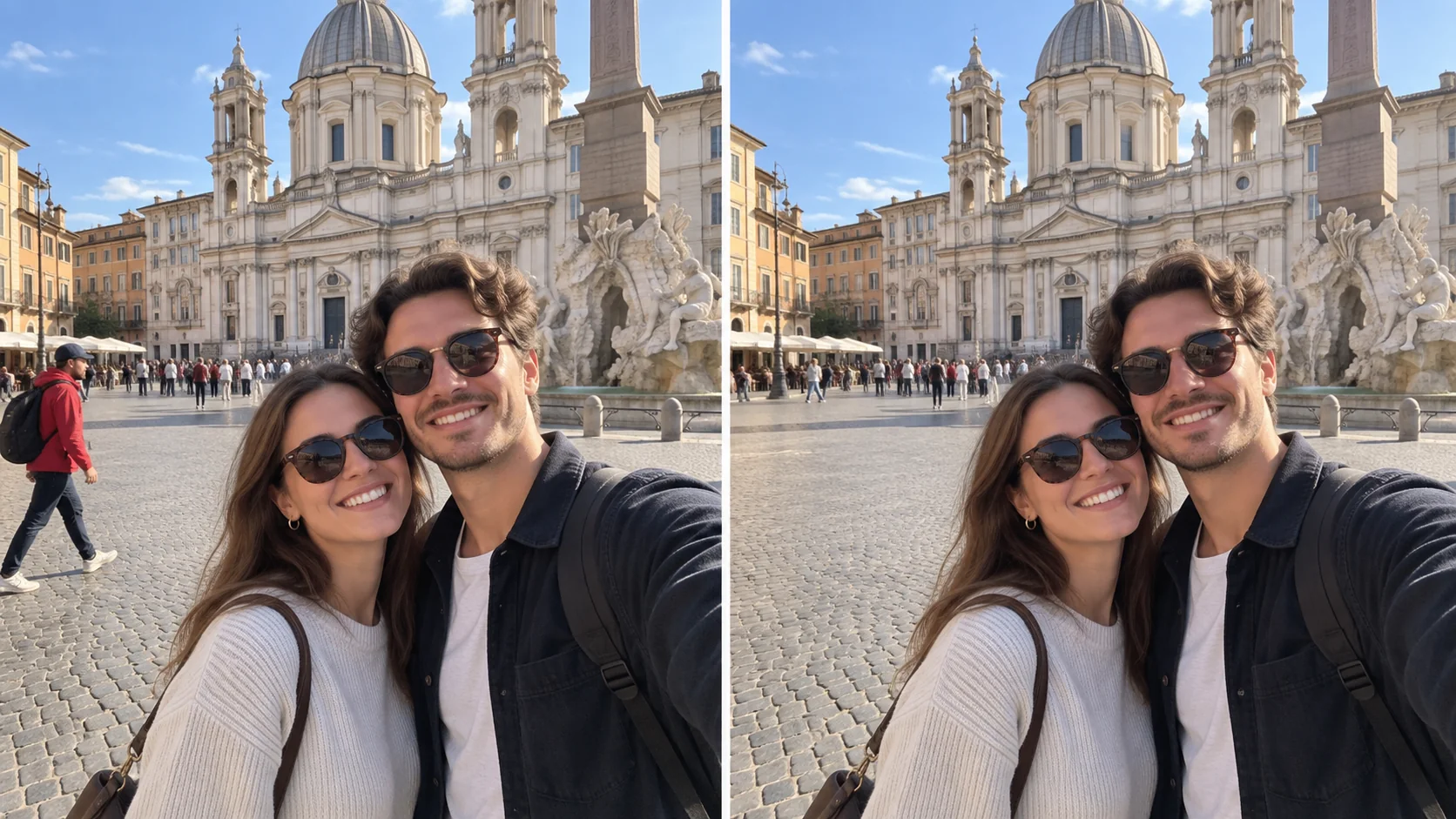
The quickest answer
On an Apple Intelligence-enabled iPhone, open the picture in Photos, tap Edit, open Tools, and choose Clean Up. Tap, brush over, or circle the person you want to remove, then inspect the reconstructed background before saving.
If Clean Up is missing, the device, iOS version, language, or region may not support it. You can still crop a person near the edge or use a browser-based AI editor on the iPhone without installing a traditional desktop editor.
Method 1: remove a person with Clean Up in Photos
Choose the photo in Photos and enter Edit mode. Open Tools, select Clean Up, then tap a highlighted distraction or brush around the person. Pinch to zoom when you need a more accurate selection. Use Undo if the tool removes part of the person or object you want to keep.
Clean Up works best when the unwanted person is smaller, is separated from the main subject, and stands in front of a background with repeatable texture such as sky, sand, water, grass, or a simple wall. A person covering a face, sign, patterned building, or important object gives the tool less information for rebuilding the hidden area.
- Select only the unwanted person and their visible shadow when necessary
- Work in several smaller passes instead of one oversized brush stroke
- Zoom in to check hands, hair, railings, text, and straight lines
- Use Reset if you save the edit and later want to restore the original
Method 2: crop someone out of the picture
Cropping is often the cleanest fix when the unwanted person is close to an edge. Open Edit, choose Crop, and tighten the frame without cutting into the main subject. Straighten the horizon and keep enough space around faces, feet, products, or buildings.
Cropping cannot help when the person is in the center or when removing them would make the composition too tight. In those cases, use Clean Up or an AI editor that can rebuild the covered background.
Method 3: remove people with an AI editor on iPhone
Open Vismuse AI Image Maker in Safari or another mobile browser, upload the picture, and identify the unwanted person by position, clothing, or another visible detail. State what must remain unchanged so the edit does not accidentally replace the main subject, alter faces, or redesign the whole image.
AI removal is especially useful on an older iPhone without Clean Up, or when you want to describe a precise target in words. It still has to invent whatever was hidden behind the person, so review the result carefully and try a more specific follow-up if the first reconstruction looks unnatural.
How to get a more natural result
Describe one person at a time when the picture contains a crowd. Use unambiguous details such as left or right, clothing color, distance from the camera, or nearby objects. Avoid instructions like ‘remove the background people’ if some background people should stay.
Check the repaired area for repeated limbs, broken railings, bent architecture, duplicated texture, missing shadows, and altered text. If the background is complex, ask for a second pass that changes only the repaired area instead of regenerating the full photo.
- Name the person by location and visible clothing
- Say which people and objects must remain
- Include the unwanted person’s shadow if it should also disappear
- Preserve faces, text, logos, perspective, lighting, and crop
- Compare the edited picture with the original before sharing it
Removing a person from the picture is not the same as hiding them in Photos
This guide is about erasing a visible person from the pixels of one picture. The People & Pets collection in Photos is different: it groups photos by recognized faces. Hiding, featuring less, renaming, or removing someone from that collection does not erase them from the underlying pictures.
If your goal is to stop seeing someone in memories or suggestions, use the People & Pets controls instead. If your goal is to remove every photo containing someone, review the matched photos before deleting anything; face recognition can include mistakes.
Why Clean Up may be missing or give a poor result
Clean Up depends on a supported Apple Intelligence device, current software, and regional and language availability. If the button is absent, check Apple’s current requirements rather than repeatedly editing the same photo.
A poor result usually means the person hides too much unique detail, overlaps the main subject, or sits in front of text, faces, reflections, or irregular architecture. Try a smaller selection, crop the photo, use a higher-resolution original, or describe the missing background to an AI editor.
Workflow
- Decide whether cropping can remove the person without hurting the composition
- Use Clean Up on a supported iPhone or upload the image to an AI editor
- Identify one unwanted person precisely and name everything that must stay
- Inspect the rebuilt background, edges, shadows, faces, text, and straight lines
- Keep the original until you are satisfied with the edited copy
Tips
- Remove one person at a time in a crowded image.
- Use location and clothing instead of vague phrases such as ‘that person.’
- Include a shadow or reflection only when it belongs to the person being removed.
- Do not assume an AI reconstruction is historically accurate; it invents hidden pixels.
- Avoid uploading private or sensitive photos unless you are comfortable with the service’s privacy terms.
Related resources
- AI Image Maker documentation — Learn how to upload an image, describe a precise edit, and refine the result through follow-up prompts.
- Remove an image background on iPhone — Isolate the main subject when you want to remove the entire background instead.
- Apple Clean Up instructions — Check Apple’s current Clean Up steps, supported devices, languages, and regions.