
Statistical
What do the numbers show?Bring a few important figures into focus with labeled callouts and a clear summary.
Try this Statistical LayoutOne idea. A clearer picture.
Give your facts, steps, and stories a visual form.
Turn notes and data into infographics for reports, lessons, presentations, and social posts. Describe what matters, then refine the design through chat.
Start with the story you want to tell
The clearest layout follows your content. Pick the question you need to answer.
Bring a few important figures into focus with labeled callouts and a clear summary.
Try this Statistical LayoutUse the same categories for each option so readers can compare like with like.
Try this Comparison LayoutTurn a workflow or set of instructions into a sequence with clear steps and labels.
Try this Process LayoutGive dates, milestones, and a project or company story an easy-to-follow order.
Try this Timeline LayoutOrganize tips, habits, or a checklist into short points with a consistent visual rhythm.
Try this List LayoutExplain a concept with concise sections, labeled illustrations, or a simple visual cycle.
Try this Informational LayoutBring the content. Shape the design.
Give the design a clear purpose and a manageable amount of information.
Describe the topic and audience, then paste the facts, figures, steps, or dates you want included. Give the infographic one main takeaway and provide any source credit you want shown.
Ask for a statistical summary, comparison, process, timeline, list, or explainer. Describe the colors, style, and layout, and say where the infographic will be used.
Generate the first design, then request clearer headings, shorter copy, or a different visual order through chat. Check the text, numbers, and diagram labels before downloading your image.
Reports & data stories
Help readers find the message in a survey or business update. Supply the actual values, units, and time period, then choose the few figures that explain the story. Use short headings and a takeaway so the infographic works as a companion to the full report.
Try this directionCreate a vertical infographic from these fictional workshop survey results: 80 responses, 60 preferred hands-on sessions and 20 preferred talks. Use two labeled bars and the takeaway “More practice, less lecture”. Mark the data as illustrative. Use only the supplied values.Create your infographic
Processes & team communication
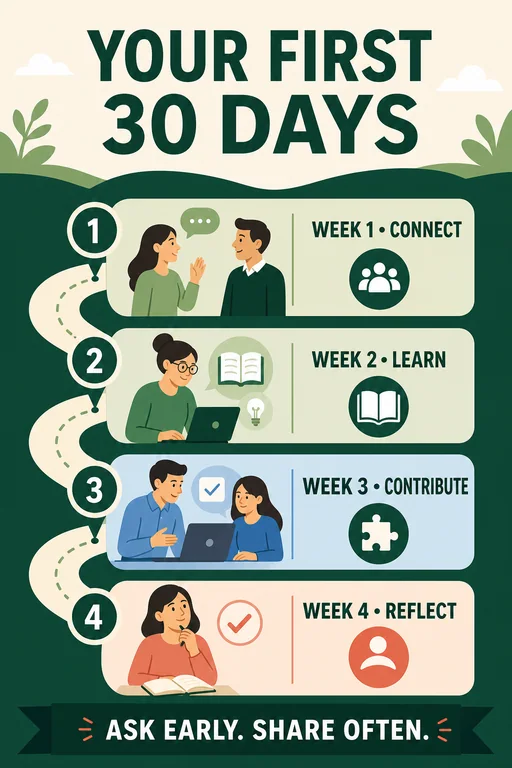
Replace a long sequence of instructions with a clear visual path. Use your real steps, keep the labels concise, and make the start and finish obvious. Process infographics work well for onboarding, project handoffs, training, and explanations you share repeatedly.
Try this directionCreate an onboarding infographic with four stages: Meet the team, Learn the tools, Try a first task, Review together. Use one icon and one short label per stage, a clear top-to-bottom path, and a welcoming blue and green palette.Create your infographic
Comparisons & decisions
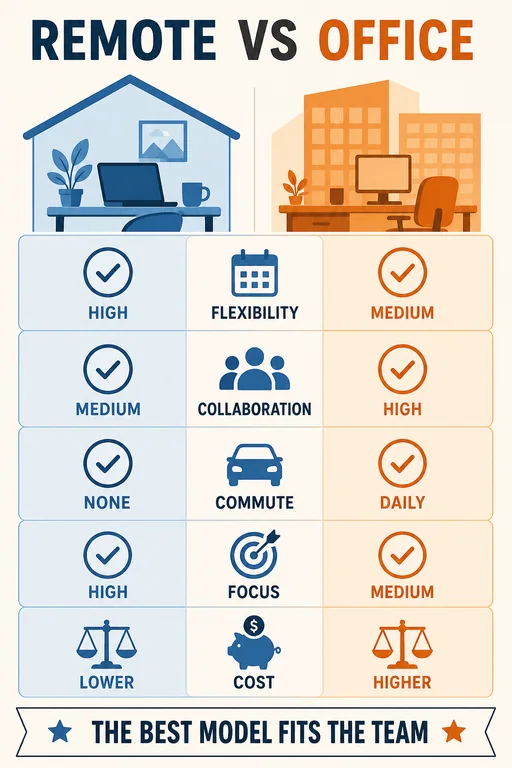
Explain a choice using a shared set of questions. Put the options side by side and supply the wording for each category, rather than relying on a long paragraph. Ask for equal visual weight when you want to present tradeoffs without declaring a winner.
Try this directionMake a comparison infographic for two workshop formats. Online: join remotely, digital exercises, no travel. In person: shared room, physical exercises, travel required. Use mirrored rows, equal emphasis, and no invented scores or statistics.Create your infographic
Find a visual starting point
Explore layouts for marketing, team workflows, comparisons, education, and more. These AI-generated examples include illustrative sample data. Choose one to open its prompt and add your own content.
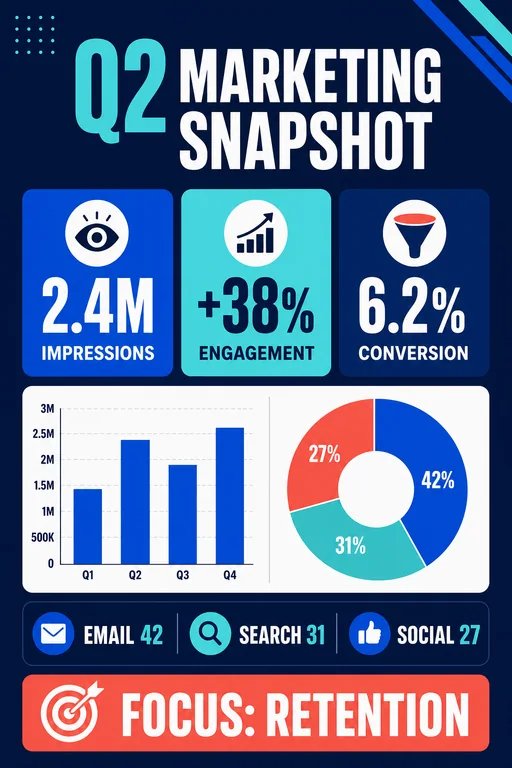
A bold business snapshot with KPI cards, a channel bar chart, and a concise performance takeaway.
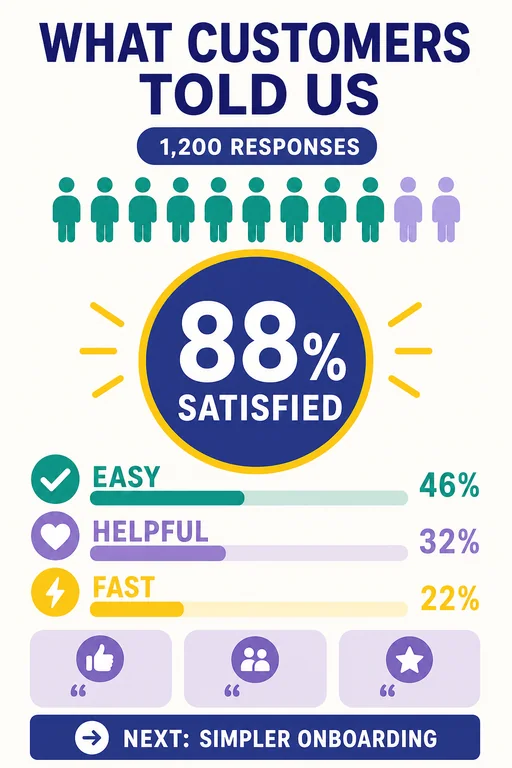
Use this ideaA friendly survey summary using a large satisfaction score, response breakdown, and key themes.
Use this idea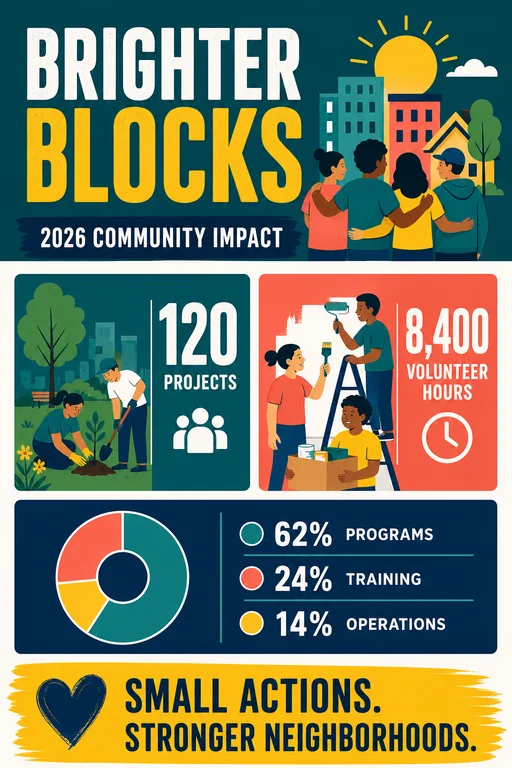
A human-centered annual impact infographic with bold outcomes and a transparent allocation chart.
Use this ideaA balanced side-by-side comparison with mirrored categories and a neutral decision takeaway.
Use this idea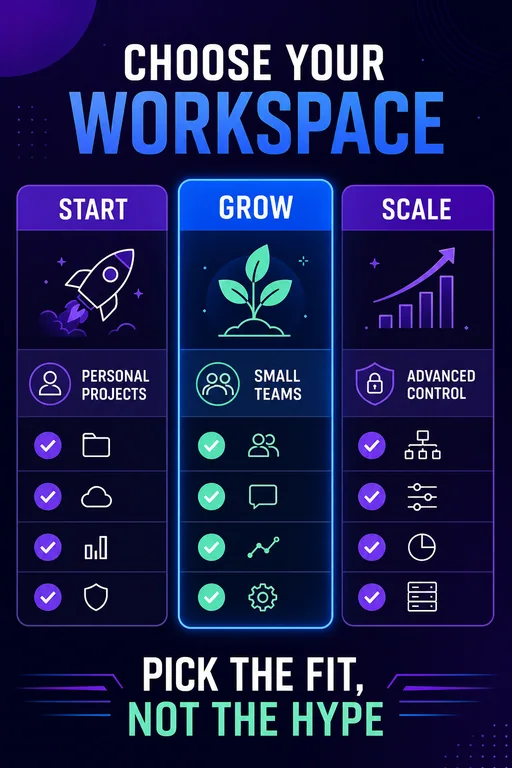
A clean three-tier product comparison emphasizing fit, capabilities, and a simple recommendation path.
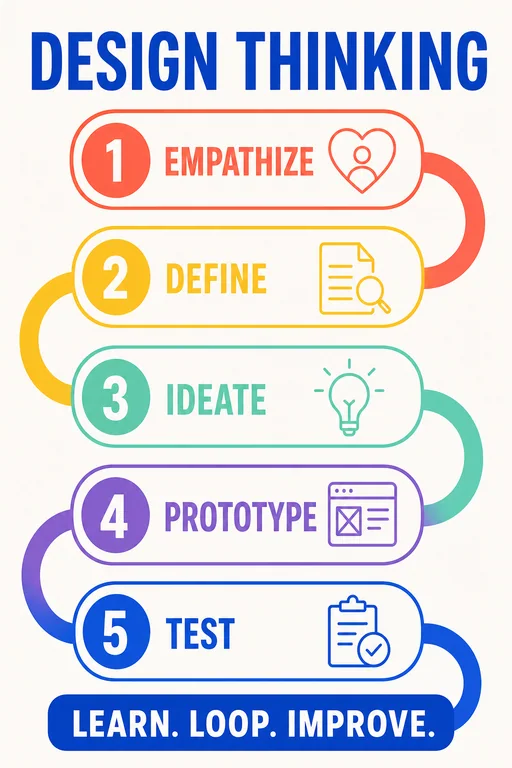
Use this ideaA five-stage process map with a looping visual flow and distinct activity cues for each phase.
Use this ideaA practical four-week onboarding roadmap with milestones, owners, and a welcoming visual tone.
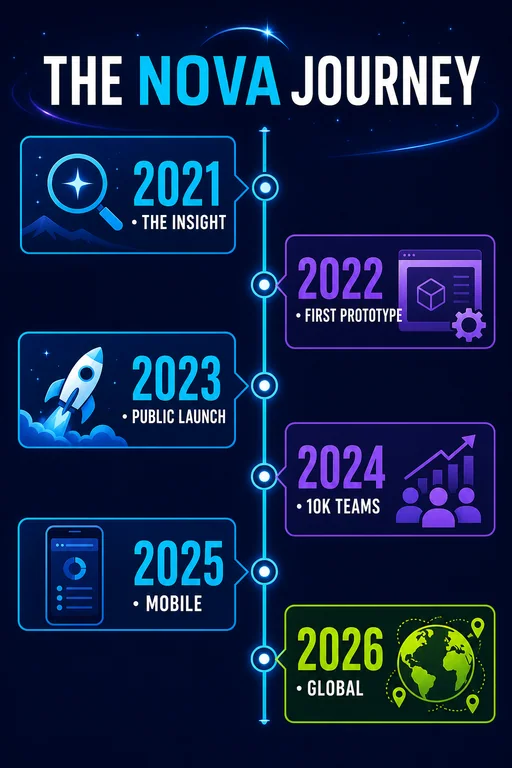
Use this ideaA milestone timeline showing a fictional product journey from insight to international launch.
Use this idea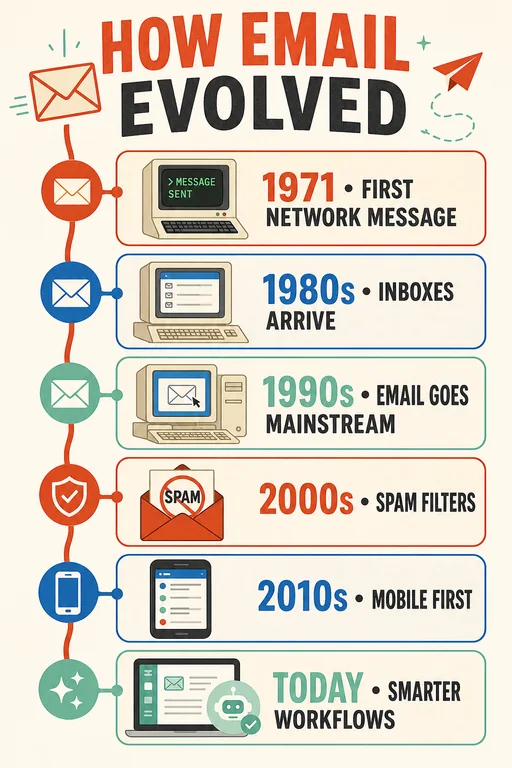
An educational technology timeline using familiar visual eras without relying on brand identities.
Use this idea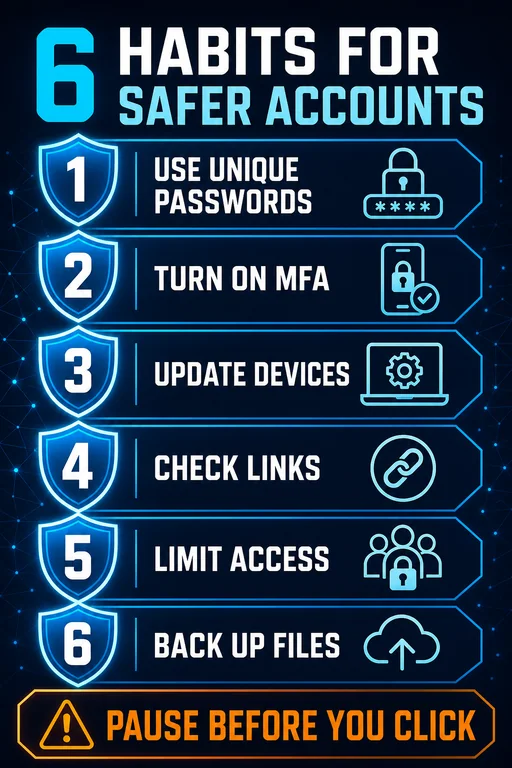
A high-contrast list infographic with six practical security habits and clear protective iconography.
Use this idea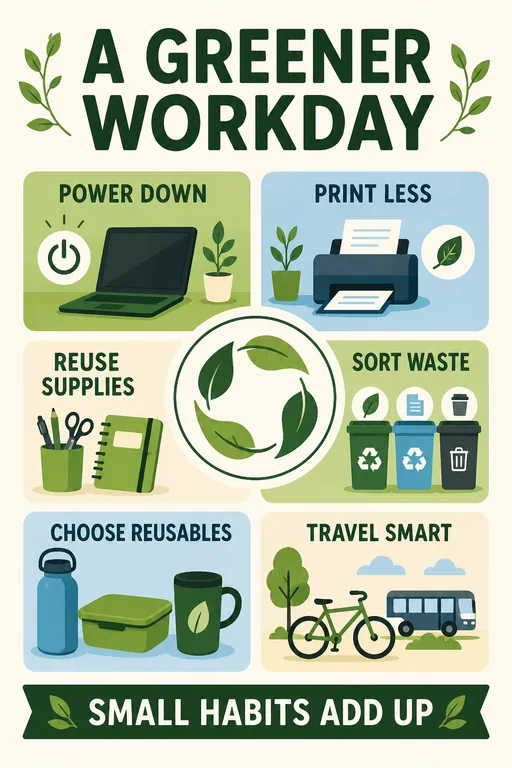
An approachable list of workplace sustainability actions arranged around a circular green motif.
Use this idea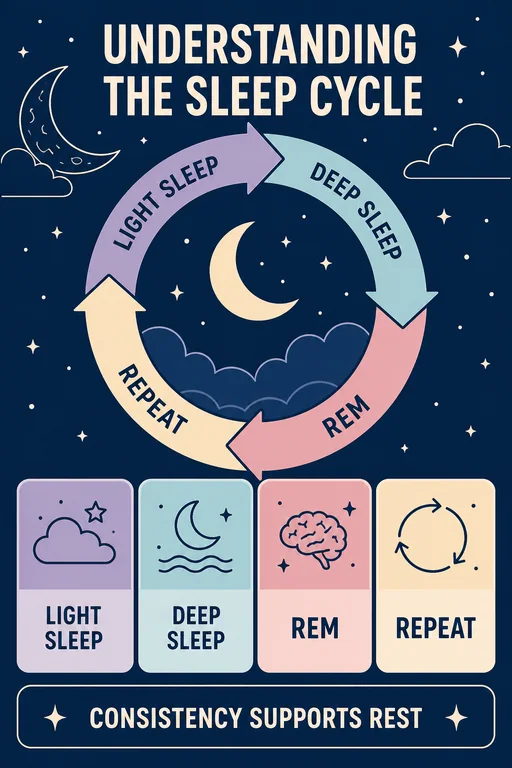
A calm educational diagram explaining the recurring stages of a typical sleep cycle without medical claims.
Use this idea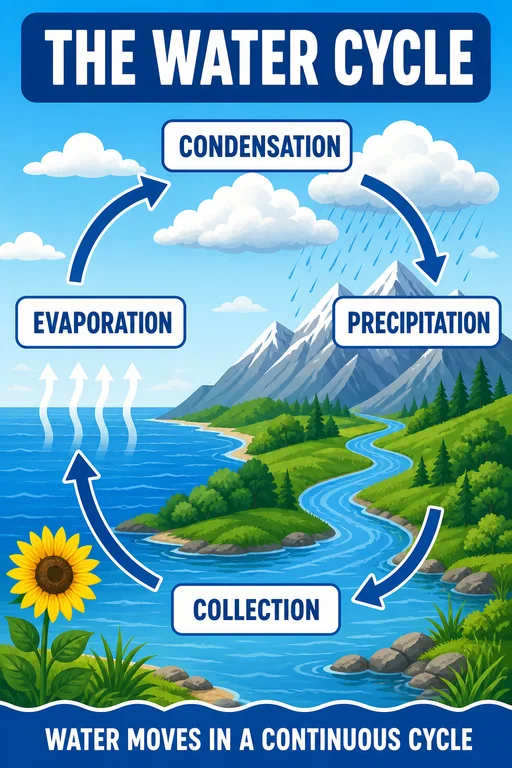
A classroom-ready illustrated cycle with four labeled stages and an immediately readable visual loop.
Use this idea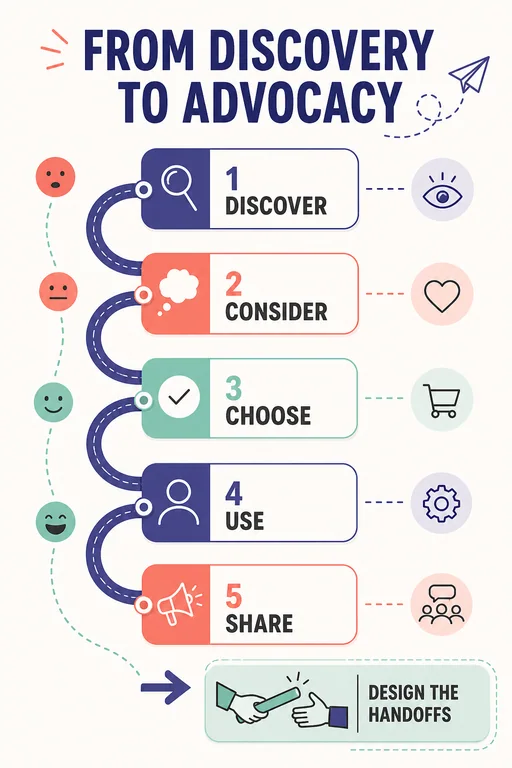
A five-stage customer journey with touchpoints, emotions, and opportunities kept visually concise.
Use this idea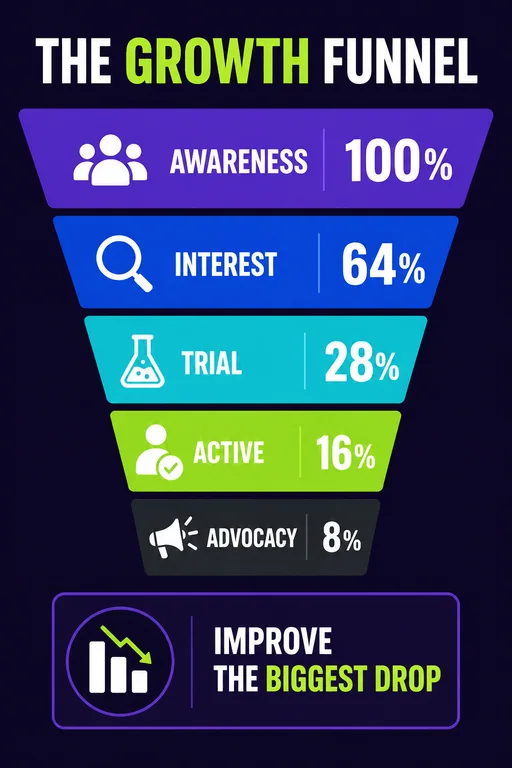
A clear acquisition-to-advocacy funnel with fictional sample conversion values and action cues.
Use this idea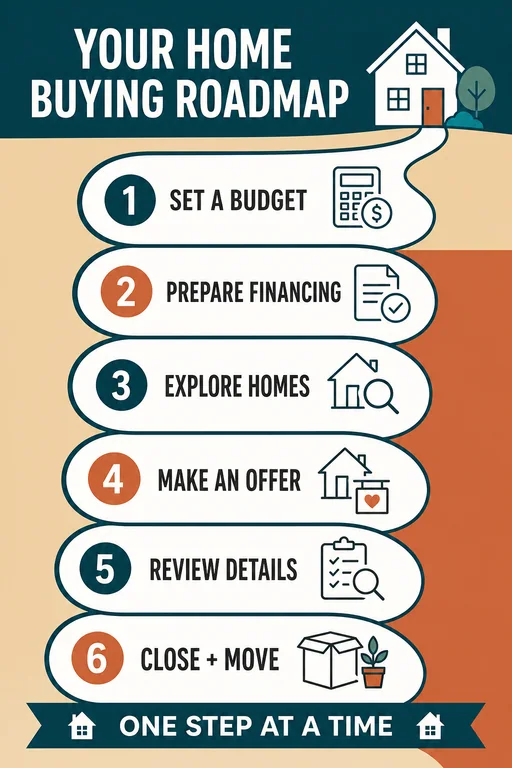
A reassuring step-by-step home buying guide with six milestones and no invented financial promises.
Use this ideaMake the message easy to follow
An AI infographic generator turns information into a visual design with headings, illustrations, and organized sections. Vismuse uses your topic, facts, and design direction to create an infographic image that you can refine through chat.
Yes. Paste the key points you want shown and describe the audience and purpose. Short, organized notes with one main takeaway give the design a clearer starting point than a broad topic on its own.
You can explore statistical summaries, comparisons, process diagrams, timelines, checklists, and informational explainers. Choose the structure that matches the relationship between your facts, such as a timeline for dates or a process for ordered steps.
Yes. Include the values, units, category labels, and reporting period in your prompt. Ask the AI to use only those figures and add any source credit you need. Review the rendered numbers and visual proportions against your source before sharing.
Treat your supplied content as the source of truth and verify it before generating. An AI-generated infographic is a visual draft, so check its wording, dates, numbers, and labels. The example gallery includes fictional sample figures to demonstrate layouts.
Yes. Ask for changes through chat, such as shorter headings, a new color palette, different section order, or corrected text. The result is an image; it does not provide a spreadsheet-linked chart or a set of individually editable chart objects.
Include the audience, main takeaway, exact content, preferred infographic type, layout, and colors. Say which text and values must remain unchanged. Keep the scope small enough for the final image to remain readable.
Yes. Tell Vismuse where the image will appear and ask for a suitable portrait or landscape layout. Use concise labels, large headings, and enough spacing, then check readability at the size your audience will see.
Generating images uses Vismuse credits. Check the requirement shown in the app and the current pricing page before creating a design. Vismuse offers subscriptions and one-time purchases.