Vismuse
AI Video GeneratorCreate short AI videos from prompts, references, and briefs.AI Flyer GeneratorTurn events, offers, and listings into flyers.AI Brochure GeneratorStructure company, product, and service content into brochures.AI Album Cover GeneratorDesign album covers, mixtape art, and single artwork.AI Image MakerCreate any image from a prompt, link, or reference.Product Ad GeneratorGenerate product promo images and ad creatives.AI Room DesignUpload a room photo and redesign interiors with AI.Background RemoverRemove backgrounds for clean cutouts and product images.Business Card MakerCreate print-ready front and back business card designs.AI Logo GeneratorCreate logo concepts, brand marks, badges, and monograms.Tattoo GeneratorCreate tattoo concepts, stencil ideas, flash art, and sleeve layouts.AI Poster MakerCreate posters for events, product promotions, movies, lost-and-found notices, and more.Invitation MakerCreate birthday invitations, party invites, and event cards.AI Book Cover GeneratorCreate ebook, Kindle, and paperback cover concepts.AI Sticker GeneratorCreate stickers, reactions, and sticker sheets.AI Wallpaper GeneratorGenerate phone and desktop wallpapers.
AI VideoToolsTemplatesResourcesPricing
HomeToolsBackground Remover

Less background. More subject.

AI Background Remover

Remove distractions. Give your photo a fresh background.

Start with a product, portrait, or any clear subject. Describe the background you want, then refine the result by chatting with AI.

Upload a photo Explore examples
Product Cutout: AI-generated before and after background editing example
AI-generated before-and-after concept showing a product background change.

From photo to finished image

How to remove a background with AI

Bring your photo and a clear direction. Make the next change in your own words.

  1. 01

    Upload your photo

    Open Background Remover and upload a clear photo of your product, person, pet, or graphic. Start with a subject that is easy to distinguish from its surroundings.

  2. 02

    Describe the background you want

    Ask AI to remove distractions, use a clean white background, match a brand color, or place your subject in a new setting. Mention details that should stay unchanged.

  3. 03

    Review, refine, and download

    Check the subject and its edges, then ask for any changes in chat. Refine the background, framing, or shadow and download the result when it fits your project.

Product photography

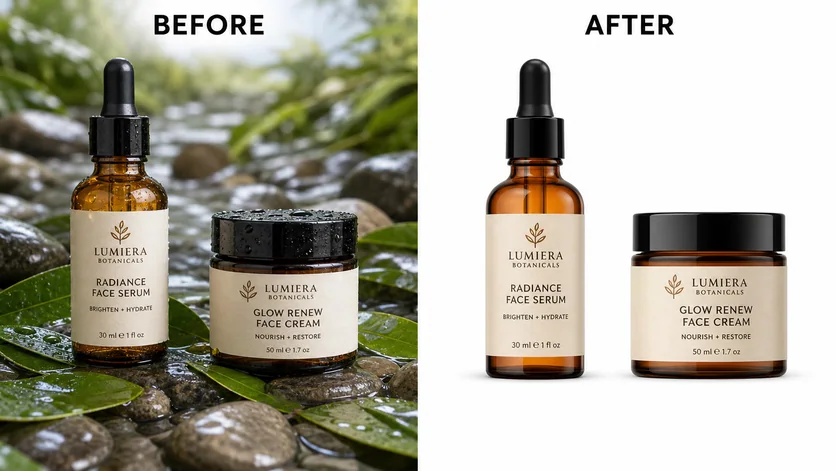
Give product photos a clean white background

Bring attention back to the product by replacing a busy scene with a simple white backdrop. Describe the spacing and shadow you want, and ask to retain the packaging, label, color, and shape. Review the finished image against the original before using it in a listing.

Try this directionReplace the background with clean white. Keep the product, packaging text, colors, and camera angle unchanged. Add a subtle contact shadow.
Edit your photo
White Product Background: AI-generated before and after background editing example
White Product Background · AI-generated example

Portraits & profiles

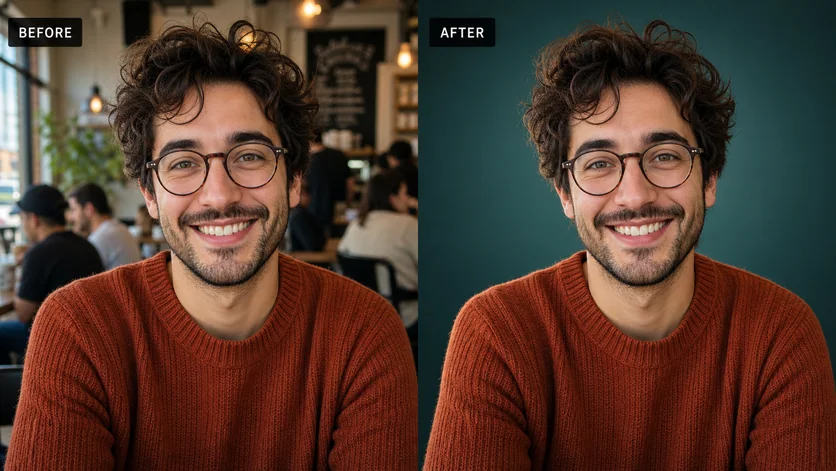
Make a distracting portrait background feel intentional

Turn a cafe, office, or street background into a calm setting for a profile image. Choose a solid brand color or a soft studio look, then ask to preserve the face, expression, clothing, and hairstyle. Check glasses and flyaway hair as you review the result.

Try this directionReplace the busy background with a soft teal studio backdrop. Keep the person's face, expression, glasses, hair, and clothing unchanged.
Edit your photo
Brand Color Headshot: AI-generated before and after background editing example
Brand Color Headshot · AI-generated example

Brand & catalog images

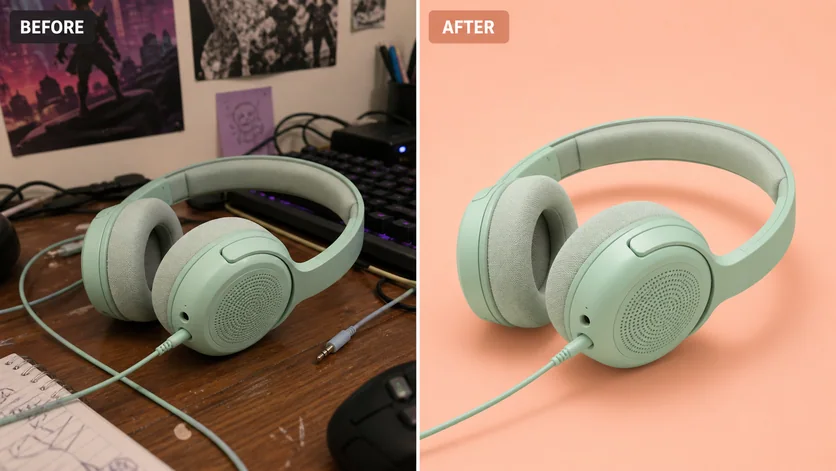
Create a consistent background for your visual identity

Use a shared background color, generous spacing, and a similar shadow treatment to give separate product images a coherent style. Reuse the same direction when editing each photo, then refine the framing to suit your website or campaign.

Try this directionPlace this product on a soft peach background with generous spacing and a restrained natural shadow. Preserve its shape, color, texture, and viewing angle.
Edit your photo
Consistent Catalog Background: AI-generated before and after background editing example
Consistent Catalog Background · AI-generated example

Find your starting point

Background removal ideas for your next image

Explore products, people, pets, food, vehicles, and graphics. These AI-generated before-and-after concepts illustrate different background directions.

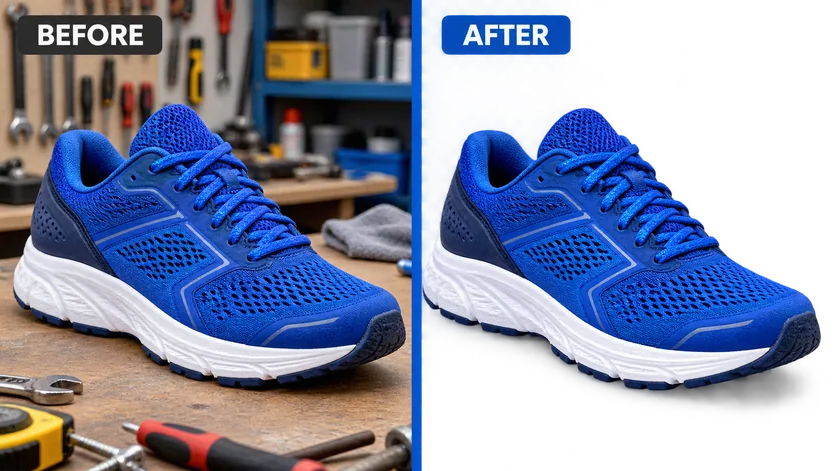
Product Cutout: AI-generated before and after background editing example

product cutout

Remove a busy studio background while preserving laces, mesh, and the natural product shadow.

White Product Background: AI-generated before and after background editing example

White Product Background

Turn a lifestyle skincare photo into a clean marketplace-ready white-background listing.

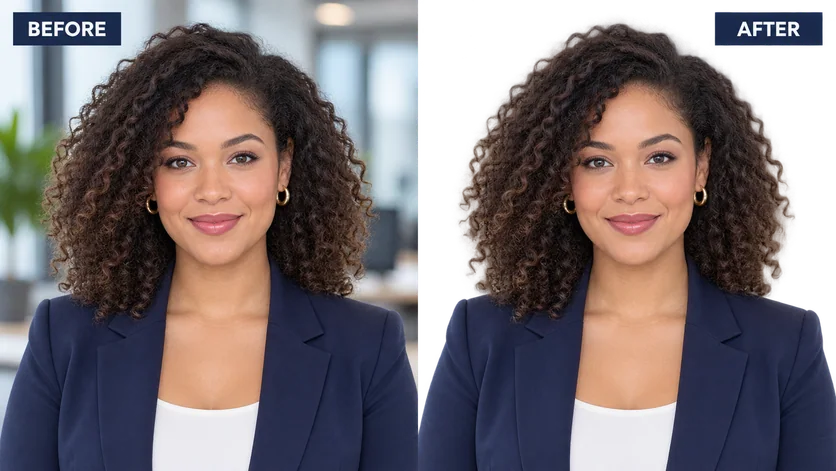
Headshot Cutout: AI-generated before and after background editing example

Headshot Cutout

Isolate a professional portrait while retaining natural curls and soft flyaway hair.

Brand Color Headshot: AI-generated before and after background editing example

Brand Color Headshot

Replace a distracting portrait background with a polished on-brand color field.

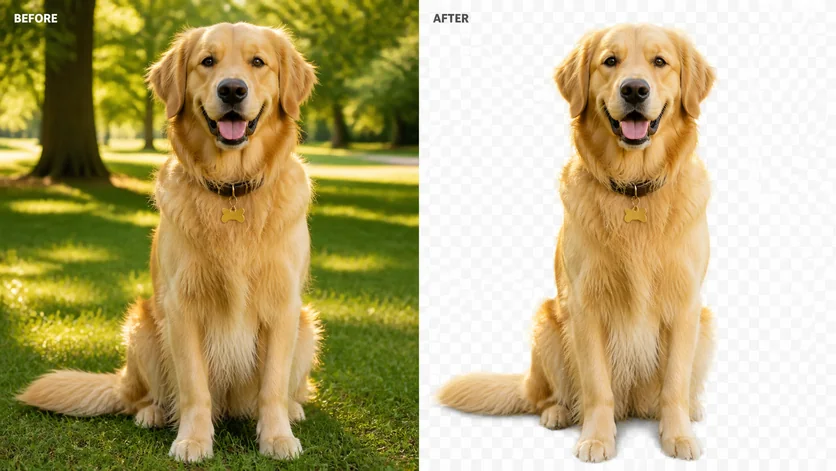
Pet Fur Cutout: AI-generated before and after background editing example

Pet Fur Cutout

Remove an outdoor background while keeping fine fur, whiskers, and the full tail silhouette.

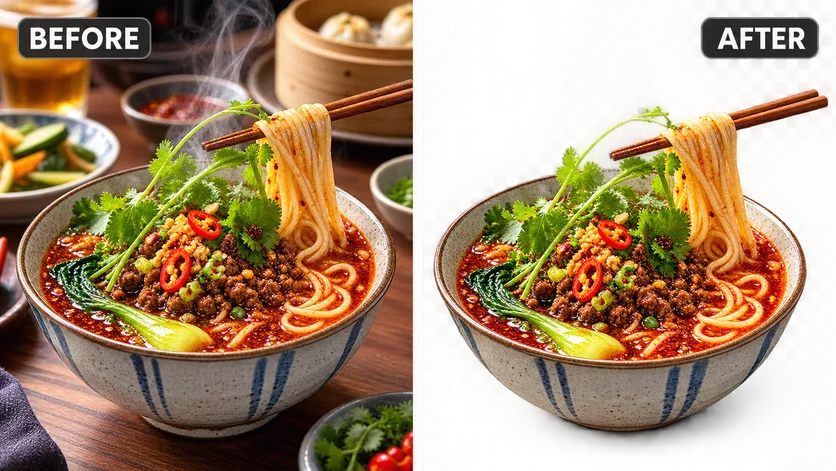
Food Photo Cutout: AI-generated before and after background editing example

Food Photo Cutout

Isolate a plated dish for recipe layouts while retaining steam and delicate garnish.

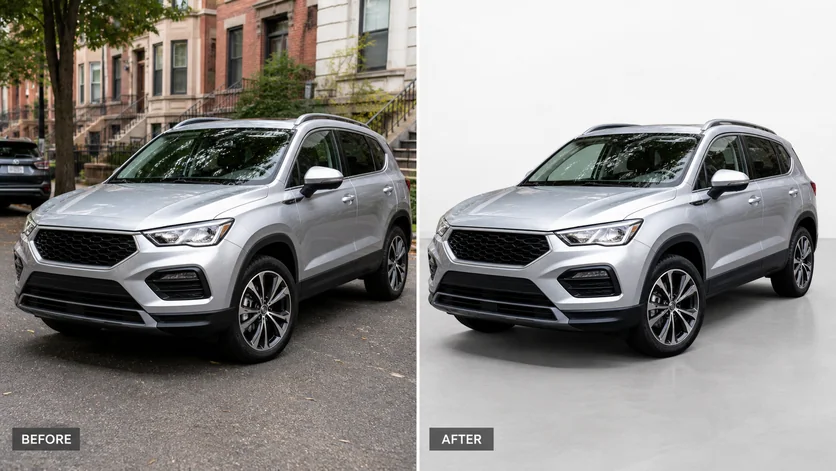
Car Listing Background: AI-generated before and after background editing example

Car Listing Background

Convert an outdoor vehicle photo into a consistent dealership-style listing image.

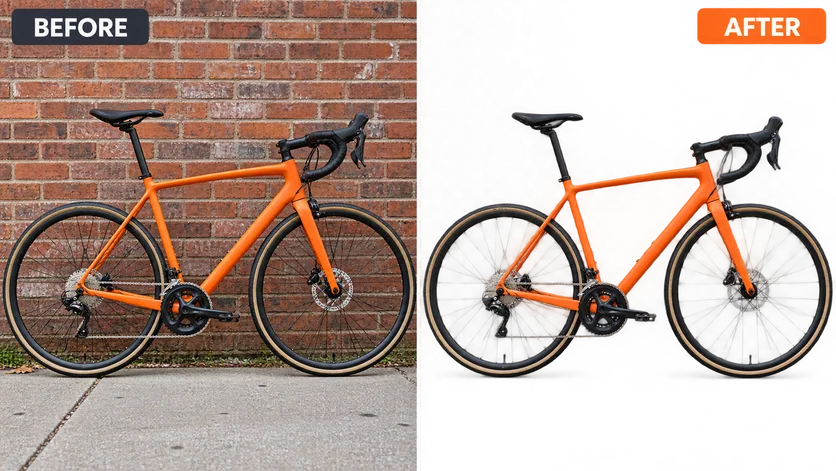
Complex Object Cutout: AI-generated before and after background editing example

Complex Object Cutout

Preserve thin bicycle spokes, cables, and frame openings on a transparent result.

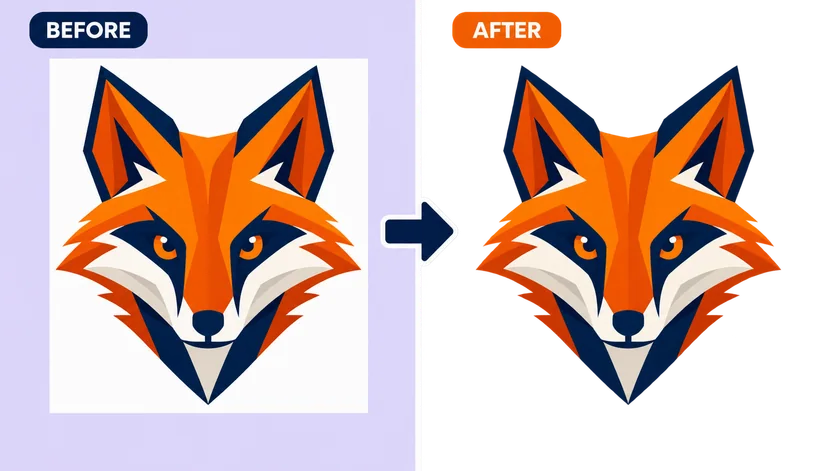
Logo Background Remover: AI-generated before and after background editing example

Logo Background Remover

Remove a flat white box around an original graphic while keeping clean anti-aliased edges.

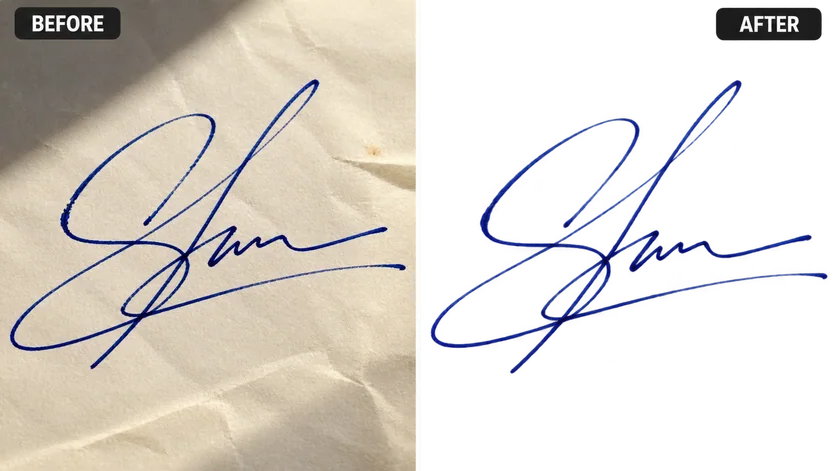
Signature Cutout: AI-generated before and after background editing example

Signature Cutout

Extract fine handwritten ink from paper into a clean transparent asset.

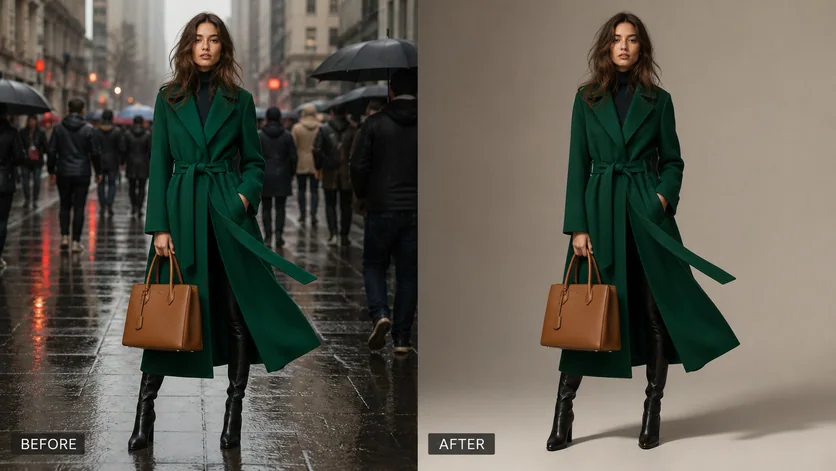
Fashion Background Change: AI-generated before and after background editing example

Fashion Background Change

Move a full-body fashion subject from a street photo into a clean editorial studio.

Consistent Catalog Background: AI-generated before and after background editing example

Consistent Catalog Background

Show how a mixed product photo becomes a clean branded catalog tile with consistent framing.

Try it with your photo

A better starting photo

Keep the details that make your subject yours

  • Start with visible edges. Use a well-lit image where the subject stands apart from the background.
  • Name what should stay. Mention the face, product label, color, proportions, or other details that matter.
  • Specify the finish. Describe the background color, setting, framing, and shadow instead of only asking for cleanup.
  • Review at full size. Compare fine hair, fur, lettering, and narrow gaps with the original before you use the image.

Frequently asked questions

What is an AI background remover?

An AI background remover helps separate the main subject of a photo from its surroundings. In Vismuse, upload your image and describe the cleanup or replacement you want, then refine the result through chat.

How do I remove the background from a photo?

Open the tool, upload a clear image, and ask to remove the existing background. Specify the result you need, such as a white product background, a solid color, or a new studio setting. Review the subject and edges before downloading.

Can I change a photo background to white or another color?

Yes. Include the background color in your request. For example, ask for clean white with a subtle product shadow, or a solid teal background for a portrait. Mention whether the original framing and lighting should stay the same.

Can I use it for products, people, pets, and logos?

You can start with photos of products, people, pets, vehicles, or graphics. A clear subject and visible edges make a stronger starting point. Inspect fine details such as hair, fur, spokes, and lettering after the edit.

Does a checkerboard preview mean the image is transparent?

No. The checkerboard in these AI-generated examples illustrates a transparent-style cutout. It does not prove that a downloaded file has an alpha channel. If your project needs true transparency, check the exported file in an editor that supports transparency before placing it over another background.

Will my subject stay exactly the same?

AI image editing can change details. Ask to preserve the subject's identity, shape, colors, text, and proportions, then compare the result with the original. Pay particular attention to product labels, logos, faces, and delicate edges.

Can I remove or change backgrounds on my phone?

Yes. Open Vismuse in your mobile browser, upload a photo, and describe the edit in everyday language. You can continue refining the image through chat without using a desktop design editor.

Is background removal free?

Image edits use Vismuse credits. Check the current pricing page and the credit requirement shown in the app before generating. Vismuse offers subscriptions and one-time purchases.

Keep creating with your image

Background Remover guideRemove a background on iPhoneAI Image MakerAI Image Text EditorAI Logo GeneratorPlans and creditsExplore all tools
Vismuse

Create and edit images and videos through conversation—no traditional editor required.

Product

AI Image GeneratorAI Video GeneratorAI Image to Video GeneratorAI Animation GeneratorAlbum Cover MakerProduct Ad MakerAI Flyer Maker

Templates

All TemplatesFlyer TemplatesAlbum Covers

Resources

Help CenterDocsToolsPricing

Company

Contact supportAbout VismuseAcceptable UsePrivacyTermsRefund PolicyCookies
© 2026 Vismuse. All rights reserved.
English
EnglishDeutschFrançaisEspañolPortuguês (Brasil)日本語한국어繁體中文