Vismuse
AI Video GeneratorCreate short AI videos from prompts, references, and briefs.AI Flyer GeneratorTurn events, offers, and listings into flyers.AI Brochure GeneratorStructure company, product, and service content into brochures.AI Album Cover GeneratorDesign album covers, mixtape art, and single artwork.AI Image MakerCreate any image from a prompt, link, or reference.Product Ad GeneratorGenerate product promo images and ad creatives.AI Room DesignUpload a room photo and redesign interiors with AI.Background RemoverRemove backgrounds for clean cutouts and product images.Business Card MakerCreate print-ready front and back business card designs.AI Logo GeneratorCreate logo concepts, brand marks, badges, and monograms.Tattoo GeneratorCreate tattoo concepts, stencil ideas, flash art, and sleeve layouts.AI Poster MakerCreate posters for events, product promotions, movies, lost-and-found notices, and more.Invitation MakerCreate birthday invitations, party invites, and event cards.AI Book Cover GeneratorCreate ebook, Kindle, and paperback cover concepts.AI Sticker GeneratorCreate stickers, reactions, and sticker sheets.AI Wallpaper GeneratorGenerate phone and desktop wallpapers.
AI VideoToolsTemplatesResourcesPricing
DocsHow to Use Vismuse: A Beginner’s Guide

Getting started

How to use Vismuse: a beginner’s guide

Choose what you want to make, describe it in your own words, and tell Vismuse what to change. You do not need design experience or special prompt language.

Choose what to create
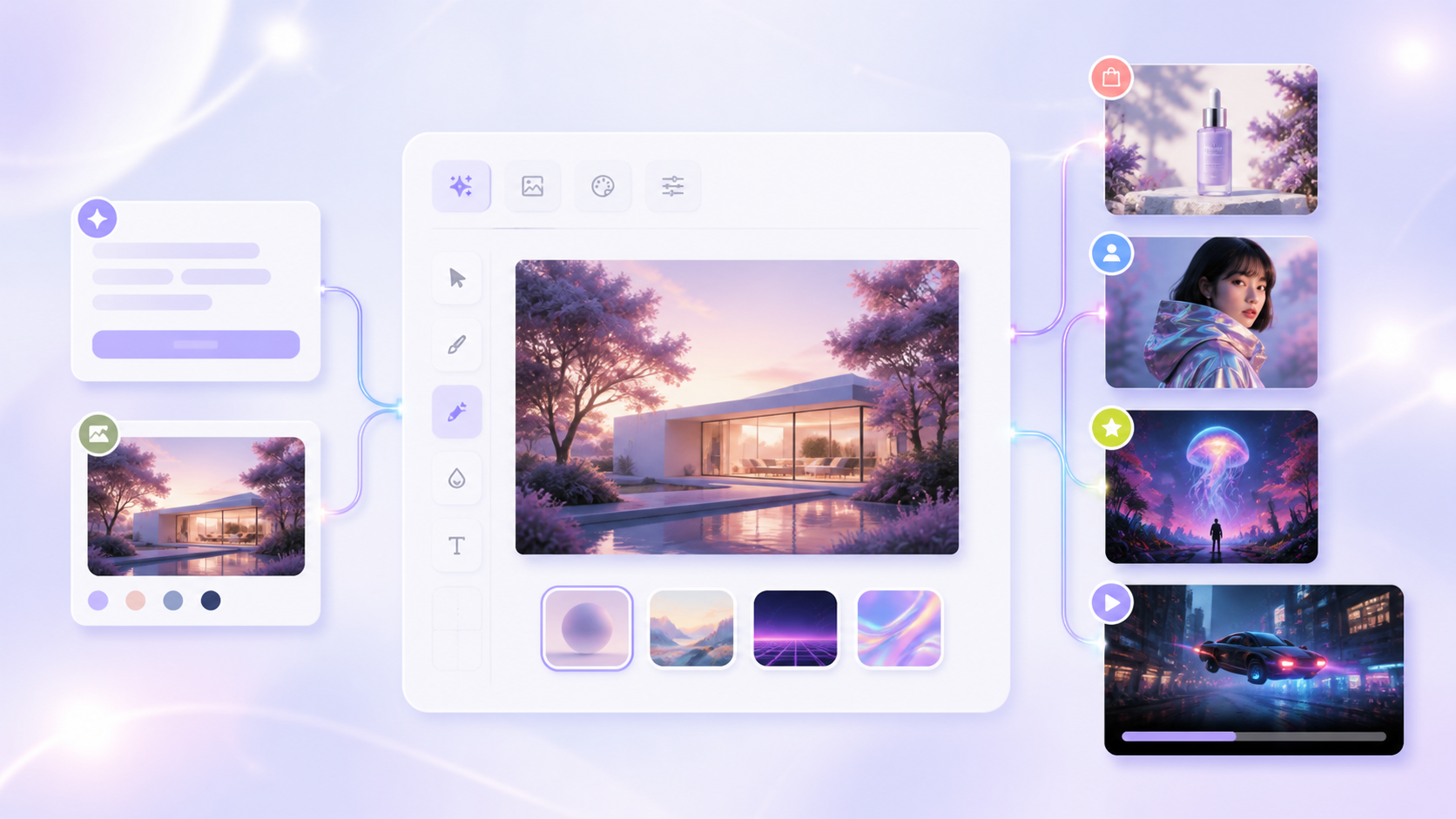
A simple Vismuse workflow from prompt and reference image to finished images and video

1. Pick what you want to create

Start with the finished result: an image, video, flyer, album cover, product ad, or something else. Choose the tool with the closest name. If you are not sure, use AI Image Maker for an image or AI Video Generator for a video.

2. Describe it in your own words

Tell Vismuse what you are making, what should appear, how it should look, and where you will use it. Include any exact words, colors, or details that must appear.

  • What you are making
  • The main subject or action
  • The look, colors, and mood
  • Where you will use it
  • Exact text or details that must stay
Example image brief

Create a square Instagram image for a citrus sparkling water. Put the can on a pale stone table with water splashes and warm morning light. Use lime green and cream. Add the headline ‘A brighter kind of refreshment.’

3. Add a photo when Vismuse needs something to follow

Upload a product photo, portrait, room photo, logo, sketch, or other reference when you want Vismuse to keep or match something. Say what must stay the same and what may change.

Example reference edit

Keep the can, label, and camera angle from my photo. Change only the background to a bright poolside scene.

4. Pick the right size

Choose the shape based on where the result will appear: 1:1 for square posts and covers, 4:5 for portrait posts, 9:16 for stories and vertical video, and 16:9 for wide images and video. Start with 1K for a quick draft. Choose 2K or 4K when you need a larger final image and the option is available.

For video, also choose a duration. If you upload an image, describe what should move and how the camera should move.

5. Check the result and ask for one change

Check the subject, text, colors, layout, motion, and important details. You do not need to start over. Say what is already right, then ask for one clear change.

When the result looks right, download it. Available file types, resolution, and watermark options can vary by tool and plan.

Example revision

Keep the product, layout, and lighting. Change only the background from blue to warm beige.

Tips

  • Put exact text in quotation marks and check it before publishing.
  • Say what to keep before you say what to change.
  • Explain what each uploaded reference should be used for.
  • Ask for one clear change at a time.
  • Start a new project when you switch to a different type of output.

Related resources

  • Which Vismuse tool should you use? — Match your project to the best starting point.
  • Write better AI prompts — Turn an idea into a clear, usable creative brief.
  • Browse templates — Start from a proven visual direction.

Explore related tools

  • AI Image Maker
  • AI Video Generator
  • All Vismuse tools
Vismuse

Create and edit images and videos through conversation—no traditional editor required.

Product

AI Image GeneratorAI Video GeneratorAI Image to Video GeneratorAI Animation GeneratorAlbum Cover MakerProduct Ad MakerAI Flyer Maker

Templates

All TemplatesFlyer TemplatesAlbum Covers

Resources

Help CenterDocsToolsPricing

Company

Contact supportAbout VismuseAcceptable UsePrivacyTermsRefund PolicyCookies
© 2026 Vismuse. All rights reserved.
English
EnglishDeutschFrançaisEspañolPortuguês (Brasil)日本語한국어繁體中文