
Measured keyword targets
These queries were checked for US search demand and keyword difficulty before this guide was added.
| Query | Monthly volume | KD |
|---|---|---|
| how to make a flyer on google docs | 480 | 17 |
| how to make a flyer in google docs | 260 | 12 |
| how do i make a flyer on google docs | 260 | 22 |
Set up a one-page flyer document
Open a blank Google Doc, set the page size you need, and decide whether the flyer is for print, email, or social sharing. For a simple letter-size flyer, start with narrow margins so the headline and image area have enough room.
Before adding decoration, write the flyer message in order: headline, date or offer, location or service area, contact details, and one call to action.
- Page size and margins
- Headline
- Event or offer details
- Contact details
- Call to action
Use simple blocks instead of fighting the page
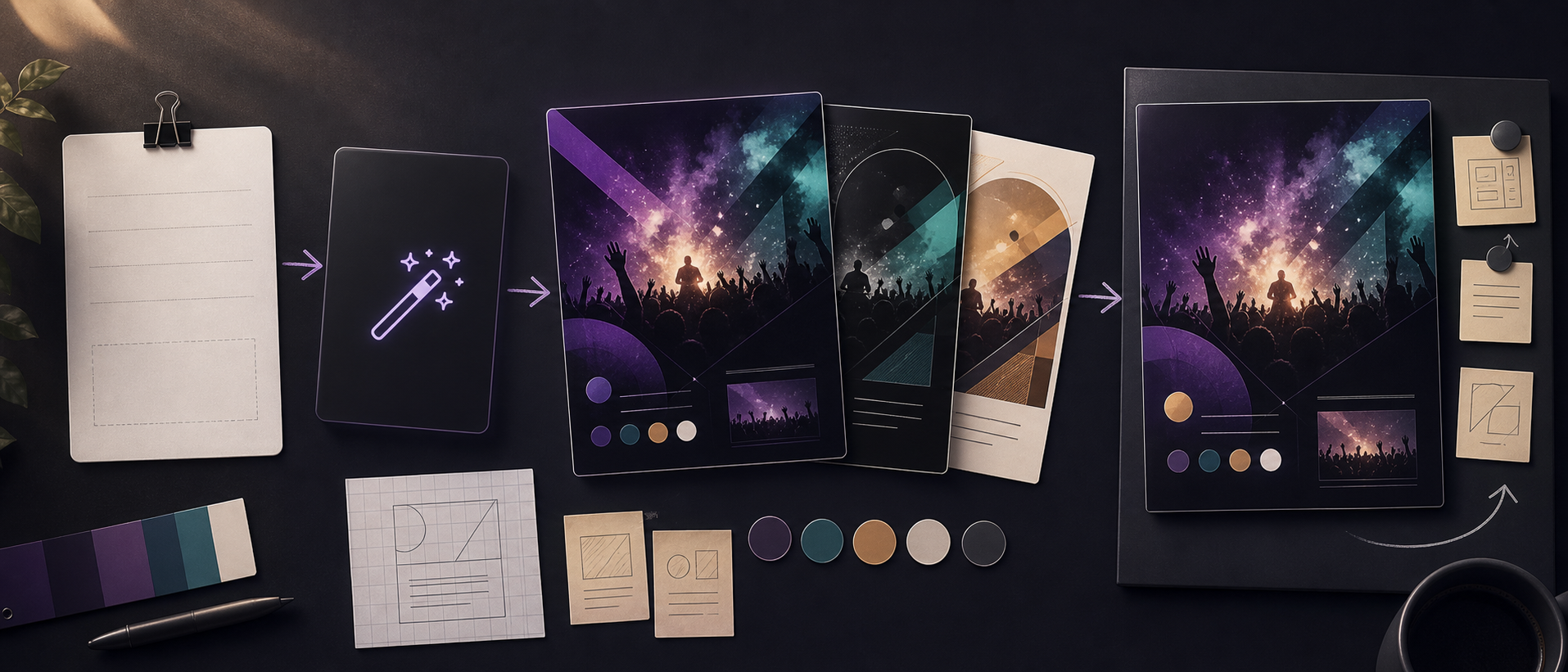
Google Docs is better at clean text blocks than complex poster design. Use a large headline, one image or shape area, and a separate detail block. Tables can help keep information aligned without relying on floating objects.
If you need a more visual flyer, generate the first layout in Vismuse, then use Google Docs only for final copy, printing, or collaboration.

Build the flyer with Google Docs tools
Use Insert Drawing for a headline block, shapes, and simple labels when you need more control than normal paragraphs. Keep the drawing simple: one title, one supporting line, and one CTA or contact detail.
For photos or generated flyer art, insert the image first, then choose wrap text or break text so the image does not push the whole page around. Keep the important copy in separate text blocks where it stays editable.
- Insert Drawing for grouped headline elements
- Use tables for aligned details
- Use wrap text for images
- Keep final copy editable
- Export as PDF before printing
Generate the design direction before rebuilding it
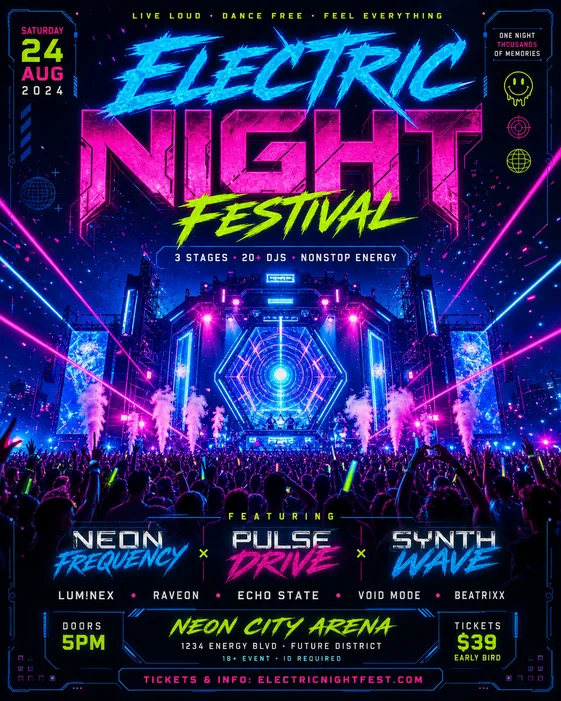
The fastest workflow is to describe the flyer in the AI Flyer Generator first: flyer type, headline, required text, style, format, and readability needs. Then keep the winning structure when you recreate or share the final version.
This avoids the blank-page problem in Google Docs and gives you a clearer reference for colors, spacing, hierarchy, and image direction.
Checklist
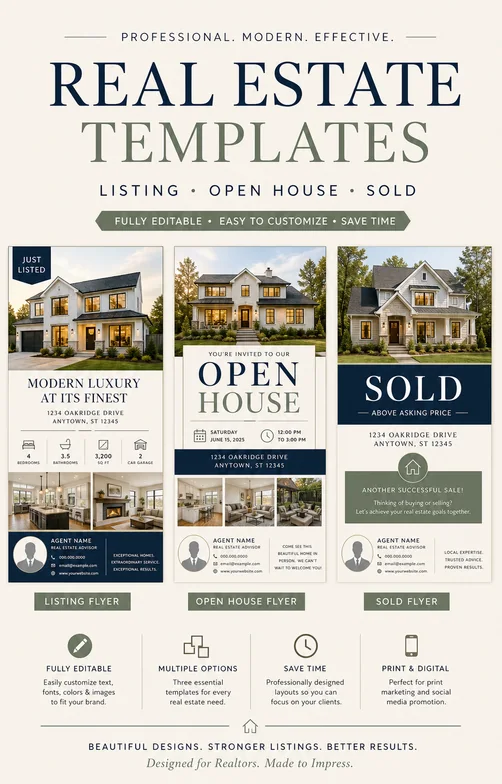
- Use one flyer goal and one CTA
- Keep the headline short enough for large type
- Use tables or simple blocks for alignment
- Check print margins before exporting
- Use AI first when the flyer needs stronger visuals
Google Docs vs AI Flyer Generator
| Need | Google Docs approach | Vismuse shortcut |
|---|---|---|
| Printable text flyer | Use a one-page document with headline, image, and detail blocks. | Generate the visual direction, then export or recreate the structure. |
| Social event flyer | Docs can draft copy, but aspect ratio and styling take manual work. | Start in 4:5 or 9:16 and revise the layout visually. |
| Business promo flyer | Use tables for offer, benefits, phone number, and CTA. | Prompt the offer and service area, then refine for readability. |
Best workflow
Use Google Docs when collaboration and printing matter most. Use Vismuse first when you need the flyer to look designed before you spend time arranging boxes by hand.
Best for
- Simple printable announcements
- Shared editing
- Final copy review
Less ideal for
- Fast visual exploration
- Highly styled event flyers
- Multiple social aspect ratios
Reusable examples
Google Docs flyer planning prompt
Use this before you build the flyer manually in Google Docs.
Create a clean letter-size flyer layout for [event or offer]. Include headline, detail block, image direction, contact footer, and one CTA. Keep the design easy to recreate in Google Docs with simple text blocks and one main image area.
Frequently asked questions
Who is this guide for?
Google Docs can work for a simple flyer if you need a printable page with text boxes, images, and basic layout control. The tradeoff is speed: you still need to plan hierarchy, spacing, and visual direction before the page looks polished.
What workflow does this guide support?
This guide is designed to help with how to make a flyer on google docs and connects to the matching Vismuse workflow page for hands-on execution.
Do I need design experience to use this workflow?
No. Start with the guide structure, add the details you already know, and use the matching Vismuse generator to create and refine the visual.