
A useful event flyer answers four questions quickly: what, when, where, and what to do next. An AI event flyer generator can create the first draft from those details. You can then refine the design and information in the same chat.
Promote different kinds of events
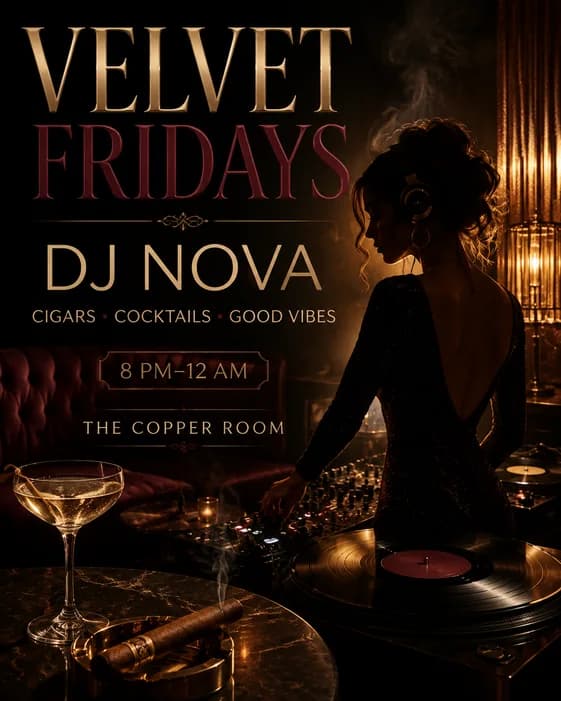
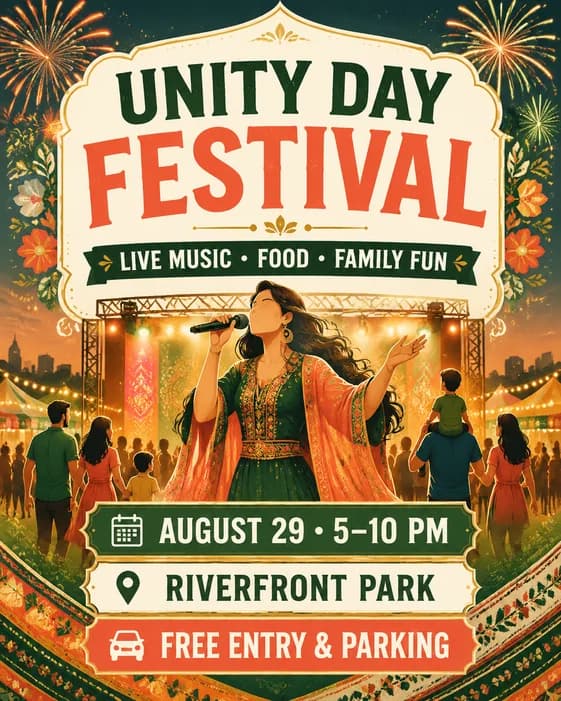
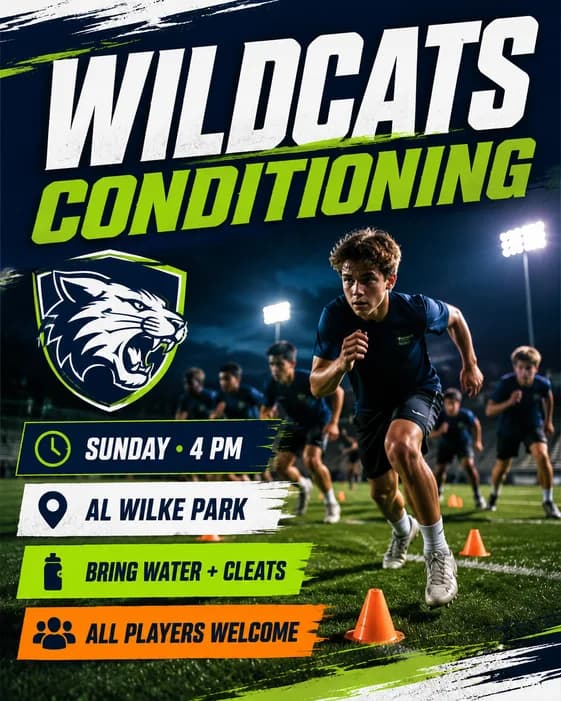
Event flyer examples
The same information hierarchy works across concerts, community gatherings, workshops, and sports events. Change the imagery and tone to match the audience, but keep the practical details easy to scan.
Start with the outcome
Define the goal and gather the event details
Identify the audience and one primary action. A ticketed show should emphasize the booking link; a free community event should make the date, location, and free entry unmistakable.
A specific goal tells the AI what to emphasize. “Promote a 21+ Saturday DJ night and drive advance ticket sales” is stronger than “make a cool event flyer.”
Finalize the facts before designing. Put required wording in quotation marks and never ask the AI to guess a date, price, address, performer, sponsor, or contact detail.
Keep it concise: if a full schedule or policy makes the flyer crowded, place that information on the event page and use one clear URL or registration action.
Create recognition
Choose the main visual and direction
Use one strong visual idea: an approved performer photo, the venue, a product or activity, or a generated scene that signals the event. Then choose a focused color and mood direction.
Upload logos or photos with the brief, explain each asset’s role, and state what must remain recognizable. Use only material you have permission to publish.
Plan the placement
Keep date, venue, and registration easy to find
Group the date and start time with the venue, then place the ticket or registration action directly below them. For a multi-day event, show the date range and link to the full schedule instead of squeezing every session onto the flyer.
Use square or 4:5 for a feed and 9:16 for a Story; ask for a separate layout so the attendance details stay readable.
Generate the event flyer and check attendance details
Choose the closest prompt and replace the sample information with your event details. Upload any approved speaker, venue, or sponsor images. Send the prompt in Vismuse to generate the first draft.
Verify the full date, venue address, admission price, and registration deadline. Label doors-open and start times separately, and include the time zone for online events.
Ask for changes in the same chat. For example: “Keep the event title and speaker photo. Put “[DOORS TIME] · [START TIME]” below the date and make “[REGISTRATION DEADLINE]” easy to find.”
Each revision creates a new image, so recheck details you did not ask to change.
Test the registration URL separately; text inside the flyer image is not clickable. Download as PNG or JPG, or export an eligible original as PDF. For print, confirm sizing and resolution with your printer; PDF export does not automatically add bleed or crop marks.
New to Vismuse? Follow the step-by-step flyer creation guide. For changes to an existing design, see how to edit a flyer with AI.
Avoid these problems
Common event flyer mistakes
Before you publish
Event flyer checklist
- Event name is the first read
- Names, dates, times, venue details, and contact information are correct
- Admission, age, or registration conditions are clear
- There is one obvious call to action
- Uploaded photos and logos are approved for use
- Text is readable in the intended format, and print requirements are confirmed when needed
Frequently asked questions
How to make an event flyer: FAQ
How do I make an event flyer with AI?
Start with the event name, audience, exact date and location, admission details, call to action, visual direction, and intended format. Generate a first draft, proofread it, and request focused changes in the same chat.
What should an event flyer include?
Most event flyers need a clear event name, date, time, venue, location, admission or registration details, and one next action. Add performers, speakers, sponsors, age limits, or contact details only when they help someone decide or attend.
Can I use my own event photo or logo?
Yes. Upload the approved image, identify whether it is the main subject, logo, or style reference, and say what must remain recognizable. Use only material you own or have permission to publish.
Can AI correct the date or venue on an event flyer?
Yes. Quote the incorrect wording and the exact replacement, then name what should stay. The revision is a newly generated image rather than an editable text layer, so check the whole flyer again.
What size should an event flyer be?
Choose the size for the placement: 1:1 or 4:5 for many feed posts, 9:16 for Stories, or a portrait shape for a printed handout. Create a separate version for an important second placement instead of relying on one crop.
Can I print an event flyer made with Vismuse?
You can download eligible results as PNG, JPG, or PDF. The PDF preserves the generated aspect ratio and does not automatically add bleed or crop marks, so confirm dimensions, resolution, color, bleed, and file requirements with your printer.
Keep exploring
Related flyer resources
From event details to finished flyer
Create and revise your event flyer with the AI agent
Send the brief, review the design, and request changes in the same chat.