
First Time in a Fancy Cafe AI — Two-Photo Prank Video
Make the First Time in a Fancy Cafe AI meme with two photos: one guest mistakes a wall table for a seat, then another reveals the joke. 15-second vertical video.
Pick an effect
All 136 effects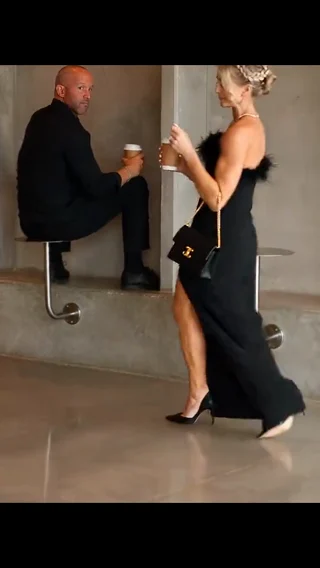 First Time in a Fancy Cafe AI
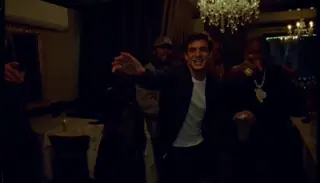 Burning Bridges
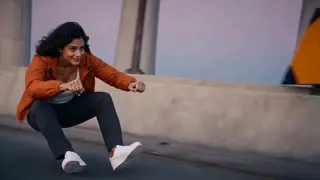 Crazy Frog AI
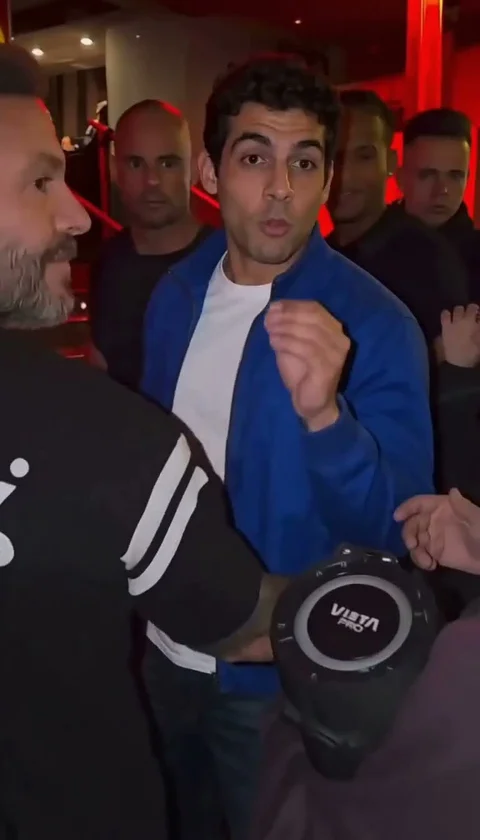 Bulin 47
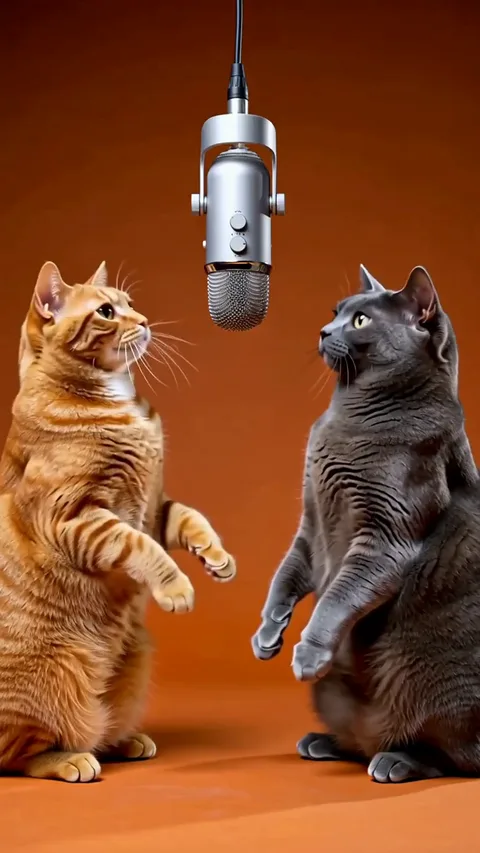 Hotel Lobby
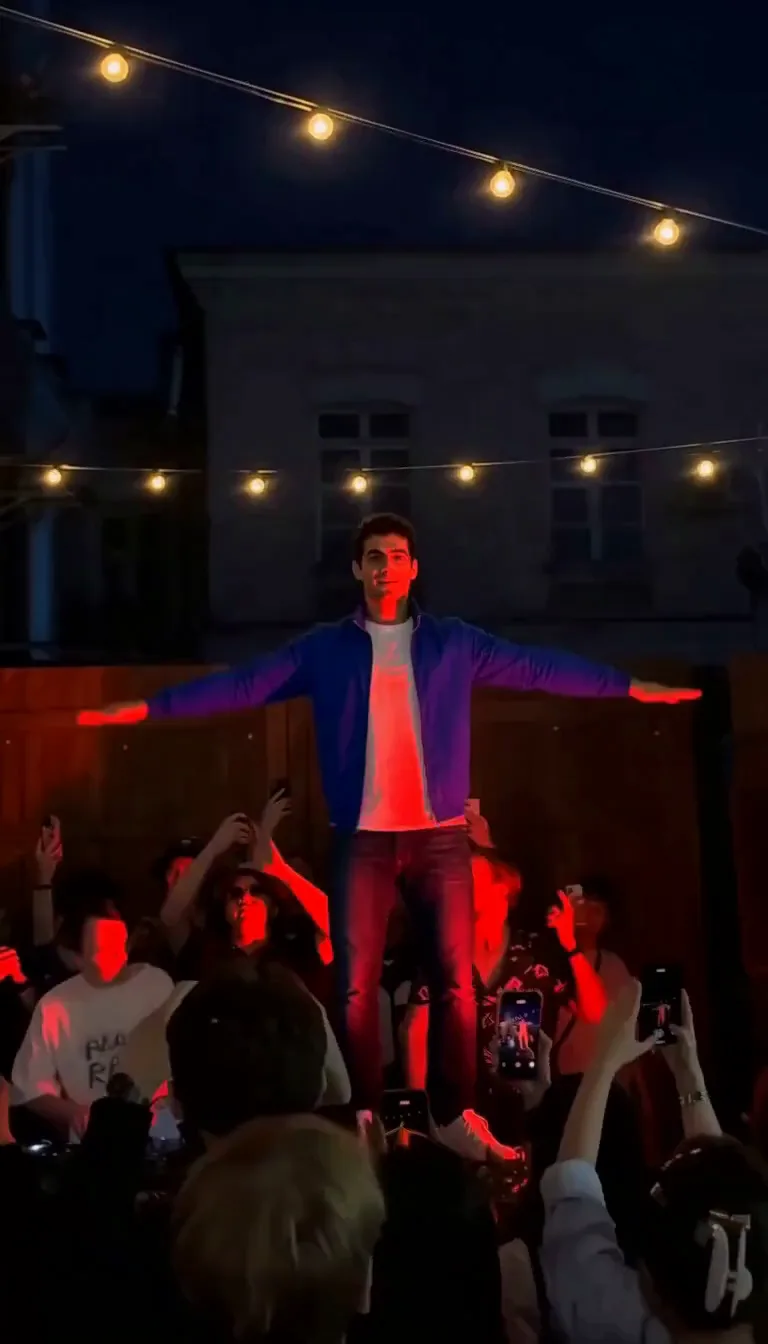 Cheba Man
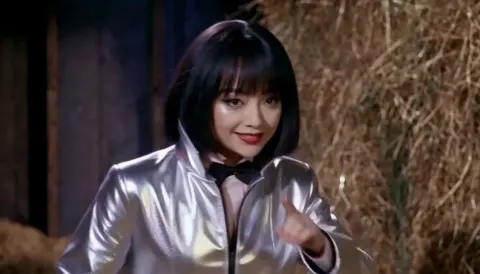 Rumpelstiltskin
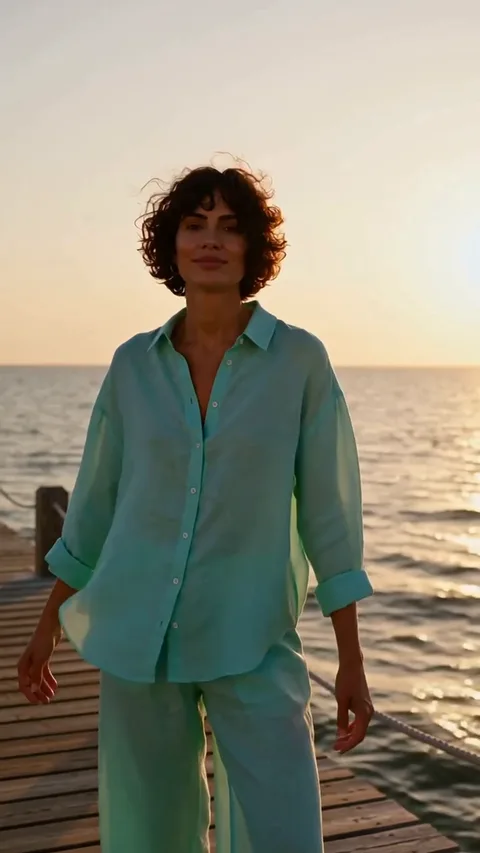 Raindance
 Toc Toc
 Ozil Goal
 Zombie Video
 Zombie Couple
 STORM II
 Alors On Danse
 Hit The Road Dude
 Gas Station Dance
 Smalltown Boy
 AI Crying
 Camden Bop
 Bad Times
 AI Dog Dancing
 AI Cat Dance
 Jean Phil Gang Gang
 Your Next Opponent Is You
 Mi Chico
 Michael Jackson Dance
 AI Kissing
 NEON Dance AI
 Vampire Duo Dance AI
 You Look Lonely AI
 Enzo Fernandez Celebration AI
 Champagne Birthday AI
 Babydoll Dance AI
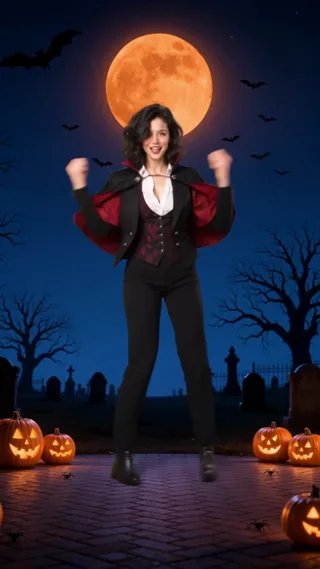 Spooky Scary Skeletons AI
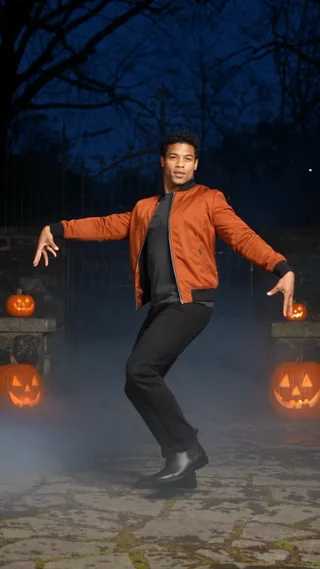 Thriller Dance AI
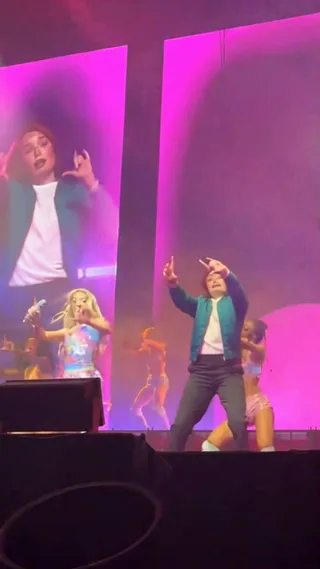 Lush Life Dance AI
 Charme Dance AI
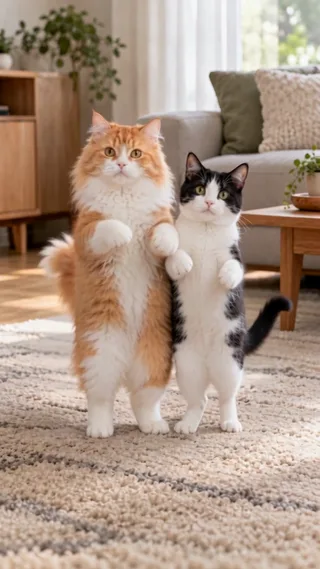 Babydoll Dance Pet AI
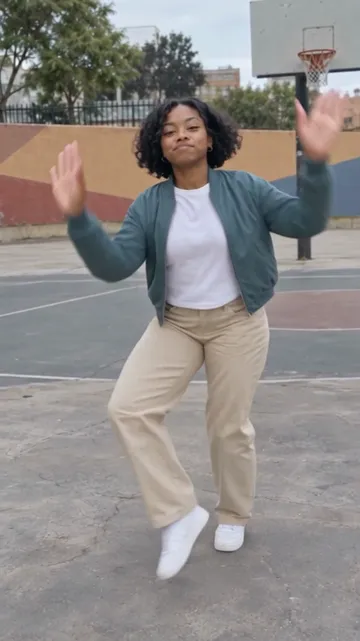 Juju On That Beat AI
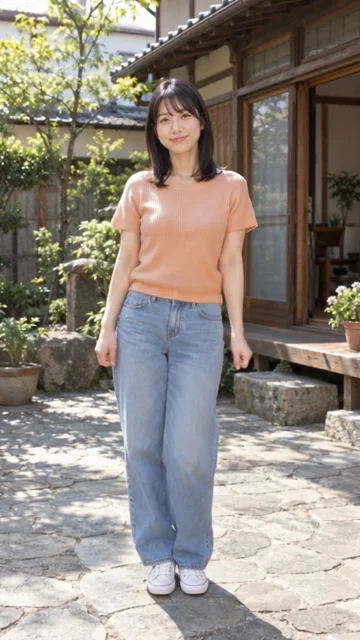 Otsukare Summer AI
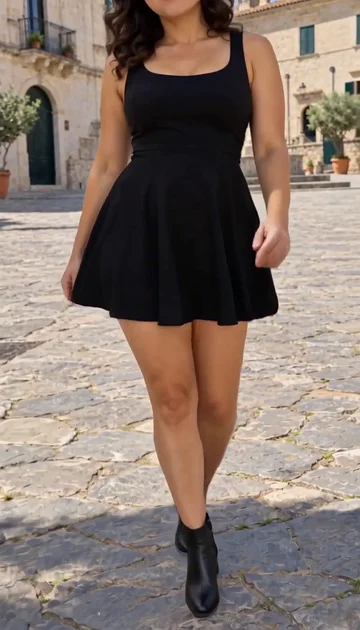 Ramalama AI
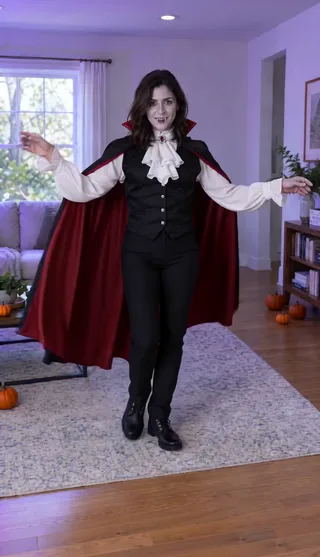 AI Halloween Costume
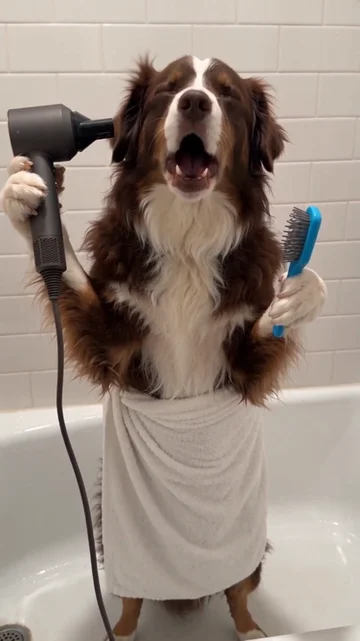 Singing Dog AI
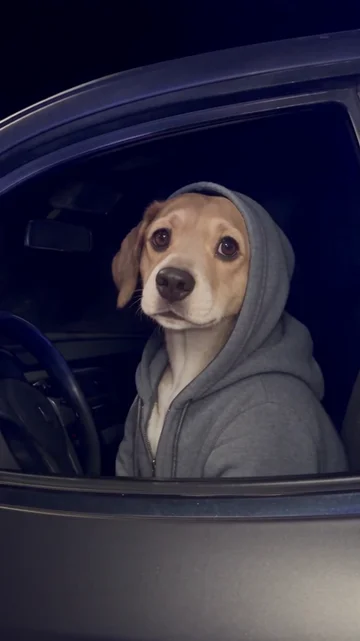 What Stop Sign AI
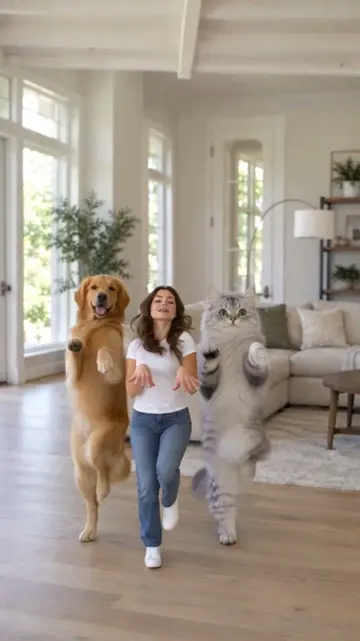 KATSEYE Animal AI
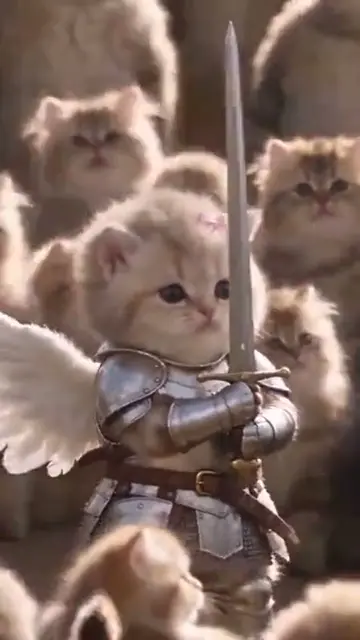 Closed on Sunday AI
 Twilight Baseball AI
 I Put My Heart in This AI
 Fergie Baby AI
 Gangnam Style AI
 Jailer 2 AI
 Ain’t No Mountain High Enough AI
 No Scrubs AI
 C-Walk AI
 AI Cartoon Couple
 Walk It Like I Talk It AI
 APT Dance AI
 No Renunciaré AI
 Keep On Steppin AI
 Thank You Baby AI
 Money Flex AI
 I'm Gonna TOESA AI
 That's My Dawg AI
 Kung Fu Cat AI
 Not Cute Anymore AI
 Rasputin Dance AI
 Can Can Dance AI
 Chicken Dance AI
 Bécane AI
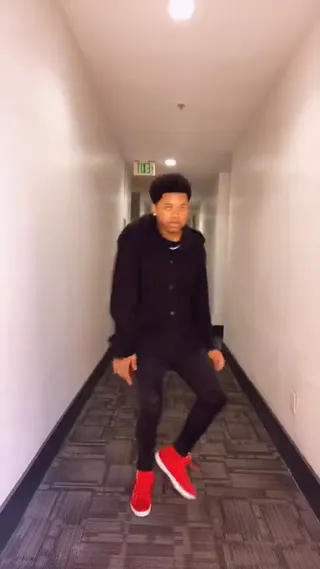 Toosie Slide AI
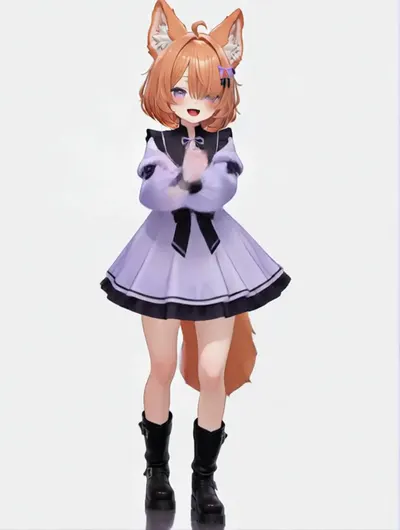 Tyla Dance AI
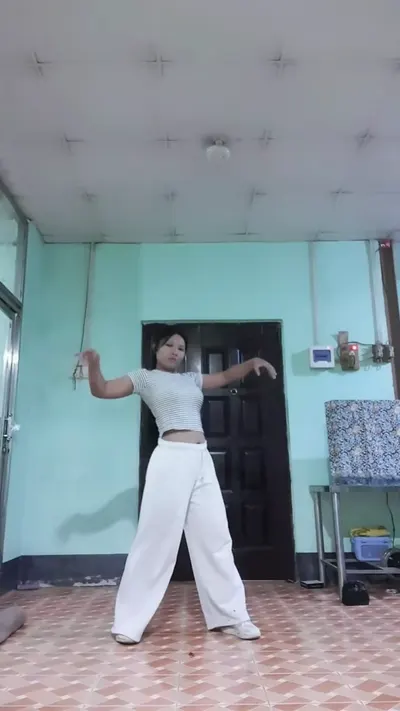 ATEEZ BAD AI
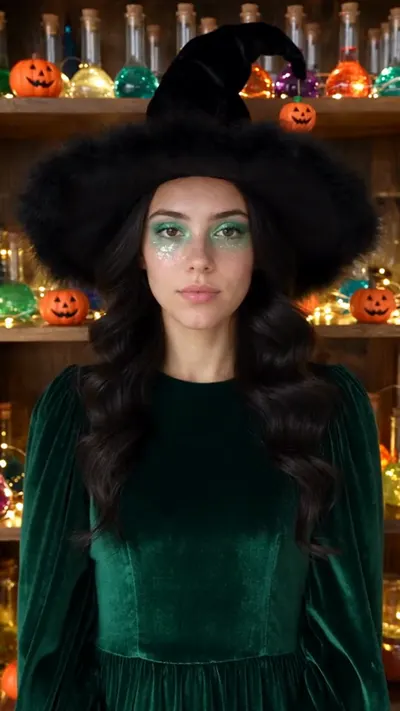 Potion Witch AI
 Coldplay Kiss Cam AI
 Turn The Lights Off AI
 I Got That Feeling AI
 Naruto Dance AI
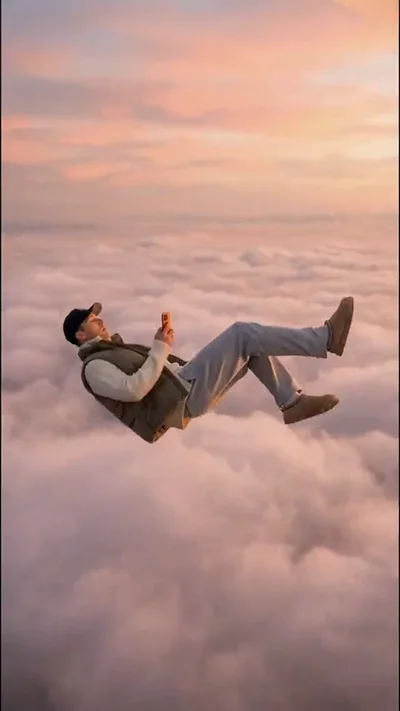 Skyfall AI
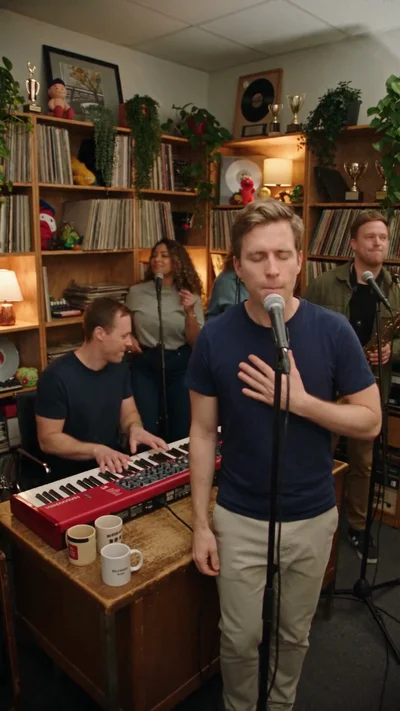 Tiny Desk AI
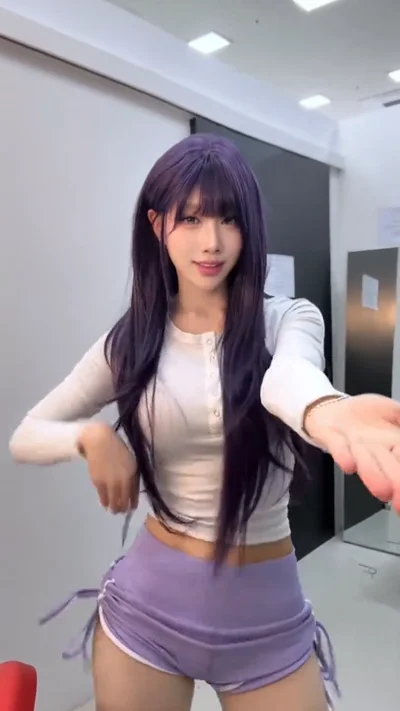 Macarena Dance AI
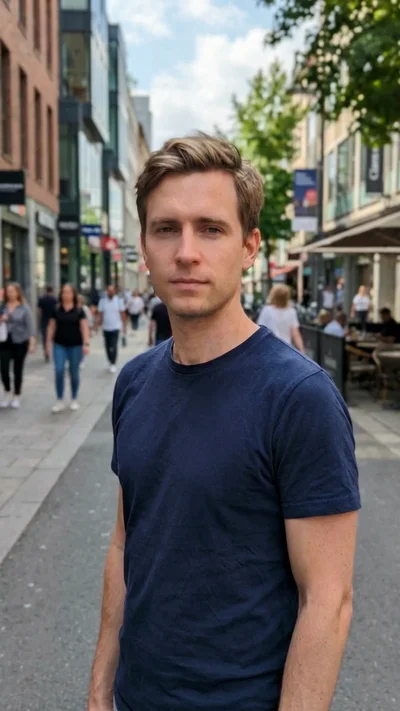 Gender Swap Filter AI
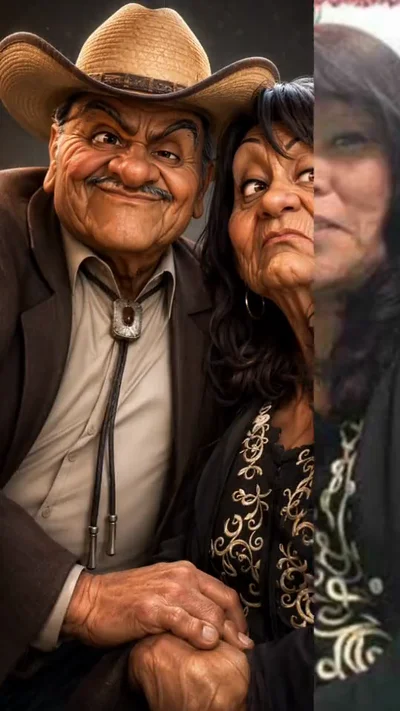 AI Caricature Trend
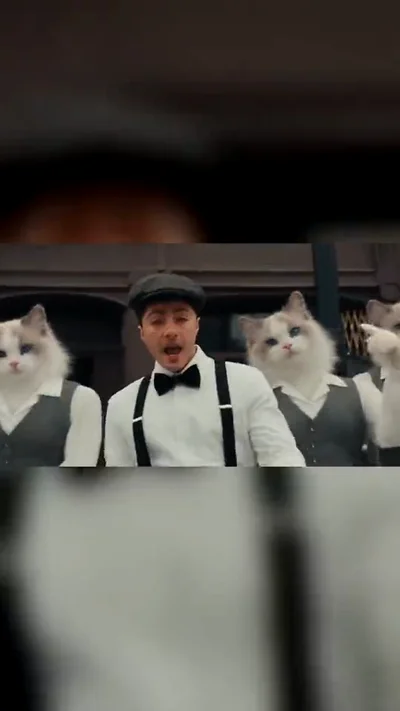 Uptown Funk AI
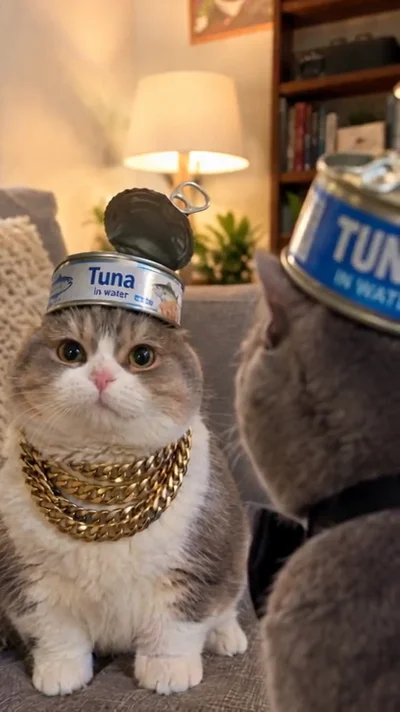 Deep Down In My Heart AI
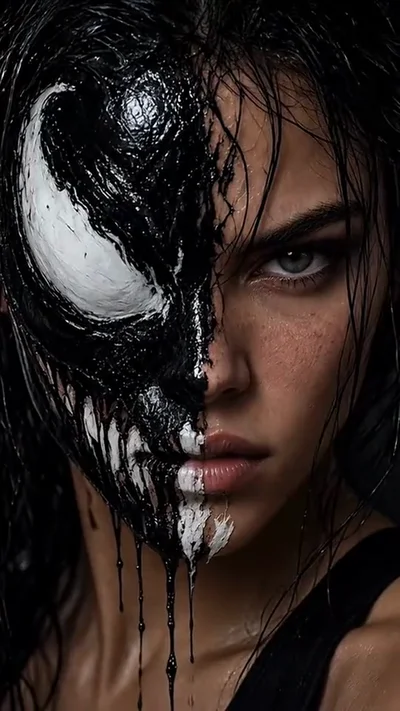 Venom Makeup AI
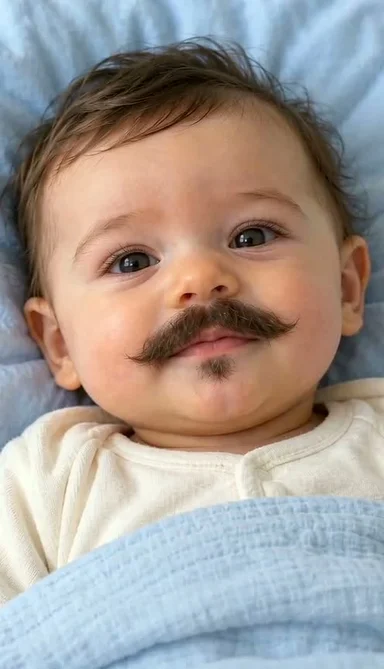 Baby With Mustache AI
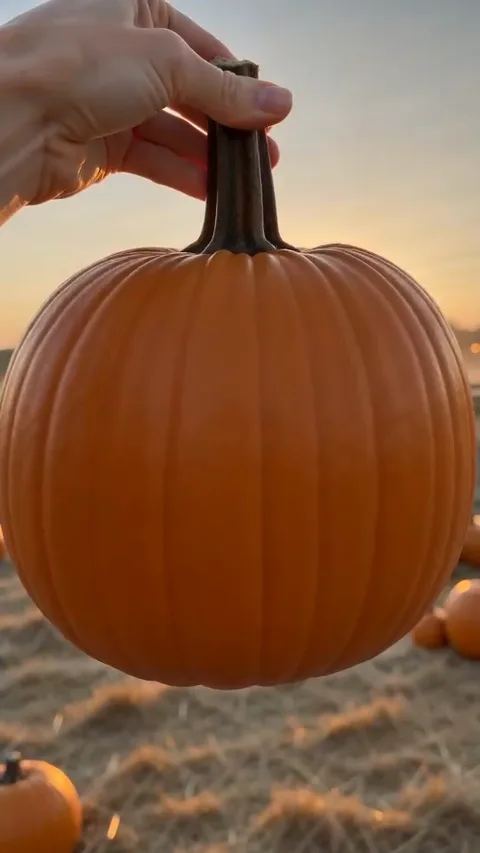 Pumpkin Head AI
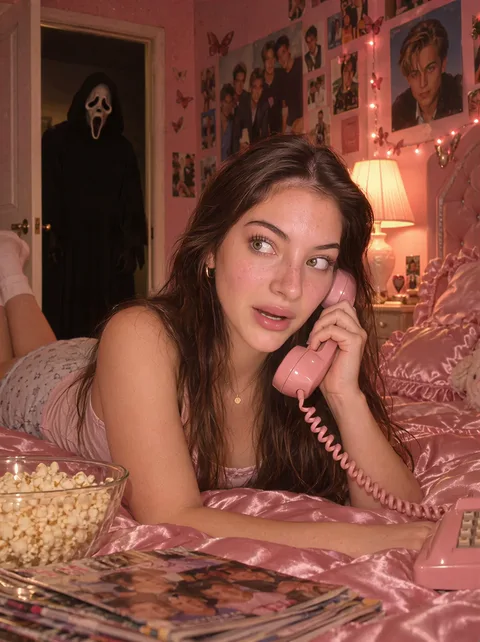 Ghostface AI Trend
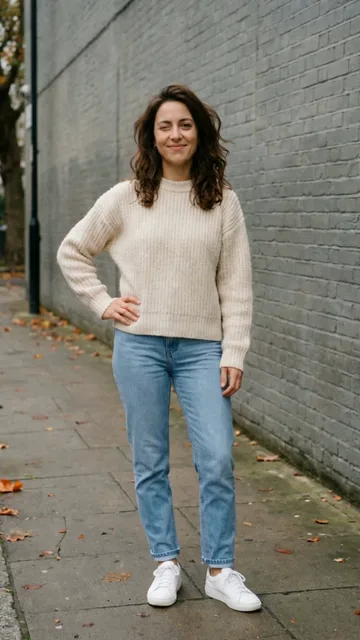 Mandem in Disguise AI
 Wassup in a Minute AI
 Puerto Rican Mami Dance AI
 Bing Bing Bing Kicking AI
 Window Dance AI
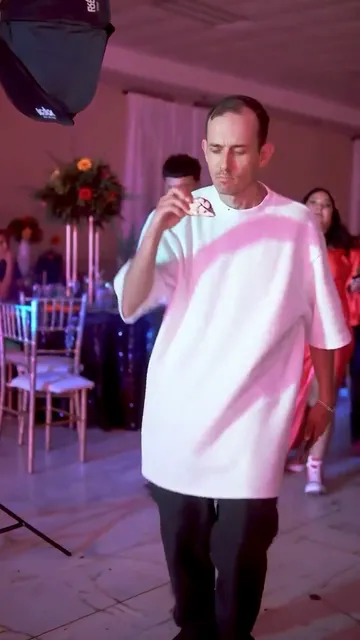 BbY WOW AI
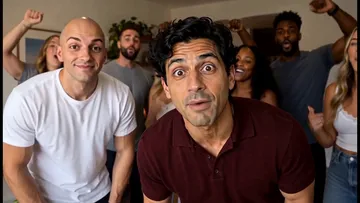 Check One Check Two AI
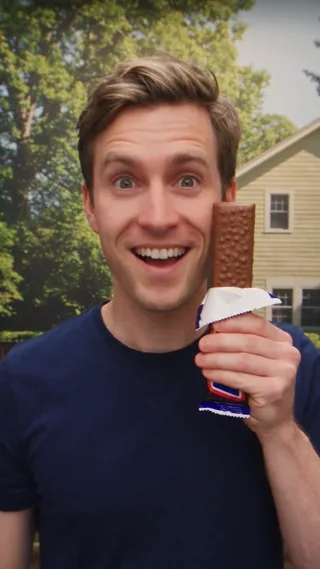 Nestle Crunch AI
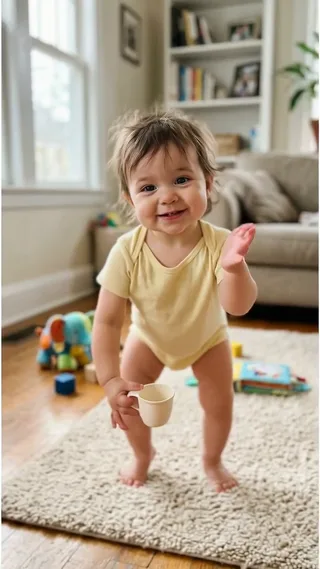 Bonito Bonito AI
 I’m So In Love With You AI
 Mummy Zombie Dance AI
 Mom Dad Sister Brother AI
 I Thought We Were Having A Nice Date AI
 Talk Dirty Dance AI
 Stones to Castle AI
 Ballon d’Or AI
 Skull Cap AI
 iPhone Kupi Dance AI
 Grease Dance AI
 Then I Walk In AI
 Mini Me AI
 Tung Tung Tung Sahur Dance AI
 I Hope He Buys You Flowers AI
 Dog Making Coffee AI
 Birthday Car AI
 AI Cupid
 On The Radar AI
 Pick It Up Dance AI Video Generator
 AI Red Riding Hood Video Generator
 BABYMONSTER DESERVE AI Video Generator
 Shan Shen Bu Dance AI
 JISOO Addicted Dance AI Video Generator
 Mabel Matiz Umrumdışı AI Video Generator
 Snow Leopard Meme AI — Paws At You Video Generator
 Giant Ramp Climbing AI — Dam Wall Run Video Generator
 Quiet on the Creek AI
 Chipmunks Dance AI
 Bicep Heart AI
 Closing Door Prank AI
 24K Magic AI
 Hop Hop Hop AI Dance
 Cutedog AI
 Smooth Criminal Dance AI
 End of Watch AI
 Look Alive AI
 Just a Little Bit AI
 Trouble Maker AI
 58th Floor AI
 I Just Beat The Case AI
Paid credits required. Check the cost before generating.
What is First Time in a Fancy Cafe AI?
The First Time in a Fancy Cafe joke depends on an unusual wall-mounted coffee table. The first guest perches on the small round table, treating it as a chair while holding a drink. A second guest enters and sits on the actual bench, revealing that the first person misunderstood the furniture. Upload two separate photos to cast both guests: photo 1 is the mistaken guest, photo 2 the person who sits correctly. The camera must show the wall table, bench and both bodies so the visual punchline is clear without a text overlay.
Your photos and the prepared scene
Your photos define the cast, including faces, natural bodies, hair or fur and visible clothing. The included video guides only the prepared action, shot order and camera timing. No video upload is needed. Leave instructions blank for the default scene, or request a setting, lighting or outfit change while keeping the assigned roles. AI motion and fine details can vary.
Create my video
- 01
Add your photos
Upload 2 separate, sharp photos, one subject in each, following the role order. Show faces, bodies and limbs clearly; avoid group photos and heavy filters. Reverse the relevant photo order to swap roles. Photo roles: Guest on the wall table / Guest on the bench.
- 02
Personalize the scene
Your photos define the cast, including faces, natural bodies, hair or fur and visible clothing. The included video guides only the prepared action, shot order and camera timing. No video upload is needed. Leave instructions blank for the default scene, or request a setting, lighting or outfit change while keeping the assigned roles. AI motion and fine details can vary.
- 03
Generate and download
Check the credit cost, generate, then inspect faces, hands and transitions before downloading. New generations and revisions use credits.
Make it your way
The template is built in. Use the ready-made scene, or add a short instruction to make it yours.
2K is available on eligible plans and uses more credits than 768p.
Questions about this effect
Which photos should I upload?
Upload 2 separate, sharp photos, one subject in each, following the role order. Show faces, bodies and limbs clearly; avoid group photos and heavy filters. Reverse the relevant photo order to swap roles. Photo roles: Guest on the wall table / Guest on the bench.
Do I need to upload a reference video?
Your photos define the cast, including faces, natural bodies, hair or fur and visible clothing. The included video guides only the prepared action, shot order and camera timing. No video upload is needed. Leave instructions blank for the default scene, or request a setting, lighting or outfit change while keeping the assigned roles. AI motion and fine details can vary.
Does the video include sound?
With sound enabled, the matching audio is extracted from the prepared video and added after silent visual generation. A silent request leaves it out. Exact beat alignment can vary.
How long is the video?
One 15-second 9:16 MP4. Check the face, body movement and scene continuity before downloading. New generations and revisions use credits.
Can I change the outfit or background?
Yes. Add a short instruction about clothing, lighting or the setting. Keep the assigned photo roles for the selected scene.
Create my video
Upload 2 separate, sharp photos, one subject in each, following the role order. Show faces, bodies and limbs clearly; avoid group photos and heavy filters. Reverse the relevant photo order to swap roles. Photo roles: Guest on the wall table / Guest on the bench.
Create my video