
Available in Vismuse AI Image Maker
GPT Image 2.5
AI Image Generator
Create portraits, product photos, and social graphics with GPT Image 2.5. Start from a text prompt or reference image, then refine your result in Vismuse AI Image Maker.
Create with GPT Image 2.5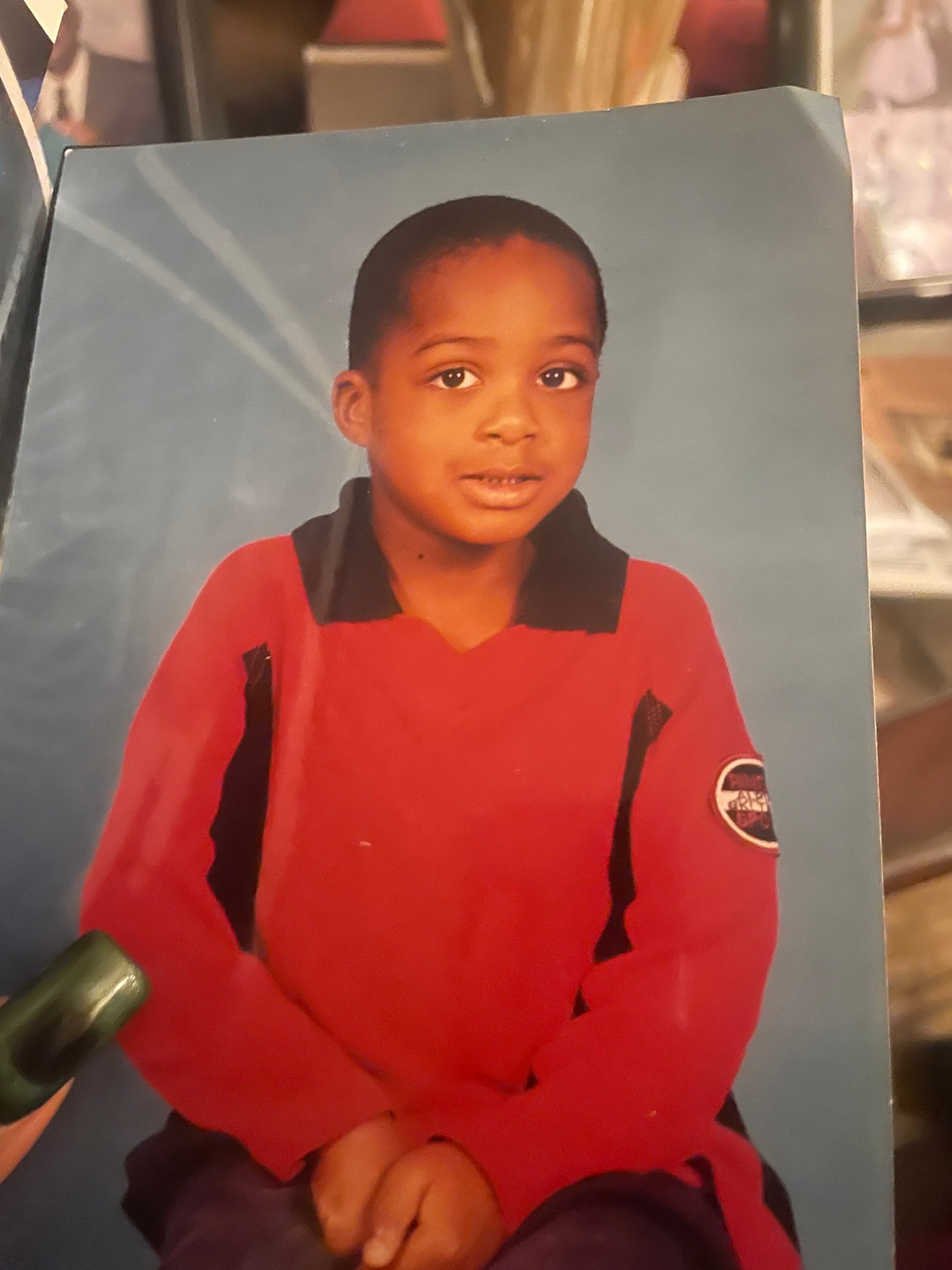
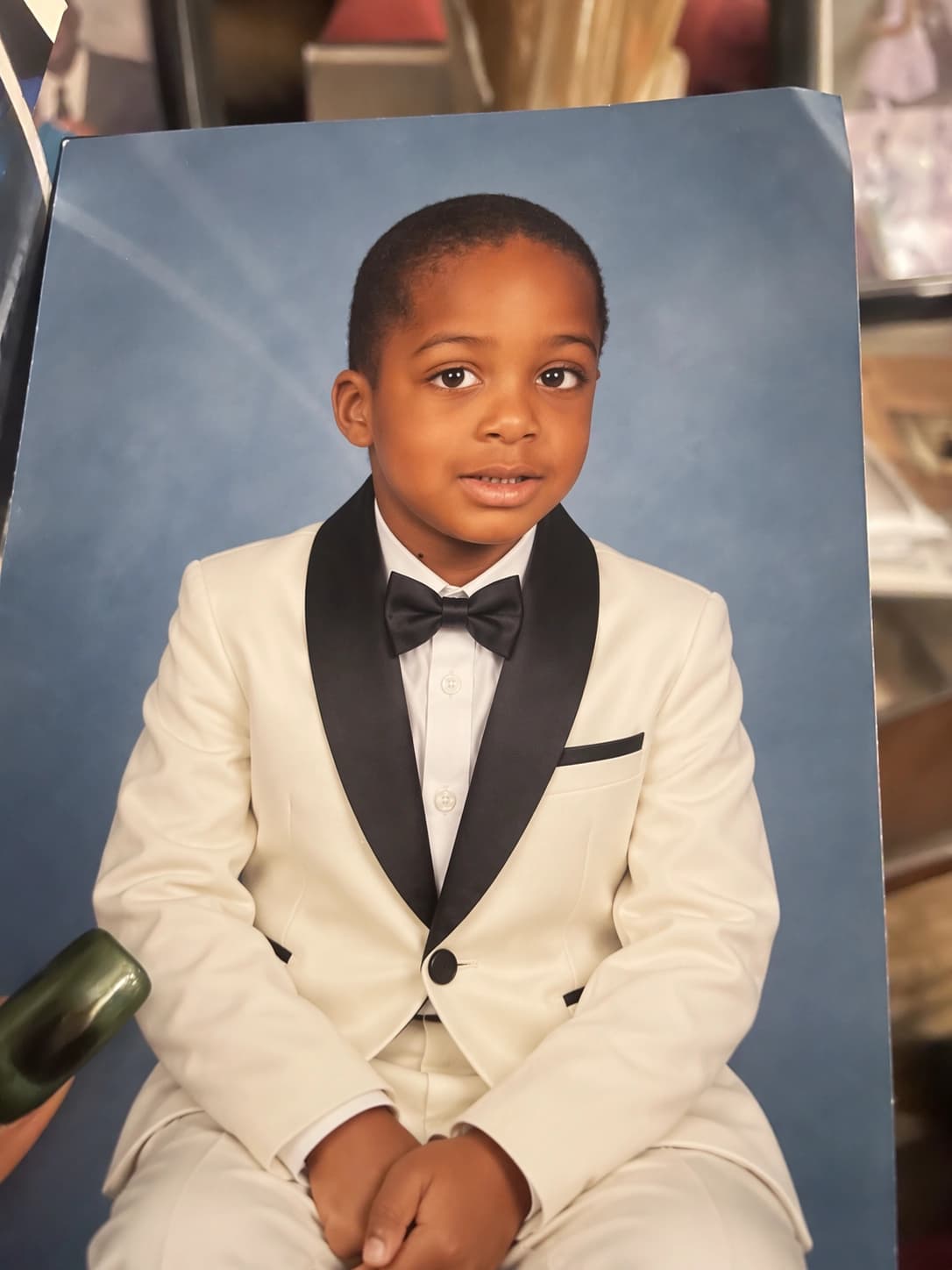
Generate and edit images for your next project
Build a visual from a description, use a reference to guide the subject, or bring an existing image into a new setting.
Text to image
Describe a product scene, portrait, or social graphic. Set the subject, light, colors, and composition in one brief.
Reference image creation
Start from your own photo. Explain which subject details should carry into the new image and what you want to change.
Image editing
Ask for a new background, a different outfit, or a palette adjustment. Name the parts you want to preserve.
Refine through conversation
Review your first result, then describe the next adjustment. Keep the brief and your revisions together in one workspace.
OpenAI highlights improvements in reference fidelity and editing consistency in the GPT Image 2.5 release.
Explore typography and visual styles
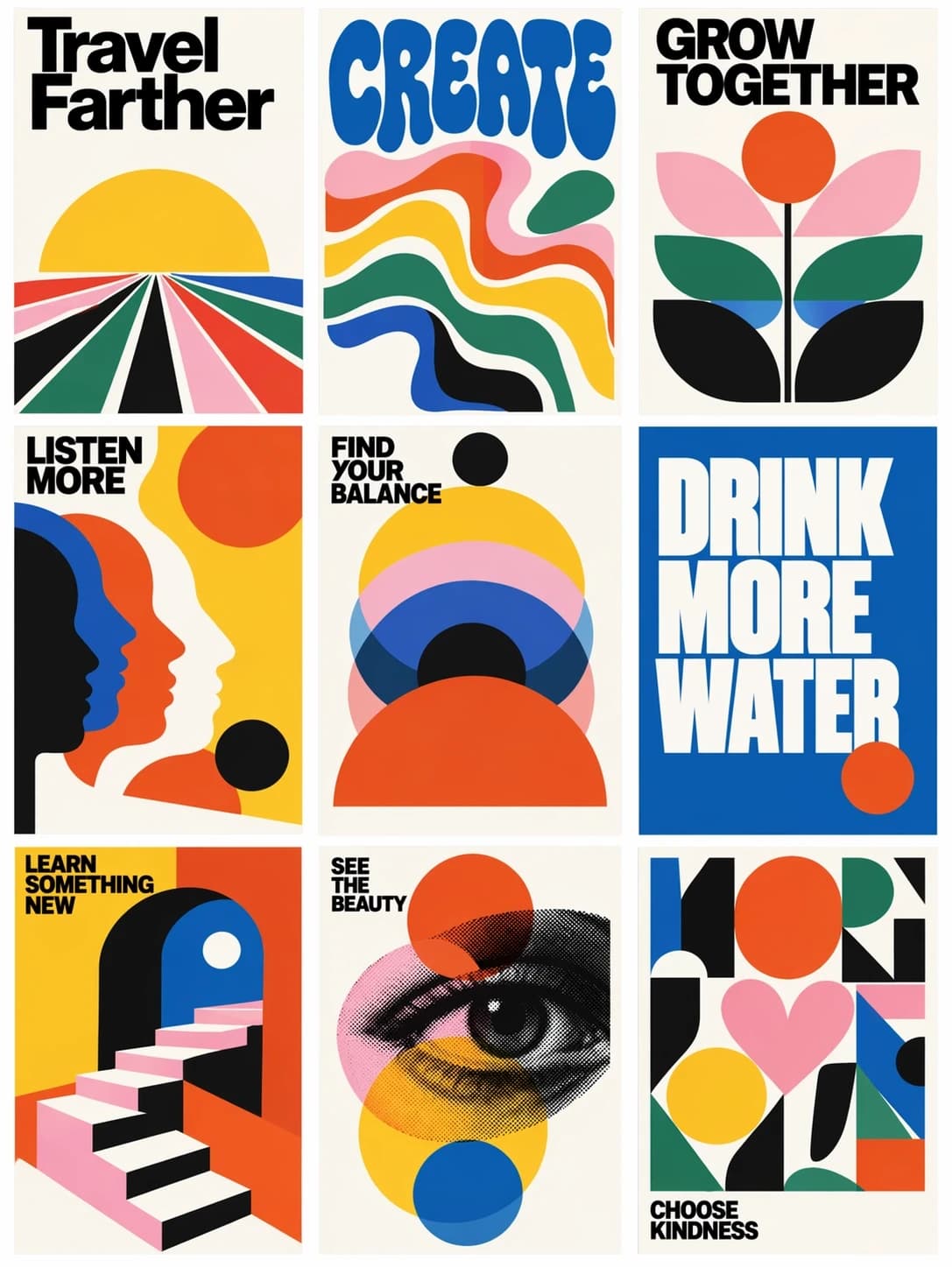
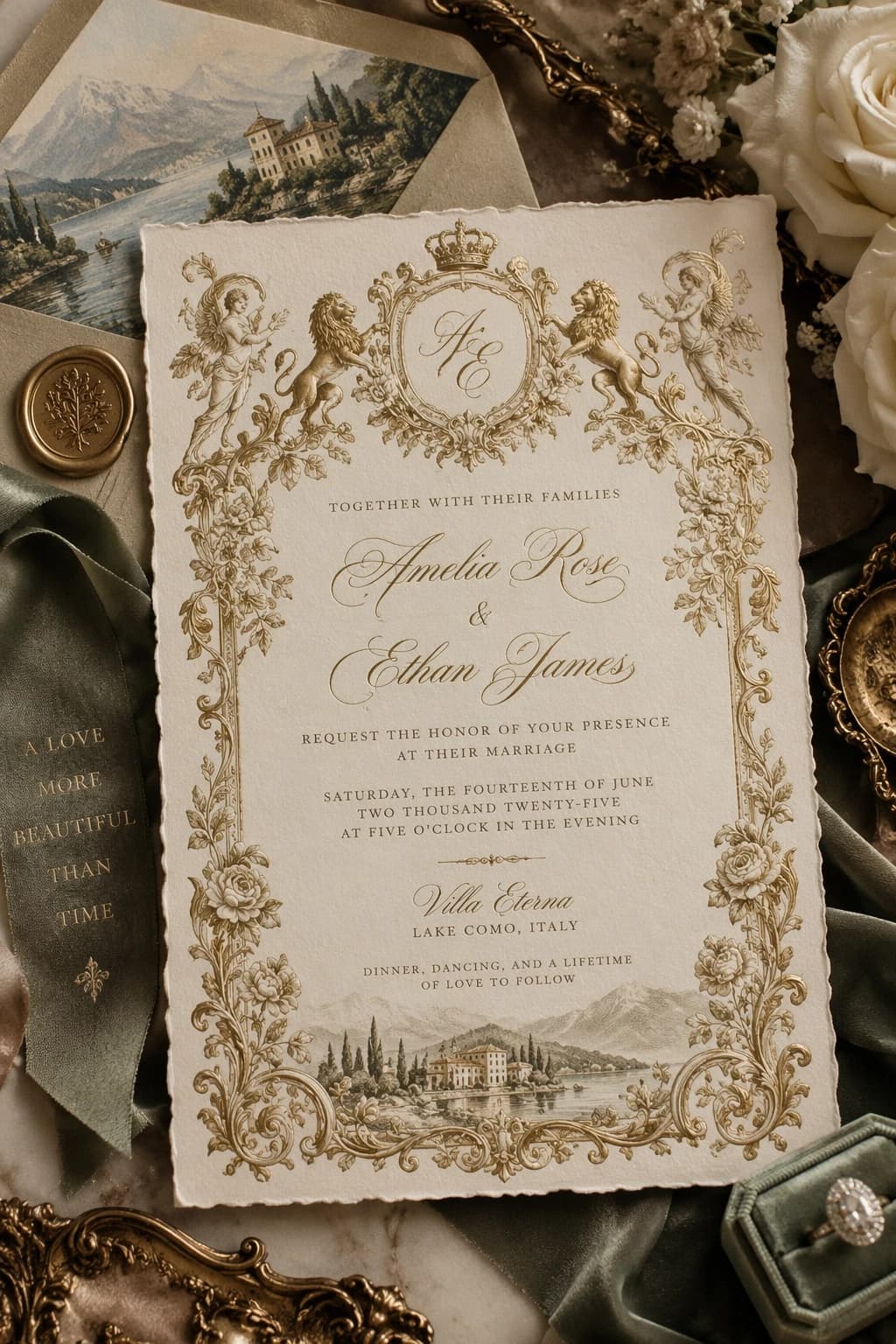
Official examples from OpenAI’s Images 2.5 announcement. Image credit: OpenAI.
How to use GPT Image 2.5 in Vismuse
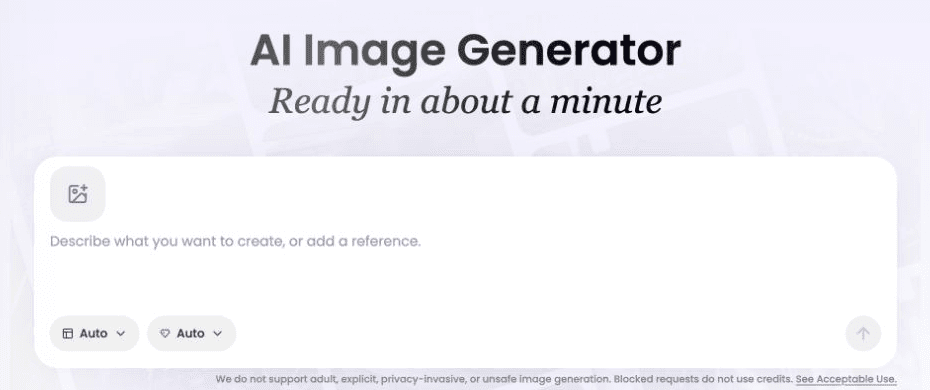
Describe your image or upload a reference
Open AI Image Maker and write what you want to create. Add the format, style, and any details that must appear.
Generate and review
Create your first result. Check the composition, subject, and any text against your brief.
Tell it what to change
Request a focused adjustment, such as warmer lighting or a simpler background, and state what should stay the same.
GPT Image 2.5 prompt ideas
Start with the purpose of the image. A profile portrait, a product campaign, and a background for a presentation each need a different composition. Then describe the subject, format, light, palette, and any space reserved for copy.
With a reference, give it a specific role: subject identity, product appearance, or visual style. For revisions, separate the requested change from the details to preserve. Try these Vismuse prompt ideas as a starting point.
A product scene with a clear focal point
Create a square campaign image for a ceramic coffee cup on a pale stone counter. Use soft morning light, a warm neutral palette, and a simple background. Place the cup in the lower right and leave the upper left clear for a headline. No added text or logos.
A portrait guided by your own reference
Use my uploaded portrait as the subject reference. Create an editorial portrait with a muted blue studio background and soft side lighting. Keep the facial features and expression recognizable. Frame the subject from the shoulders up. Avoid added accessories.
Upload your portrait before using this prompt.
A focused revision
Change only the background to a warm cream color. Keep the subject, pose, crop, clothing, lighting, and all existing text unchanged.
Upload an image or open an existing result before using this edit prompt.
What’s new in GPT Image 2.5?
OpenAI announced ChatGPT Images 2.5 on September 8, 2026, with Flare and Sunburst models in the API. The release focuses on more faithful references, targeted editing, and consistency across revisions. Read OpenAI’s announcement.
Explore the AI Image Maker guide and examples, or learn how to write better AI prompts for your next project.
GPT Image 2.5 FAQ
What is GPT Image 2.5?
GPT Image 2.5 is OpenAI’s image model family for generating and editing images. Vismuse makes it available through AI Image Maker, where you can start with a text description or a reference image.
How can I use GPT Image 2.5 on Vismuse?
Open AI Image Maker, describe the image you want, and add a reference if needed. Generate your image, review the result, and describe any adjustments in the same workspace.
Can I edit an existing image?
Yes. Upload your image and describe the change, such as a different background, outfit, or color palette. Specify the details you want to preserve and review the edited result.
Do I need an OpenAI API key?
No. Use GPT Image 2.5 through Vismuse AI Image Maker in your browser. You do not need to set up an API integration or provide your own OpenAI API key.
What can I create with GPT Image 2.5?
Use Vismuse for portraits, product photos, social graphics, poster concepts, and illustrations. Include the intended use, composition, and visual style in your prompt.
What changed from GPT Image 2?
OpenAI highlights improved reference fidelity, more precise edits, and better consistency over multiple revisions. See the official release linked below for the model details.