Vismuse
AI Video GeneratorCreate short AI videos from prompts, references, and briefs.AI Flyer GeneratorTurn events, offers, and listings into flyers.AI Brochure GeneratorStructure company, product, and service content into brochures.AI Album Cover GeneratorDesign album covers, mixtape art, and single artwork.AI Image MakerCreate any image from a prompt, link, or reference.Product Ad GeneratorGenerate product promo images and ad creatives.AI Room DesignUpload a room photo and redesign interiors with AI.Background RemoverRemove backgrounds for clean cutouts and product images.Business Card MakerCreate print-ready front and back business card designs.AI Logo GeneratorCreate logo concepts, brand marks, badges, and monograms.Tattoo GeneratorCreate tattoo concepts, stencil ideas, flash art, and sleeve layouts.AI Poster MakerCreate posters for events, product promotions, movies, lost-and-found notices, and more.Invitation MakerCreate birthday invitations, party invites, and event cards.AI Book Cover GeneratorCreate ebook, Kindle, and paperback cover concepts.AI Sticker GeneratorCreate stickers, reactions, and sticker sheets.AI Wallpaper GeneratorGenerate phone and desktop wallpapers.
AI VideoToolsTemplatesResourcesPricing
DocsHow to make a restaurant flyer with AI

How to make a restaurant flyer with AI: a step-by-step guide

Create a restaurant flyer for a special, grand opening, delivery offer, pop-up, or catering service, then refine the copy, price, image, and ordering details in chat—no design editor required.

Create your flyer
Published September 4, 2026·6 min read·By Vismuse Team

On this page

Chat workflow1. Choose one offer and one action2. State the price, availability, and ordering method3. Put the dish, price, and order action together4. Generate the restaurant flyer and check ordering detailsCommon mistakesFinal checklistFAQ

A restaurant flyer should give people one clear reason to act: order a special, visit during a promotion, attend an opening, or request catering. An AI restaurant flyer generator can turn those details into a first draft. In Vismuse, you refine that draft in chat.

Ready to create a restaurant flyer?Send the offer and food photo, then refine the result through chat.Create your flyer

The Vismuse workflow

Make the offer clearer without rebuilding the flyer

Generate a complete restaurant promotion flyer, review what customers will notice first, and describe the next change in the same conversation.
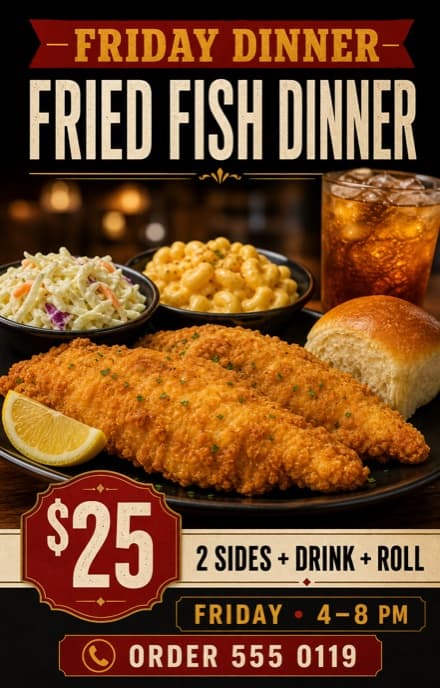
First restaurant dinner special flyer draft
First draftThe dish is clear, but the price and order action can be stronger.
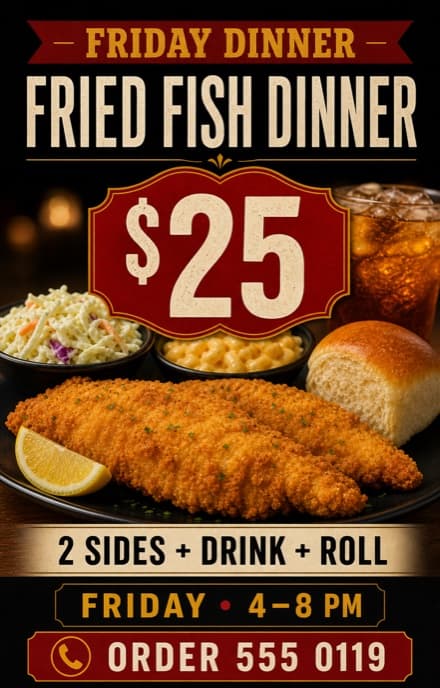
Revised restaurant flyer with a more prominent price and simpler hierarchy
Chat revisionThe price is easier to notice and the layout is easier to scan.

Example follow-up: “Make $25 the focus, simplify the layout, and make the phone number easier to scan.” The restaurant details are fictional.

1

Start with one message

Choose one offer and one action

Pick the single reason someone should respond: a dinner special, happy hour, opening, delivery offer, event, or catering service. Then choose one action such as order now, reserve a table, visit today, or request a quote.

A restaurant promotion flyer is not a full menu. Keeping one offer central makes the price, food image, and next step easier to understand.

2

Prepare accurate content

State the price, availability, and ordering method

Write the offer as a complete order: “[DISH + INCLUDED SIDES] — [PRICE]. AVAILABLE [DAY AND HOURS]. ORDER AT [PHONE OR URL].” State whether it is dine-in, pickup, or delivery, and include relevant fees or minimums.

OfferFeatured dish, combo, discount, opening, happy hour, delivery, or catering package.
TimingAvailable dates, days, hours, expiration, and pickup or event time.
How to orderPhone number, URL, app, QR code link, reservation method, or visit CTA.
Location and assetsAddress or delivery area, plus an approved food photo and restaurant logo.

Using a food photo? Upload the approved image and identify it as the dish to feature. Generated food may not match what you serve, so check the result before advertising it.

3

Set the visual priority

Put the dish, price, and order action together

Decide whether the dish, offer, or price should lead. One strong food photo usually communicates faster than a collage, while clear spacing keeps the price and ordering method visible.

Choose the format before generating: 1:1 or 4:5 for many feed posts, 9:16 for Stories, or a portrait shape for a printed handout. Request a separate layout for each important placement.

4

Generate the restaurant flyer and check ordering details

Choose a prompt, replace the placeholders, and upload a photo of the dish you actually serve. Include the full offer and ordering method. Send the prompt in Vismuse to generate the first draft.

Dinner special prompt

Create a 4:5 restaurant flyer for “[RESTAURANT NAME]” promoting “[DINNER SPECIAL]” for “[PRICE].” Use my uploaded photo of [DISH] as the main image and keep the food recognizable. Show “[DAY AND HOURS],” “[ADDRESS],” “[PHONE OR URL],” and “[CTA]” exactly. Make the offer and price easy to notice at a glance, with warm food lighting and [BRAND COLORS].

Grand opening or food pop-up prompt

Create a bold portrait restaurant promotion flyer for “[RESTAURANT OR POP-UP NAME].” Display “GRAND OPENING,” “[DATE AND TIME],” “[LOCATION],” “[OPENING OFFER],” and “[CTA]” exactly. Feature one appetizing [DISH OR DRINK], use [BRAND COLORS], and make the date, offer, and location easy to scan.

Catering promotion prompt

Create a clean restaurant flyer promoting catering from “[RESTAURANT NAME].” Use one generous food spread as the main visual. Include “[PACKAGE OR SERVICE],” “[STARTING PRICE],” “[SERVICE AREA],” “[PHONE OR URL],” and “REQUEST A QUOTE” exactly. Use [BRAND COLORS], clear spacing, and a professional but appetizing style.

Check the included items, serving size, price, available hours, and pickup or delivery conditions. Customers should not need to call to find out what the offer includes.

Ask for changes in the same chat. For example: “Keep the dish photo. Put “[PRICE] DINNER FOR TWO” above the included sides and place “[PICKUP HOURS]” beside the order number.”

Each revision creates a new image, so recheck details you did not ask to change.

Test the ordering URL or phone number and check that the food image represents the offer. Download as PNG or JPG, or export an eligible original as PDF. For print, confirm sizing and resolution with your printer; PDF export does not automatically add bleed or crop marks.

New to Vismuse? Follow the step-by-step flyer creation guide. For changes to an existing design, see how to edit a flyer with AI.

Avoid these problems

Common restaurant flyer mistakes

Trying to show the whole menuPromote one reason to act. Use a dedicated menu or landing page for the full selection.
Using a vague offerState the dish, price, valid time, and what the customer receives.
Hiding the order methodGive people one clear way to order, reserve, request a quote, or visit.
Using misleading food imageryPrefer an approved photo of the real dish when appearance matters, and review generated imagery before publishing.

Before you publish

Restaurant flyer checklist

  • The dish, offer, or restaurant event is the first thing people notice
  • Restaurant name, price, dates, hours, and address are correct
  • Offer terms and included items are clear
  • There is one easy-to-find ordering or visit action
  • Food photos and logos are approved and accurately represented
  • Text is readable in the intended format, and print requirements are confirmed when needed

Frequently asked questions

How to make a restaurant flyer: FAQ

How do I make a restaurant flyer with AI?

Choose one promotion, gather the exact offer and ordering details, add an approved food photo or logo, and name the intended format. Generate a first draft, check every price and detail, then request focused changes in the same chat.

What should a restaurant flyer include?

Include the restaurant name, featured dish or offer, price, valid date or hours, location or delivery area, and one call to action. Add only the supporting details customers need to act.

Is a restaurant flyer the same as a menu?

No. A restaurant promotion flyer usually highlights one offer, event, or service. A menu needs more space and a consistent structure for multiple items, descriptions, and prices.

Can I use my own food photo and logo?

Yes. Upload the approved files, identify the food photo as the main image and the logo as branding, and state what must remain recognizable. Use only assets you have permission to publish.

Can AI change a price or offer on an existing food flyer?

Yes. Quote the current wording and exact replacement, then state what should stay. Each edit creates a revised image rather than changing an independent text layer, so proofread the whole result again.

Can I print a restaurant flyer made with Vismuse?

You can download eligible results as PNG, JPG, or PDF. The PDF preserves the generated aspect ratio and does not automatically add bleed or crop marks, so confirm dimensions, resolution, color, bleed, and file requirements with your printer.

Keep exploring

Related flyer resources

AI Flyer GeneratorSee how the chat-based flyer maker creates and revises restaurant promotion flyers without a traditional canvas.Create a restaurant flyer in VismuseSend the offer and approved food photo, review the first draft, and request focused changes in the same conversation.25 AI flyer promptsCopy prompt patterns for restaurant specials, cafés, sales, events, services, and local promotions.Edit a flyer with AICorrect a price, change visual priority, replace a photo, or adapt a flyer through chat.Flyer templatesBrowse visual directions for restaurants, events, parties, businesses, and local campaigns.How to make a flyer with AIRead the broader workflow for planning, generating, reviewing, and exporting any type of flyer.

From offer to finished flyer

Create and revise your restaurant flyer with the AI agent

Send the promotion and approved assets, then request changes in the same chat.

Start creating

A clearer food promotion

Lead with one offer, one appetizing image, and one action.Remember:
  • Exact offer and price
  • Approved food photo
  • Location or delivery area
  • Focused chat revisions
Vismuse

Create and edit images and videos through conversation—no traditional editor required.

Product

AI Image GeneratorAI Video GeneratorAI Image to Video GeneratorAI Animation GeneratorAlbum Cover MakerProduct Ad MakerAI Flyer Maker

Templates

All TemplatesFlyer TemplatesAlbum Covers

Resources

Help CenterDocsToolsPricing

Company

Contact supportAbout VismuseAcceptable UsePrivacyTermsRefund PolicyCookies
© 2026 Vismuse. All rights reserved.
English
EnglishDeutschFrançaisEspañolPortuguês (Brasil)日本語한국어繁體中文