
The video supplies the performance
The party scene and moves are ready. You do not need to describe them.
Upload one photo to make your own Burning Bridges AI party video. The included Drake performance clip guides the scene and moves. Choose 5 or 10 seconds, check the credit cost, then download your MP4 with sound. Paid credits are required.
Upload your photos and let AI recreate the trend’s signature moves. No reference video or prompt required.
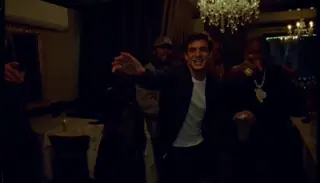 Burning Bridges
 No Scrubs AI
 Rumpelstiltskin
 Bad Times
 Gas Station Dance
 Gangnam Style AI
 Bulin 47
 Trouble Maker AI
 Bing Bing Bing Kicking AI
 I Love the Smiths AI
 BbY WOW AI
 Champagne Birthday AI
 NEON Dance AI
 Hotel Lobby
 Hit The Road Dude
 STORM II
 Alors On Danse
 Babydoll Dance AI
 Like JENNIE AI
 I'm Gonna TOESA AI
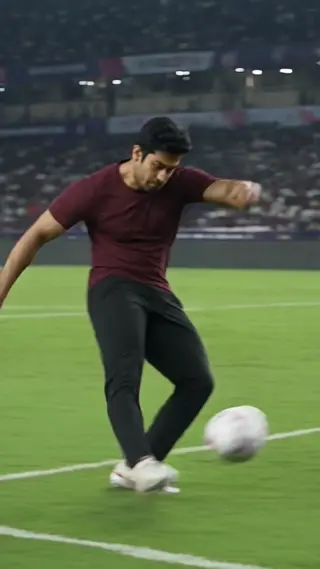 Ozil Goal
 Crazy Frog AI
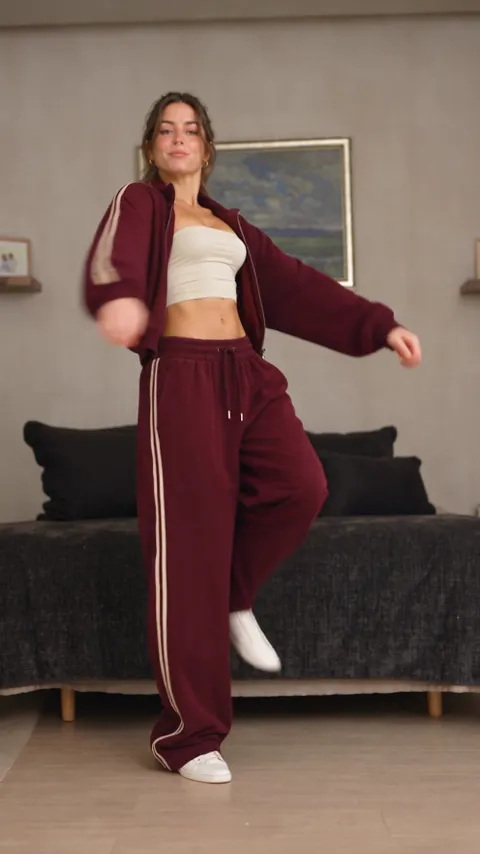 Toc Toc
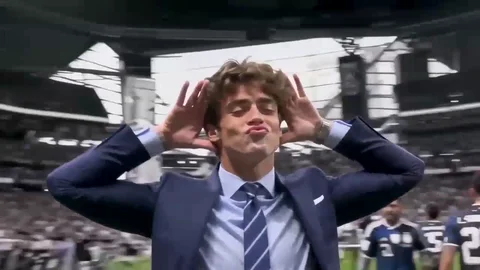 Enzo Fernandez Celebration AI
 Bicep Heart AI
 Mulmannan Gwangeo AI Dance
 Michael Jackson Dance
 I’m So In Love With You AI
 Smalltown Boy
 Raindance
 Thriller Dance AI
 Dame Hombro AI Dance
 AI Dog Dancing
 Birthday Car AI
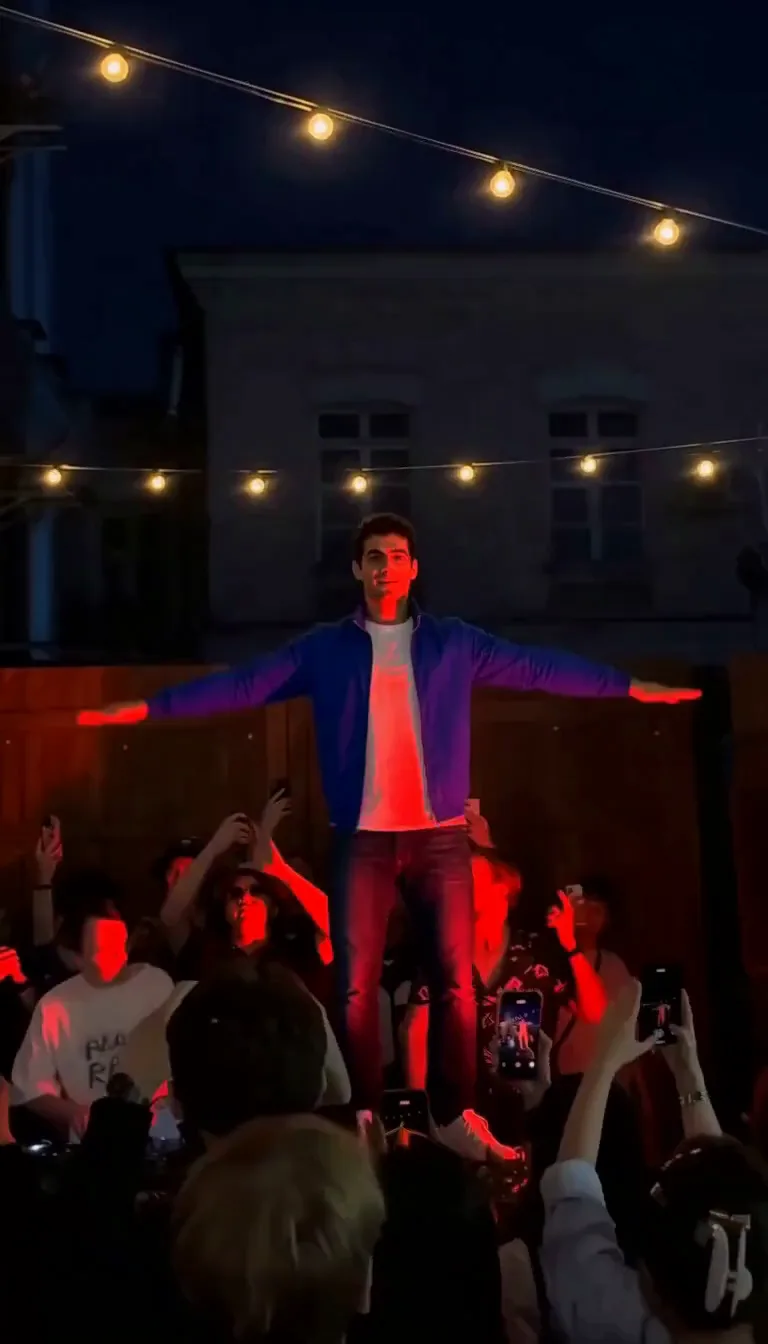 Cheba Man
 AI Kissing
 Cow Shaking Head AI
 Zombie Video
 Sheru AI
 End of Watch AI
 ATEEZ BAD AI
 Jailer 2 AI
 Otsukare Summer AI
 Money Flex AI
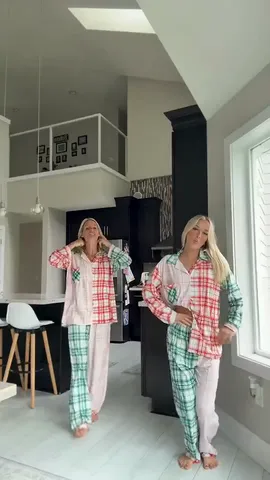 Christmas Pajama Dance AI
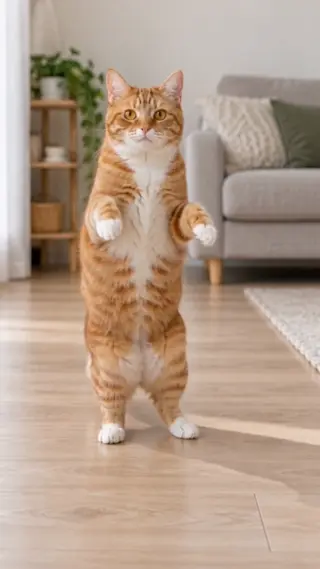 AI Cat Dance
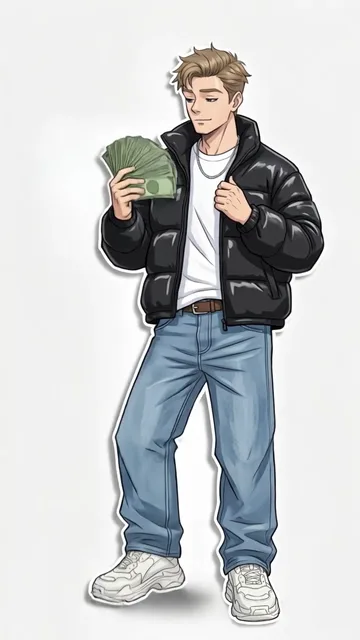 Wassup in a Minute AI
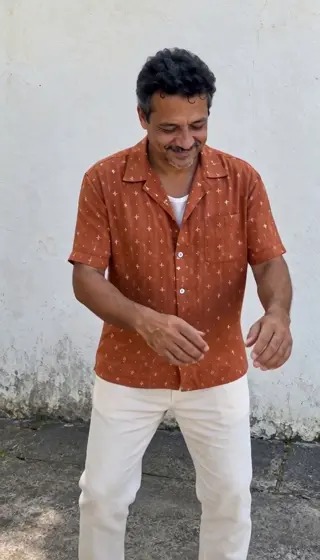 Charme Dance AI
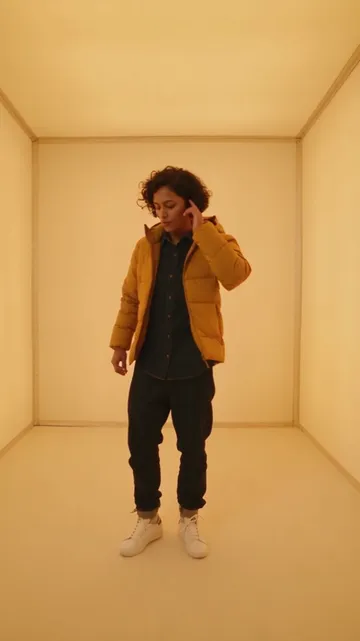 Hotline Bling Dance AI
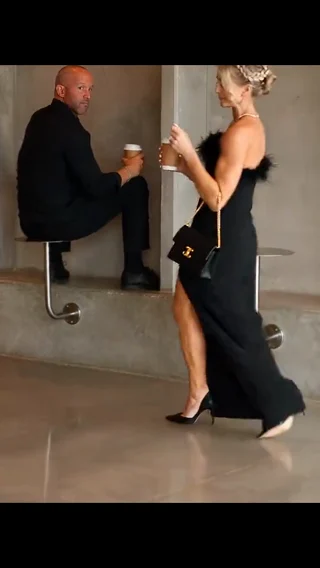 First Time in a Fancy Cafe AI
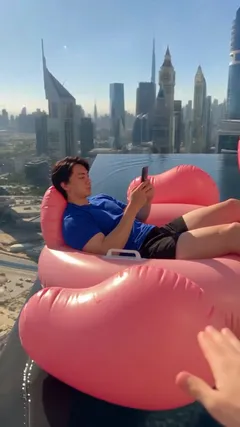 Flamingo Float AI
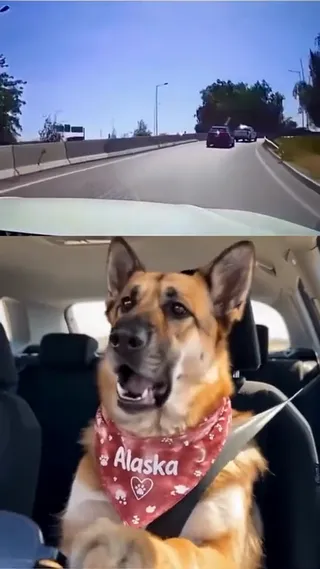 It’s My Life Dog AI
 Tough Like a Gorilla AI
 Bonito Bonito AI
 Suave Cat Dance AI
 JISOO Addicted Dance AI Video Generator
 The Last Dance AI
 Mop Dance AI
 24K Magic AI
 AI Crying
 Macarena Dance AI
 Tung Tung Tung Sahur Dance AI
 Turn The Lights Off AI
 Uptown Funk AI
 KDA Firestarter AI
 Pet Rock Dance AI
 Shan Shen Bu Dance AI
 TAKE ME AI
 Coldplay Kiss Cam AI
 Babydoll Dance Pet AI
 C-Walk AI
 Bow Bow Bow Dance AI
 Mi Chico
 APT Dance AI
 Tiny Desk AI
 Ballon d’Or AI
 Window Dance AI
 You Look Lonely AI
 Can I Ride Dance AI
 Zany Emote Dance AI
 Pet Bop Dance AI
 Cat Clapping AI
 What Stop Sign AI
 BABYMONSTER DESERVE AI Video Generator
 Dog Elevator Prank AI
 Christmas Lights Car AI
 Glow Trio AI
 Giant Ramp Climbing AI — Dam Wall Run Video Generator
 Cat Open Mouth Massage AI
 Aeropickles Dance AI
 AI Doorbell Video
 Keep On Steppin AI
 Chicken Dance AI
 Gender Swap Filter AI
 Mini Me AI
 Dog Making Coffee AI
 Fish Cutting Meme AI
 Dog Bohemian Rhapsody AI
 Mellojoy Dance AI
 Your Next Opponent Is You
 Juju On That Beat AI
 Singing Dog AI
 Fergie Baby AI
 Bécane AI
 Look Alive AI
 ILLIT Under Arrest Dance AI
 Ukwu Dance AI
 Iconic By Mistake Dance AI
 Twilight Baseball AI
 Then I Walk In AI
 I Hope He Buys You Flowers AI
 Smooth Criminal Dance AI
 Just a Little Bit AI
 I Just Beat The Case AI
 Lonyo AI
 AI Ceiling Fan Transition
 Buggin Dance AI
 Snatch Back Splash AI
 Christmas Dance Trend
 Ain’t No Mountain High Enough AI
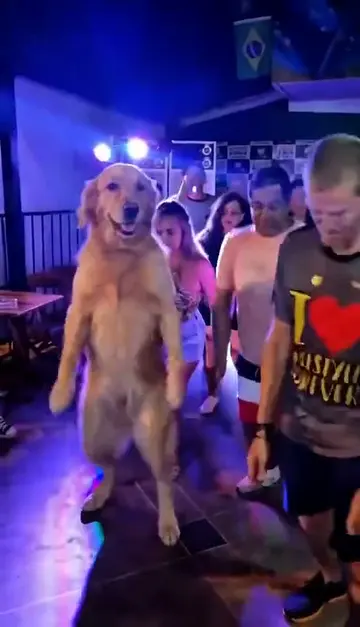 That's My Dawg AI
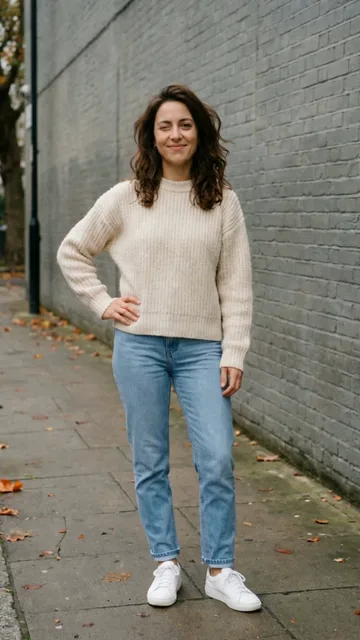 Mandem in Disguise AI
 Talk Dirty Dance AI
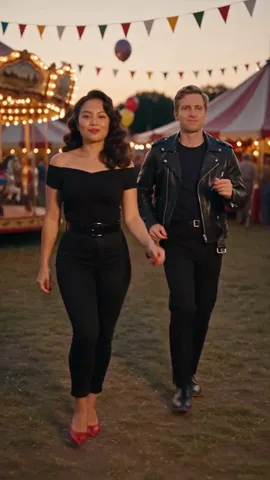 Grease Dance AI
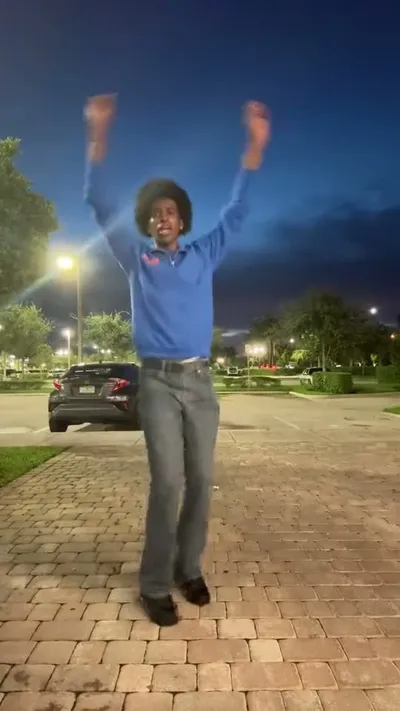 Pick It Up Dance AI Video Generator
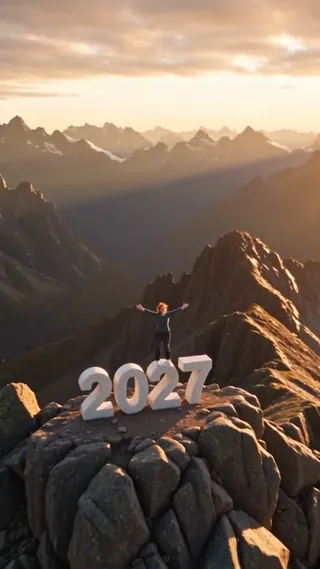 2027 New Year AI
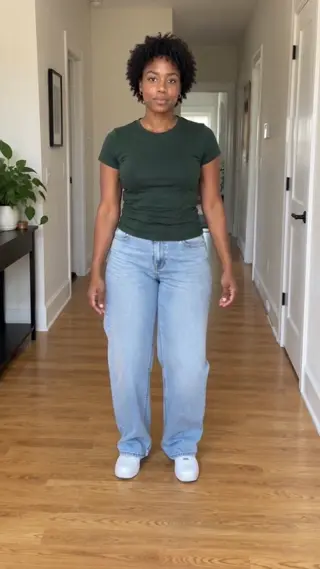 Camden Bop
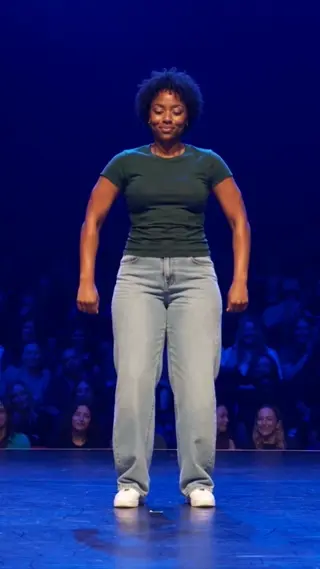 Jean Phil Gang Gang
 KATSEYE Animal AI
 AI Cartoon Couple
 Walk It Like I Talk It AI
 Kung Fu Cat AI
 Not Cute Anymore AI
 Toosie Slide AI
 Potion Witch AI
 Skyfall AI
 Deep Down In My Heart AI
 Venom Makeup AI
 Baby With Mustache AI
 Stones to Castle AI
 AI Cupid
 Snow Leopard Meme AI — Paws At You Video Generator
 Quiet on the Creek AI
 Chiikawa Dancing Nokia AI
 Zombie Couple
 Lush Life Dance AI
 AI Halloween Costume
 Closed on Sunday AI
 Thank You Baby AI
 Can Can Dance AI
 Tyla Dance AI
 I Got That Feeling AI
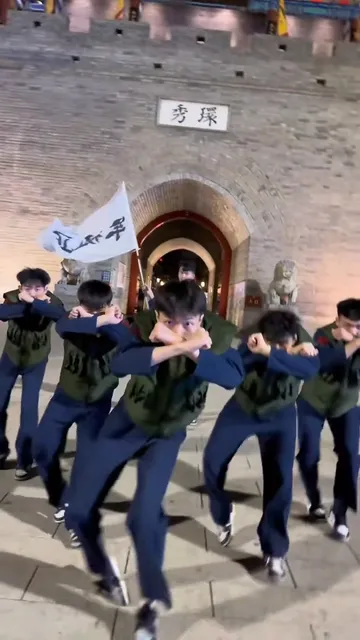 Naruto Dance AI
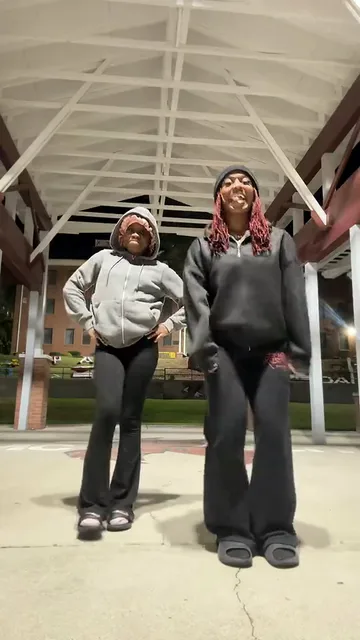 Puerto Rican Mami Dance AI
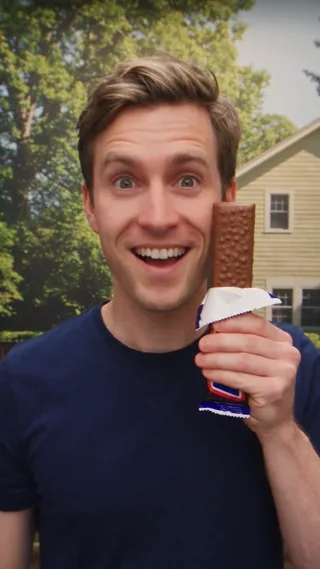 Nestle Crunch AI
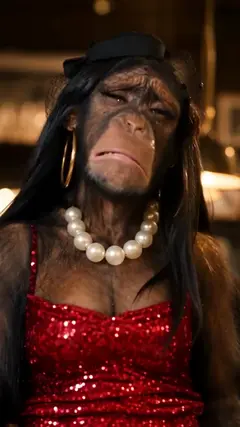 I Thought We Were Having A Nice Date AI
 iPhone Kupi Dance AI
 AI Red Riding Hood Video Generator
 Chipmunks Dance AI
 Hop Hop Hop AI Dance
 58th Floor AI
 Aserejé AI
 Vampire Duo Dance AI
 No Renunciaré AI
 Rasputin Dance AI
 Check One Check Two AI
 Mummy Zombie Dance AI
 Mom Dad Sister Brother AI
 Skull Cap AI
 Mabel Matiz Umrumdışı AI Video Generator
 Closing Door Prank AI
 Spooky Scary Skeletons AI
 Ramalama AI
 I Put My Heart in This AI
 AI Caricature Trend
 Pumpkin Head AI
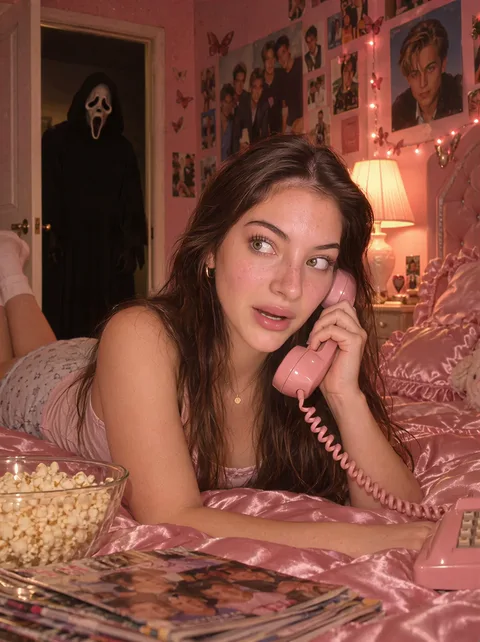 Ghostface AI Trend
 On The Radar AI
 Cutedog AI
 Goodbye GTA 5 AI
 Thanksgiving Dance AI
 INI Present AI
 Jatayu Edit AI
 Wipe Me Down AI
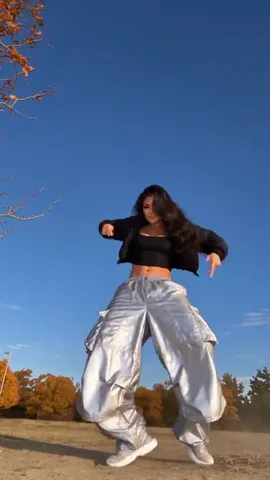 Kakalika Dance AI
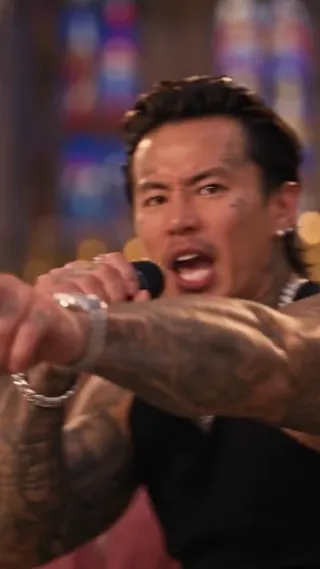 Gangsta’s Paradise AI
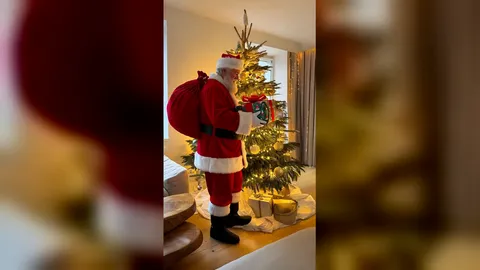 Catch Santa at Your Tree AI
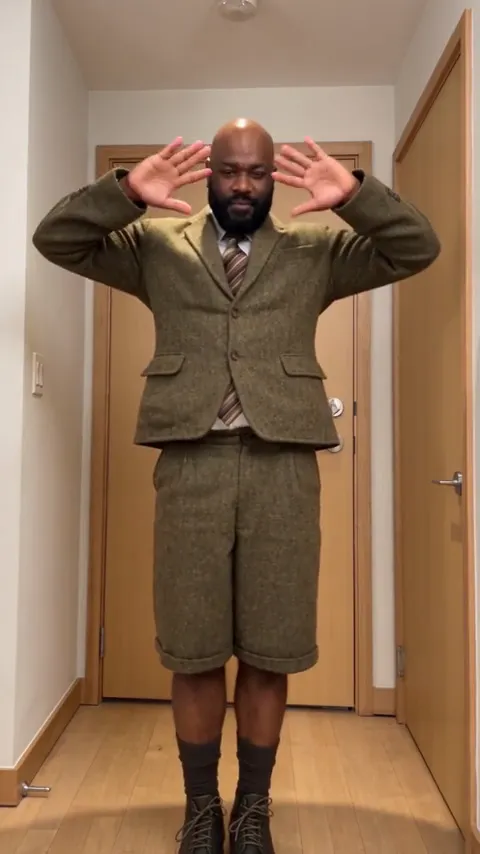 Girls’ Generation Gee AI Dance
 Give It All AI
 Broke Boyfriend Hug AI
 Mexico Pterodactyl AI
 Never Let Her Pay AI
 What If You Fly AI
 Talk To Me Doja AI
 Oh My Carne Asada AI
 Can I Help You Miss AI
 Ronaldo Header AI
 Mews House London AI
 Love Handstand AI
 Homesick for a Person AI
 Boom Clap Confetti AI
 Huss Huss Huss Dance AI
 Cow Makeup AI
 Jingle Bell Brazil Dance AI
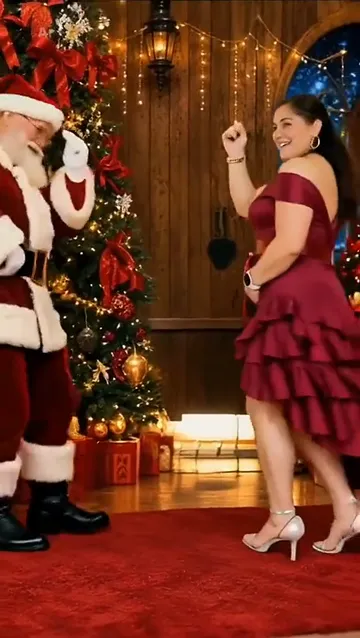 Bailando con Santa AI
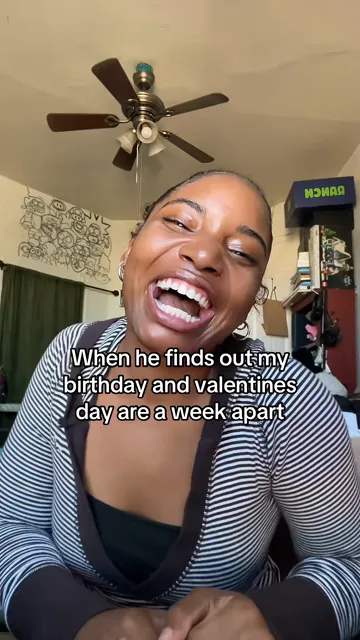 He Wanna Pay Full Price AI
 Reaching Out Cat AI
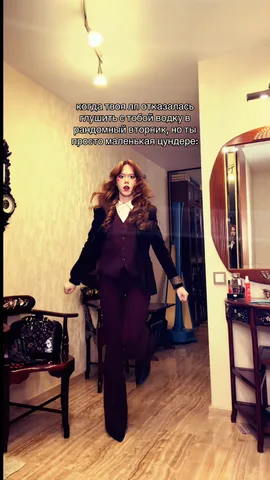 Tsundere Hmph AI
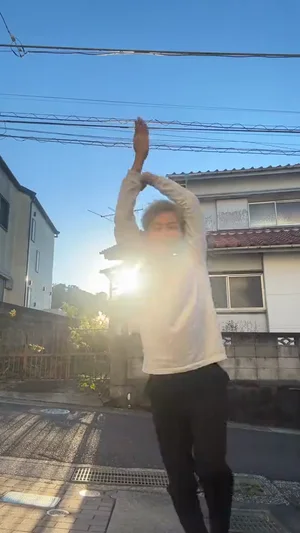 Anone Daisuki Dance AI
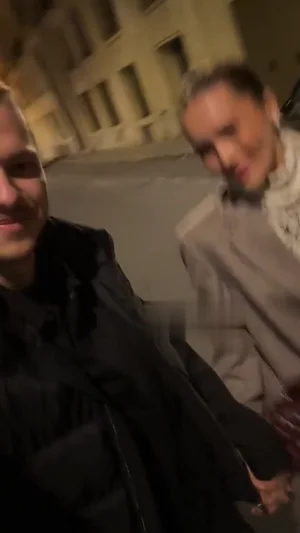 My Moon, My Man AI
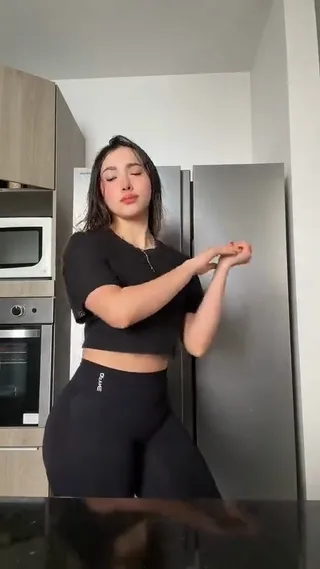 La Mujer del Pelotero AI
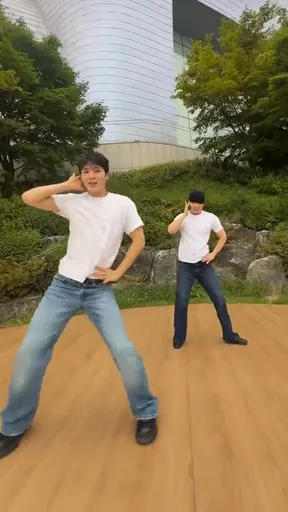 Love Options Dance AI
 Musubi Dance AI
 BABY ANGEL AI Dance
 Winter Wonderland Dance AI
 Ba Ba Ba Dance AI
 Waiting on My Fries AI
 TXT Angel Bite Dance AI
 GTA 6 Girlfriend Drama AI
 Gobble Gobble Dance AI
 Rollie On My Wrist AI
 Kung Fu Turkey AI
 Hug My Younger Self AI
 Oouuh AI
 White Chicks AI
 Glove Knock AI
 Villain Chair Trend AI
 Club Spotlight Couple AI
 Doodle Dance Partner AI
 November Rain AI
 Tamagawa Koi Dance AI
 Oh You Can Make It Cap AI
 AI Claw Machine
 MasterChef Cat AI
 Ice Ice Baby AI
 Hold Up Dance AI
 Damon Salvatore AI
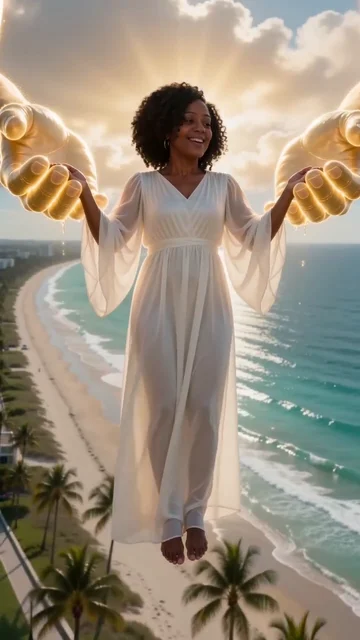 Hand of God AI
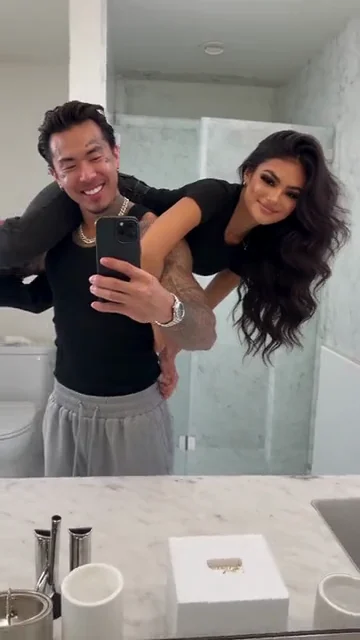 Me and My Girlfriend AI
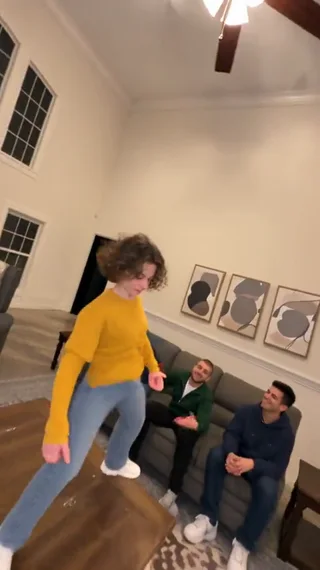 Will Byers Dance AI
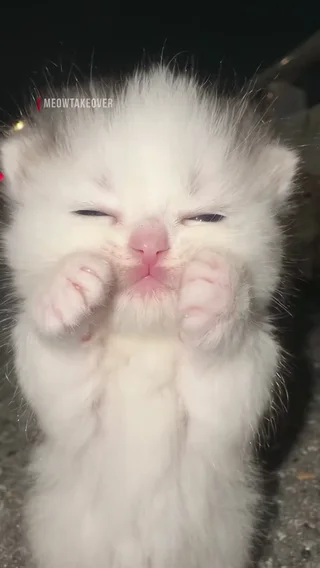 Kiat Jud Dai Kitten Parade AI
 Touch My Body Dance AI
 Colors of Broken Heart AI
PHOTO TO VIDEO
Compare the fictional input photo with a 10-second video made using the current Burning Bridges reference. Your result may vary.
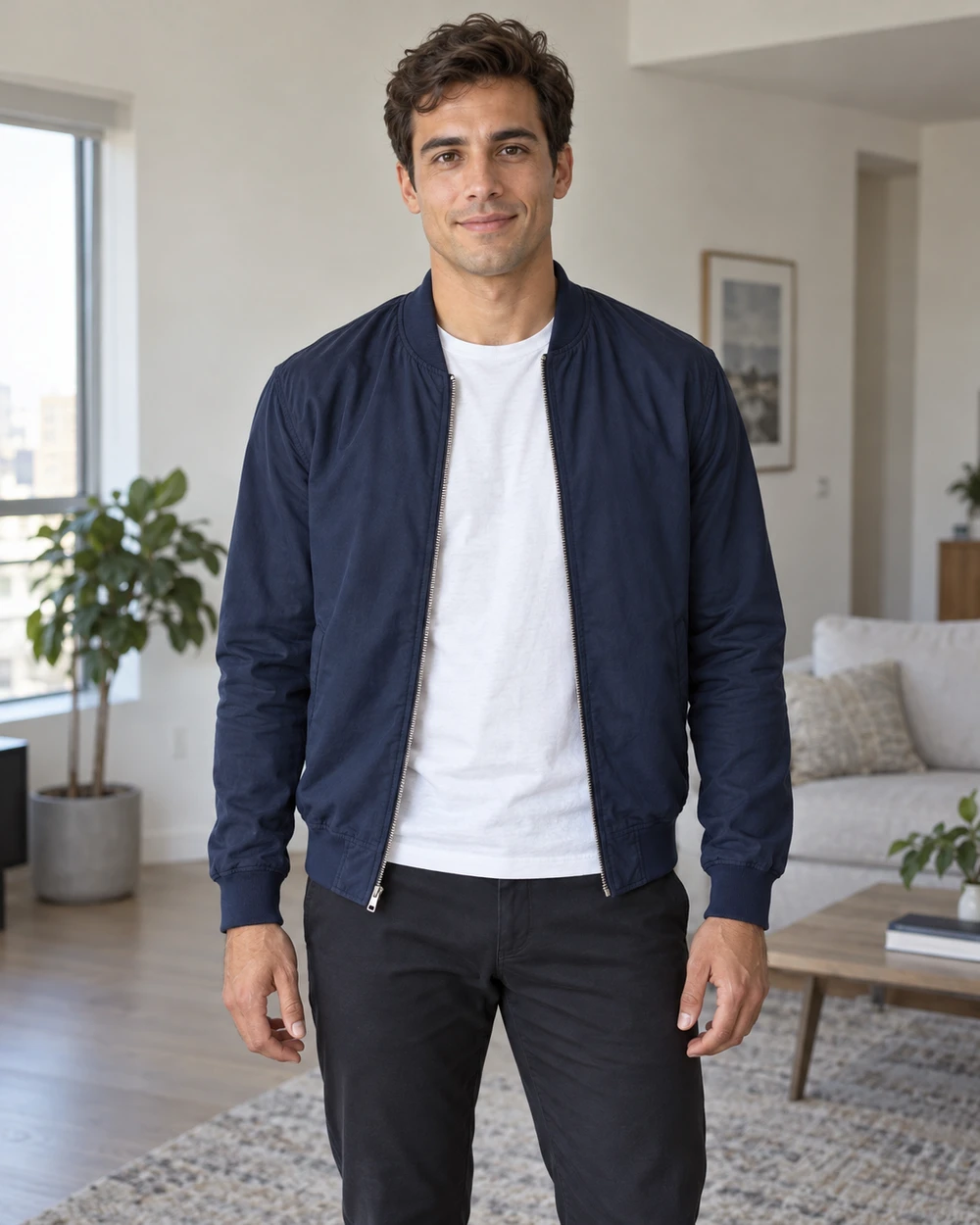
An AI character with short brown hair and a navy jacket.
The input photo guides the new lead’s face, hair and jacket. Generated movement and small details may vary.
His short brown hair and navy jacket carry over from the photo to the party scene.
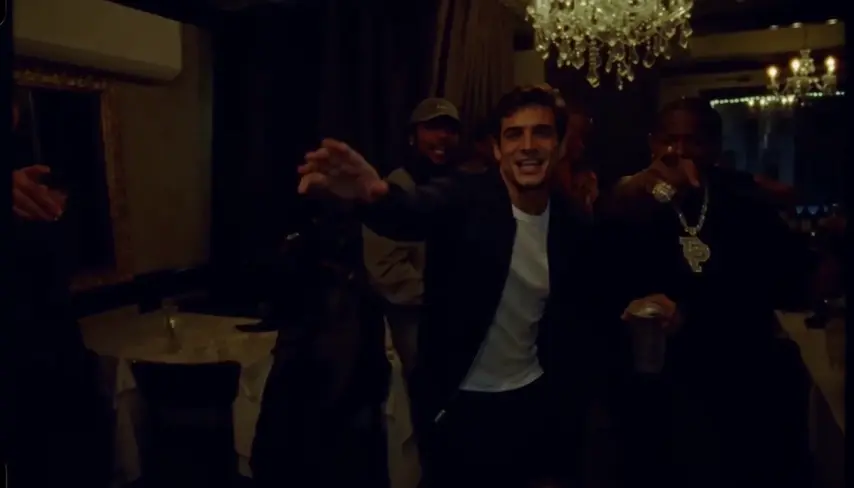 Watch the full 10-second exampleSee the generated video and its source photo on a dedicated watch page.Learn how to make your own video
THE PARTY TREND
Burning Bridges AI puts you at the center of the party performance. Your photo provides the face, hair and outfit; the included video guides the moves.
The Drake Burning Bridges AI video trend recreates the party performance from Drake’s Burning Bridges music video. Warm chandelier light, a lively crowd and a metal cup set the scene. The first person in your photo becomes the lead; any other people become separate background performers. The included clip guides the movement and camera.
Upload one clear photo. If it shows several people, the first person becomes the lead and the others appear as separate background performers.
The party video is already included. No prompt needed; add a short instruction only if you want a change.
Choose 5 or 10 seconds and check the credit cost. Generate your video, watch it with sound and download your favorite take.
The party scene and moves are ready. You do not need to describe them.
The first person in your photo guides the lead's appearance. Other people in the same photo guide separate background performers.
Want a small change? Try ‘Use warmer lighting’ or ‘Keep my blue jacket.’
The template is built in. Use the ready-made scene, or add a short instruction to make it yours.
Choose Burning Bridges for one lead performer surrounded by a party crowd. Hotel Lobby is better for two featured performers sharing a microphone. Your Burning Bridges photo changes the lead, rather than assigning a new face to every guest. Check the lead when people pass in front, and listen to the full download before posting.
GET A CLEARER FIRST RESULT
Burning Bridges AI puts you at the center of the party performance. Your photo provides the face, hair and outfit; the included video guides the moves.
Upload one clear photo. It may show one person or several. The first person becomes the lead; each other person appears as a separate background performer when the reference scene shows them.
It creates an AI video using your face, hair and outfit, with the party clip guiding the performance. Faces, hands and movement can vary, so review the finished video before sharing.
Your downloaded video includes the original sound from the party clip. Mouth movements may not match the words exactly.
You can watch the examples for free. Making a video requires credits from a paid plan or credit pack; free trial credits cannot be used. Check the cost before generating. Each new version also uses credits.
Choose 5 seconds for the opening of the party clip, or 10 seconds for the full included scene.
Yes. Add a short instruction, such as ‘Use warmer lighting.’ Leave it blank to follow the included party scene. Larger changes may look less like the example.
Use a clear, front-facing photo with your outfit visible. Try the included scene first, then ask for one specific change in the same conversation if needed.
Yes. Download the MP4 when it is ready. Videos are landscape by default; crop yours or add it to a vertical canvas for Reels or TikTok. Use photos and music you have permission to share.
Need credits? See Vismuse pricing.
Your turn in the spotlight. Start with one clear photo.
Make your video